
Having a personal Microsoft account registered with a corporate email address can cause confusion for users (and I’m pretty sure that it has some security implications as well). When a domain is already added to an Entra tenant as a verified custom domain, you cannot create a personal account with an email address from that domain – but if this domain is just getting “onboarded” to Entra, it is likely that users have already signed up for a personal account.
There is already a solution that can lookup users with personal account: https://sysmansquad.com/2020/11/23/find-microsoft-accounts/
However, I tried to find a different solution which does not require an app registration and provides an anonymous method to find if the user has a personal account or not.
TL;DR
– the signup.live.com page (where you can create a personal account) uses the CheckAvailableSigninNames API endpoint to verify the email address
– we can use this API to query addresses in batch
– if we find users with a registered account, we can instruct them to change the alias to avoid confusion
The script (explained below):
#example: Check-MSAccountAssociation -emailAddress user@domain.com

function Check-MSAccountAssociation ($emailAddress){
Start-Sleep 2 #to avoid "Too many Requests"
#Initialize session
$session = New-Object Microsoft.PowerShell.Commands.WebRequestSession
$req1 = Invoke-WebRequest -UseBasicParsing -Uri "https://signup.live.com" -WebSession $session

#Extract ServerData
$regex_pattern = 'var ServerData=.*;' #find response starting with 'var ServerData' ending with a semicolon -
$matches = [regex]::Match($req1.Content, $regex_pattern)
$data = ($matches.Value.Split(";"))[0]
$data = $data.Replace("var ServerData=","")
$sessionData = $data | ConvertFrom-Json


    $body = @{
        uaid = $sessionData.sUnauthSessionID
        signInName = $emailAddress
        scid = "100118"
        hpgid = "200225"
        uiflvr = "1001"
        }

    $headers = @{
        'client-request-id' = $sessionData.sUnauthSessionID
        correlationId = $sessionData.sUnauthSessionID
        Origin = "https://signup.live.com"
        Referer = "https://signup.live.com/?lic=1"
        hpgid = "200225"
        canary = $sessionData.apiCanary
        }

$response = Invoke-RestMethod -method Post -Headers $headers -uri "https://signup.live.com/API/CheckAvailableSigninNames?lic=1" -ContentType "application/json" -WebSession $session -Body ($body | ConvertTo-Json -Compress) -UseBasicParsing
#error 1242 = already exists
#error 1184 = no MSA account, can't sign up with work or school account
#error 1181 = email belongs to a reserved domain (other than outlook.com or hotmail.com)
# isAvailable : false = MS account username is taken (outlook.com or hotmail.com)
    [pscustomobject]@{
        emailAddress = $emailAddress
        resultCode = $response.error.code
        MicrosoftAccount = switch ($response.error.code){'1242' {$true} '1184' {$false}}
        }
}
Example:

This is a PowerShell function, so it is up to you how you pass the addresses to it.
Story
This method is similar to the one used in the solution linked above, but uses an application registered in an Entra tenant. However, I found that it may return incorrect results, because it looks for the HasPassword property with a 1 value, but since it is possible to create a passwordless Microsoft account, this property can be 0
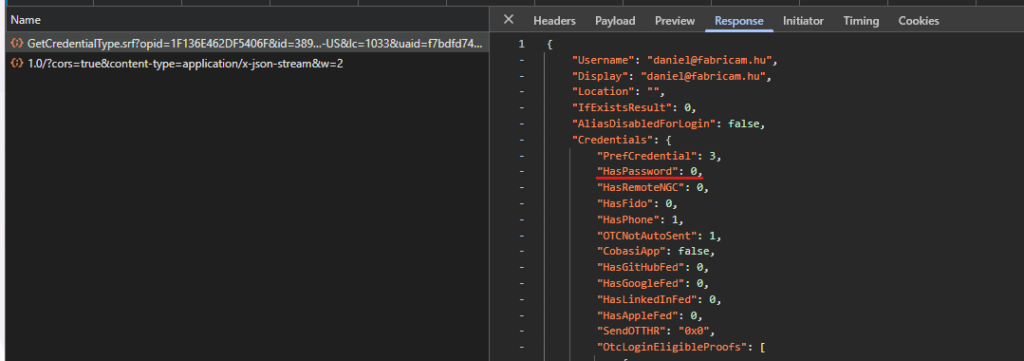
Instead of creating an application for this purpose, I wanted to find a solution without this dependency – like trying to create a personal account.
So I went to signup.live.com, pressed F12 to see what happens behind the scenes. When you enter an email address, a POST request is issued to the following endpoint: https://signup.live.com/API/CheckAvailableSigninNames?lic=1
The payload contains some IDs and the signInName to be checked:
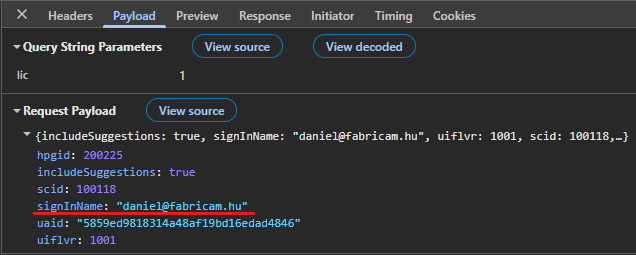
Unfortunately, this endpoint requires some session data, you cannot just submit this payload. So it needs to be figured out, which headers/cookies are needed and how to obtain this info. Right clicking on the request, we can use the “Copy as PowerShell” option which will set all headers as static values – and we can strip it to the bare minimum. After trying a lot of combinations, I came to the conclusion that the following headers are the absolute minimum:
– client-request-id (dynamic)
– correlationID (dynamic)
– Origin (can be static)
– Referer (can be static)
– hpgid (can be static)
– canary (dynamic)
In the payload, the uaid is the only value that cannot be static.
If we take a closer look, we can see that the client-request-id and the correlationID is the same:
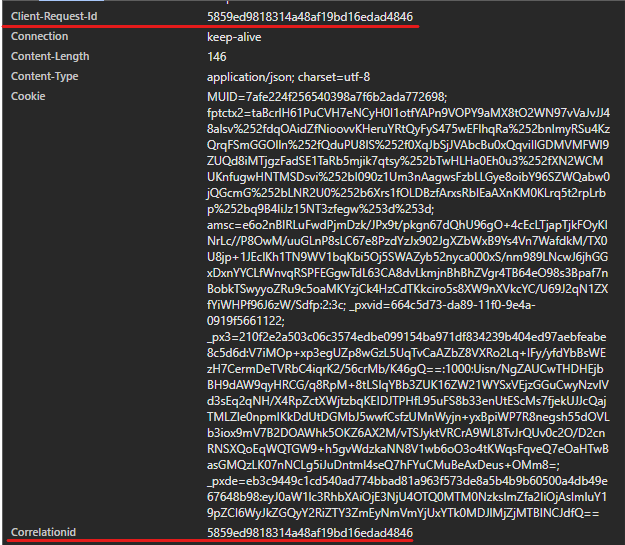
And the uaid in the payload is this same value:
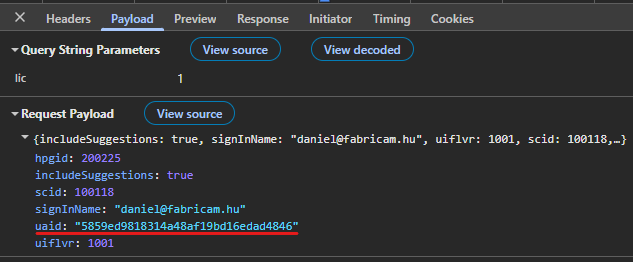
This ID along with the canary is returned upon the first request to https://signup.live.com (after some redirections):
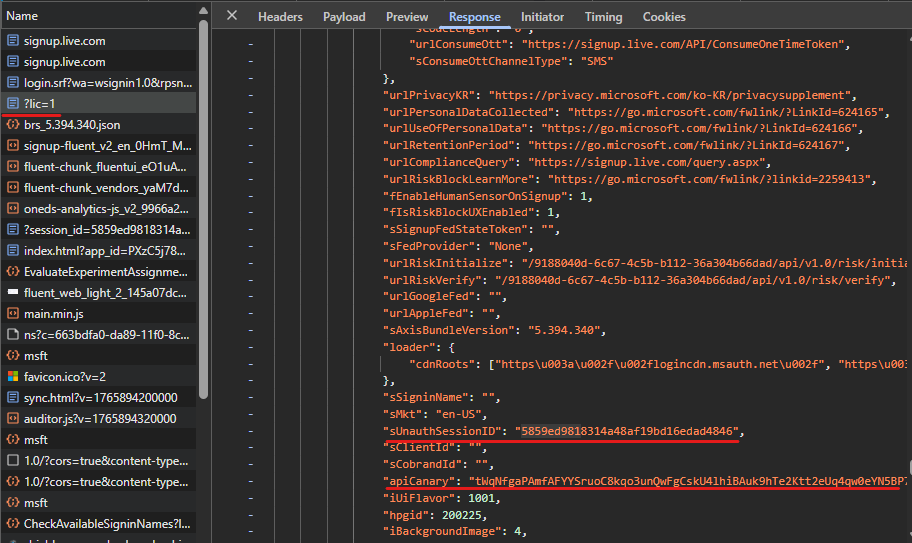
This information is returned in a variable called ServerData – this needs to be parsed in Powershell. There are probably more sophosticated ways to do this, but I used the following method:
- Invoke a request to https://signup.live.com, let PS handle the redirections, store session data in $session variable:
$session = New-Object Microsoft.PowerShell.Commands.WebRequestSession
$req1 = Invoke-WebRequest -UseBasicParsing -Uri “https://signup.live.com” -WebSession $session - Using regex, find a string that starts with “var ServerData=” and ends with a semicolon
$regex_pattern = ‘var ServerData=.*;’
$matches = [regex]::Match($req1.Content, $regex_pattern) - Drop everything after the semicolon, and replace “var ServerData=” with nothing (~trim). The remaining content is a JSON data which can be natively parsed by PowerShell:
$data = ($matches.Value.Split(“;”))[0]
$data = $data.Replace(“var ServerData=”,””)
$sessionData = $data | ConvertFrom-Json
The response apparently has always the same structure: an error block with varying code depending on the submitted address:
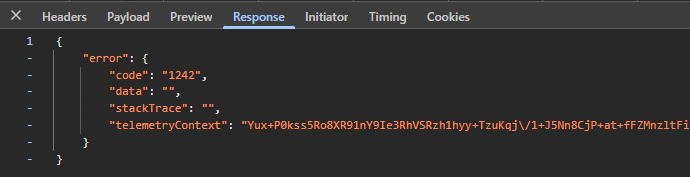
As per my testing, the following codes are possible:
- 1242 = Microsoft account exists
- 1184 = No MS account, domain cannot be used for signup (~verified domain in Entra)
- 1064 = address contains invalid character (don’t ask 🙈)
- 1181 = reserved domain
Note: when testing outlook.com or hotmail.com accounts, the response has a different structure but I didn’t feel the need to handle this scenario in the script.
Note2: The function starts with a 2 seconds pause, because I experienced some throttling when querying multiple addresses (rejected after ~150 requests).
To get rid of the work address – personal account association, the following Microsoft support article can help: link