
Recently I tried to set up ClaimXRay NG with the guidance of DSInternals, learned things, failed here and there and stumbled upon a totally-not-helpful error message: “There was an error in the uploading the private certificate and password. Please try again or contact support.”
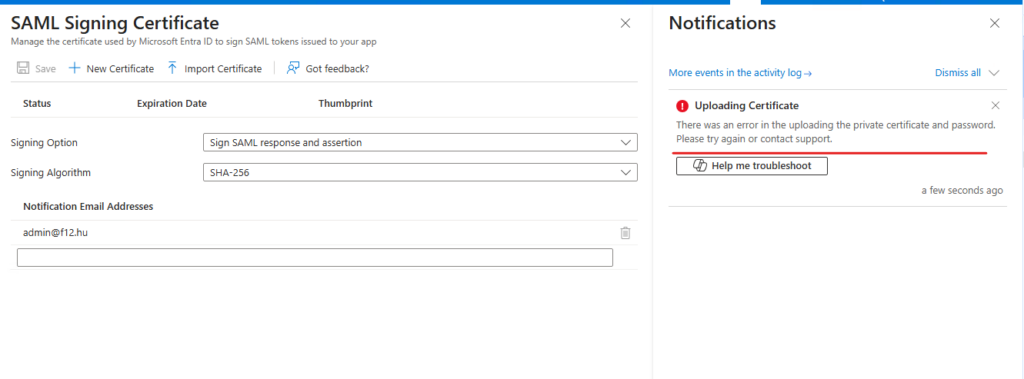
To cut to the chase: This message appeared when I was trying to upload a SAML signing certificate to one of my Enterprise Applications in Entra – which was caused by the App instance property lock enabled on the corresponding application registration object.
TL;DR
- App instance property lock is enabled by default for OIDC applications (“App you’re developing”), but not for SAML applications (Non-gallery)
- When you add the tag “WindowsAzureActiveDirectoryCustomSingleSignOnApplication” to the service principal, the Enterprise application will display the SAML/custom SSO settings
- If you happen to have “converted” your application to SAML this way, the app instance property lock will prevent adding SAML signing certificates to your app
The journey
As mentioned, I encountered this issue when attempting to set up ClaimsXRay NG – but instead of doing it via PowerShell, I wanted to understand each step and do it via GUI if possible. And this is why – I guess – the guide does not mention app instance property lock: because it is turned on by default (only) for applications created in the Entra Admin Center (docs)

To reproduce and understand the issue, let’s see what happens when a SAML/customSSO and an OIDC application is registered in the portal (sorry, still using Azure portal not the Entra admin center) under the Enterprise applications menu.
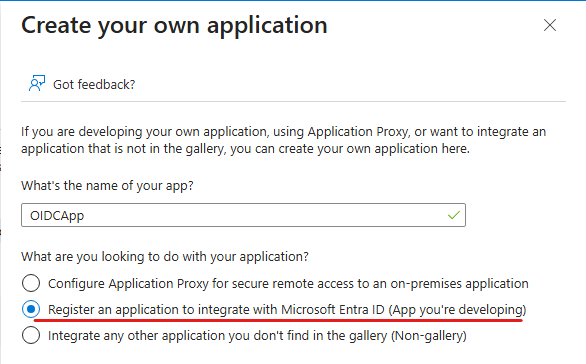
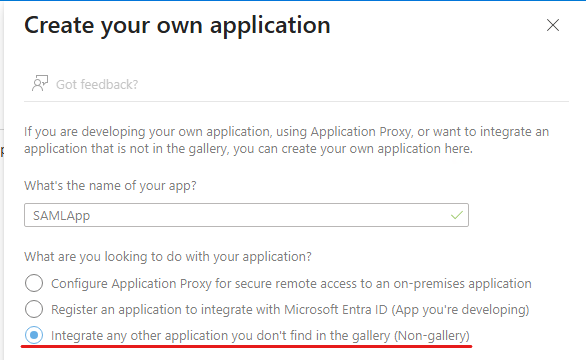
Creating the applications “OIDCApp” and “SAMLApp”, nothing else specified:
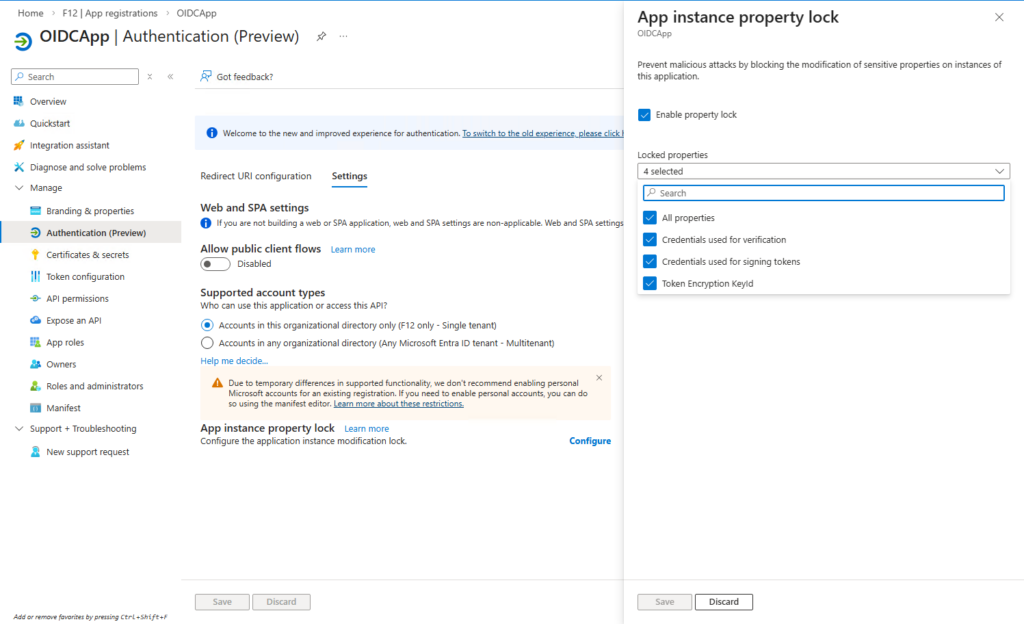
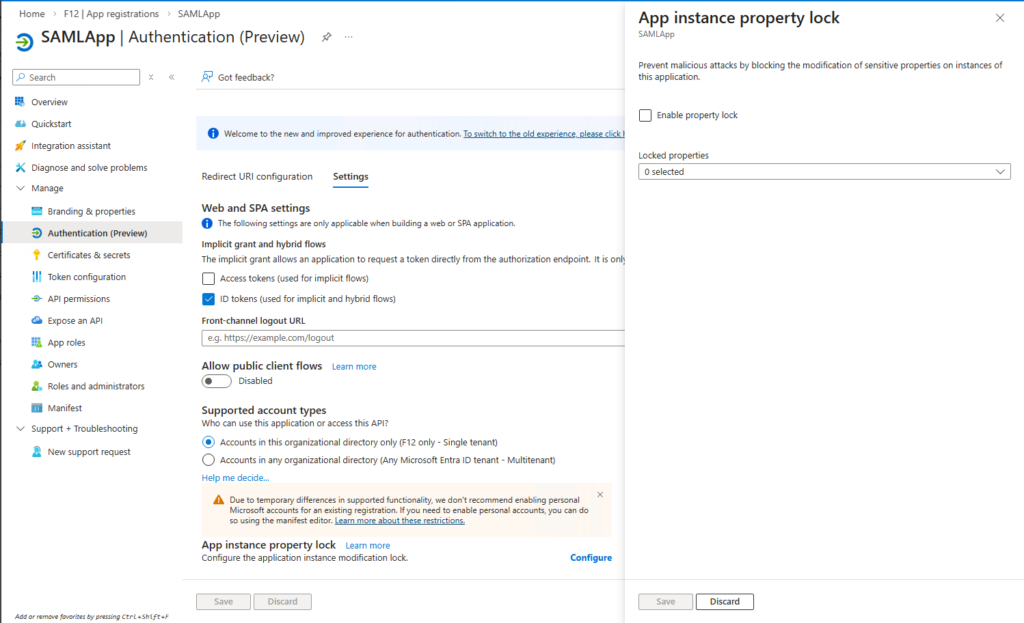
On the App registrations pane, looking at the corresponding application object’s properties (Manage – Authentication (Preview) – Settings – App instance property lock) we can see that App instance property lock is enabled for all properties on the OIDCApp, but not for SAMLApp:
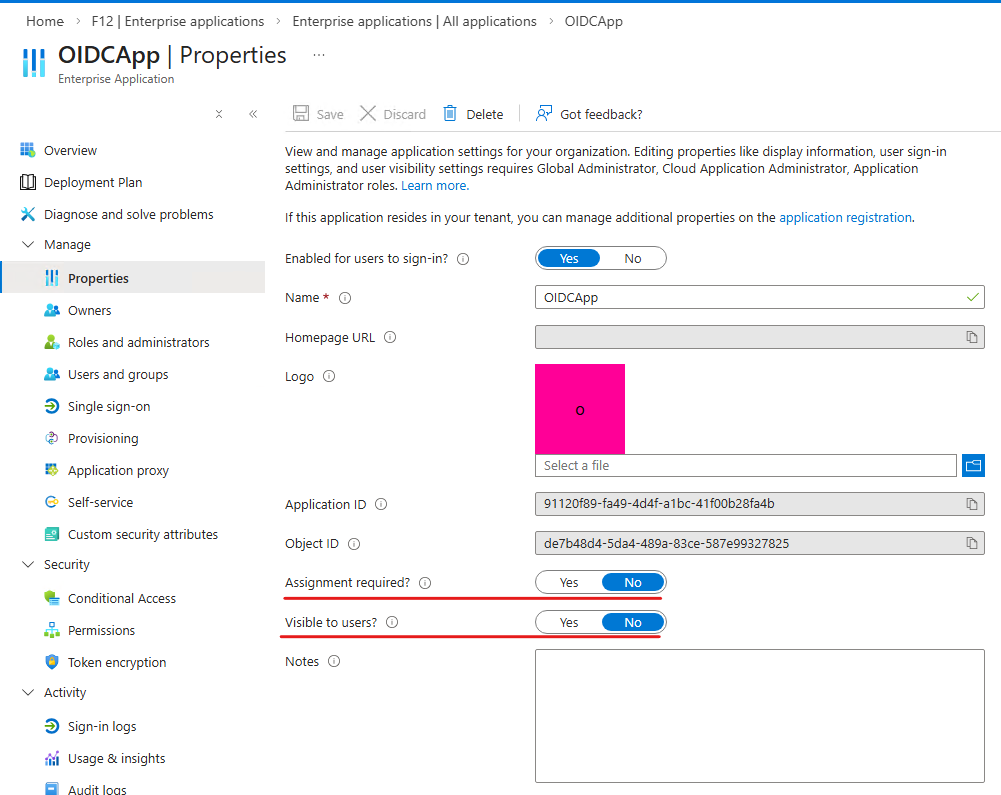
It was also a suprise for me that the Assignment settings are different for the two applications (on the Enterprise Application pane) – OIDCApp does not require assignment but is hidden, while SAMLApp requires assignment but isn’t hidden:

There is no GUI option to inspect the tags assigned to a service principal, so it needs to be done via Graph API:
GET https://graph.microsoft.com/v1.0/servicePrincipals/<objectID of service principal>?$select=tags,appDisplayName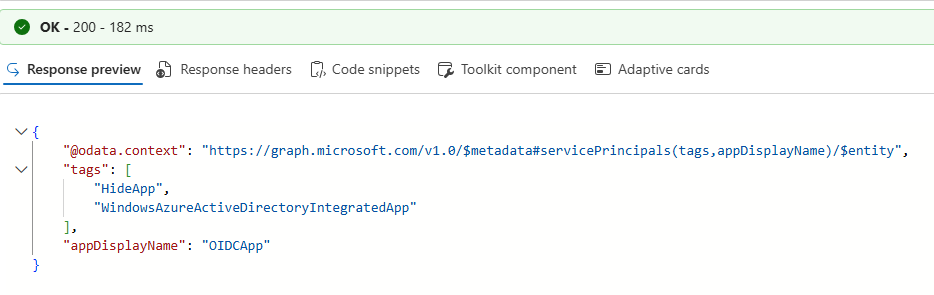
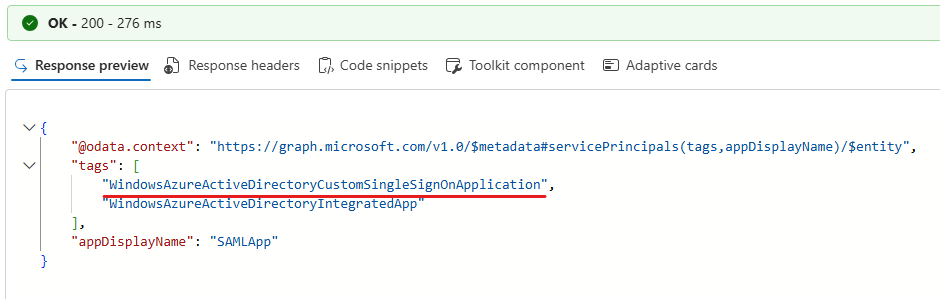
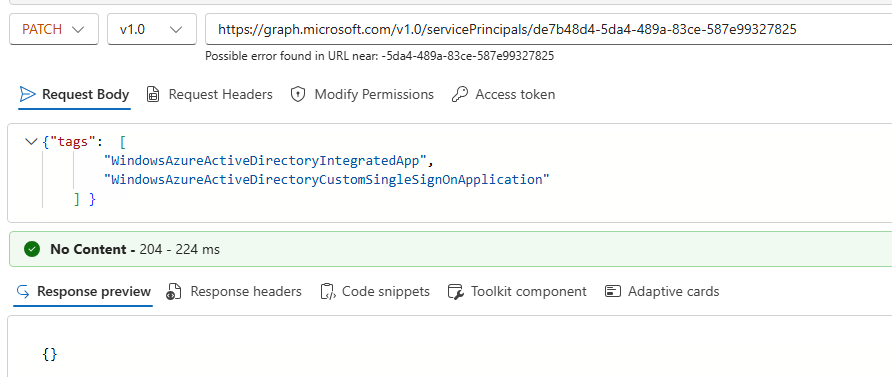
Let’s “convert” OIDCApp to a SAML application:
PATCH https://graph.microsoft.com/v1.0/servicePrincipals/<objectid of OIDCApp's servicePrincipal>
Body: {"tags": [
 "WindowsAzureActiveDirectoryIntegratedApp",
 "WindowsAzureActiveDirectoryCustomSingleSignOnApplication"
]}
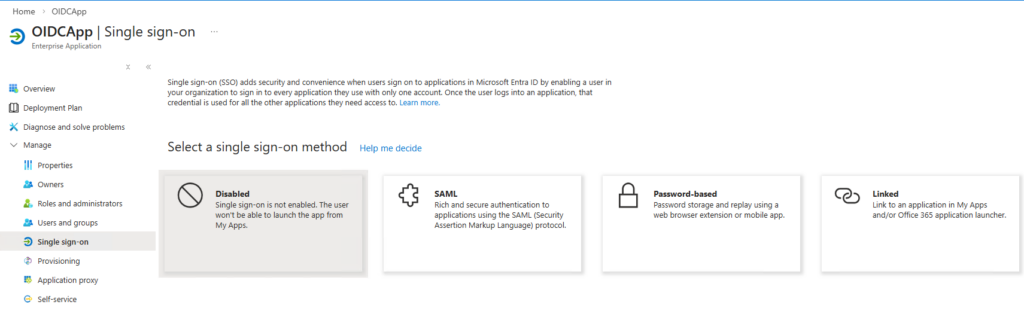
Heading back to the portal, OIDCApp now offers the option to set up SAML SSO:
Keep in mind that the corresponding application object has App instance property lock enabled. Let’s configure the Basic SAML Configuration:
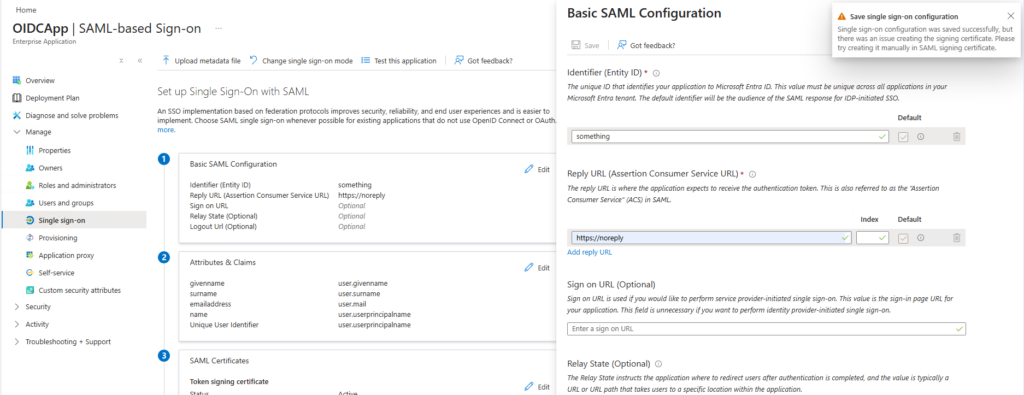
After adding the Entity ID and the Reply URL, hitting save resulted in a warning message saying: “Single sig-on configuration was saved successfully, but there was an issue creating the signing certificate. Please try creating it manually in SAML signing certificate.“
At this point I had no clue what caused this, but since it was only a warning message, I ignored it and tried to add a certificate myself, which resulted in another error message: “There was an error in the uploading the private certificate and password. Please try again or contact support“
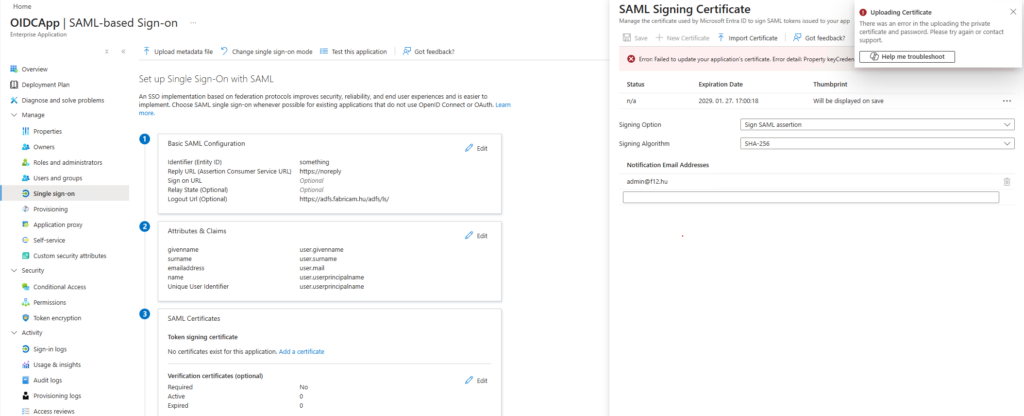
Let’s try this Copilot “Help me troubleshoot” button 🙂
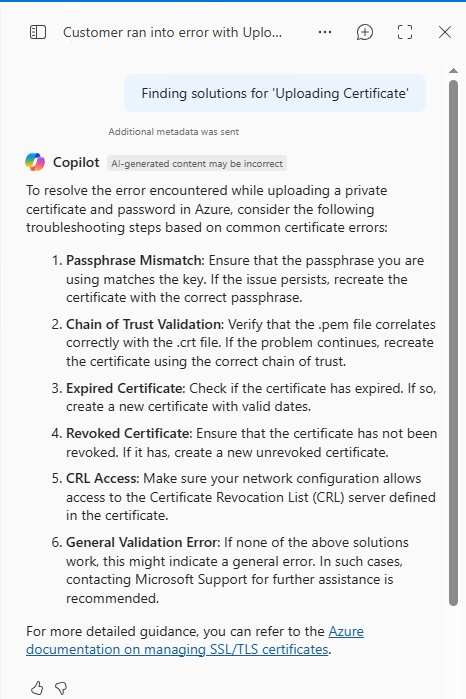
Nothing was useful in this troubleshooting guide, so I tried the “Help myself troubleshoot” button (F12) and analyze the network traffic. This led me to this error message: “Property keyCredentials is invalid“
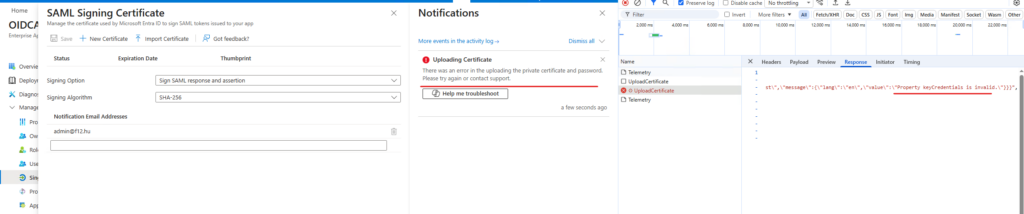
I don’t know why, but this error immediately ringed the bell about App instance property lock – so after disabling it, I could successfully upload/create a signing certificate.
I’m sure that this is a really uncommon situation and probably nobody will encounter this – but I learned a lot from it and hope someone else can also benefit from my journey as well. 🙃