
In Entra News #134 I came across Michael Frank’s wonderful Self-Service LAPS automation solution – which gave me inspiration to finally write about my more simplistic approach to delegate access to the LAPS password.
TL;DR
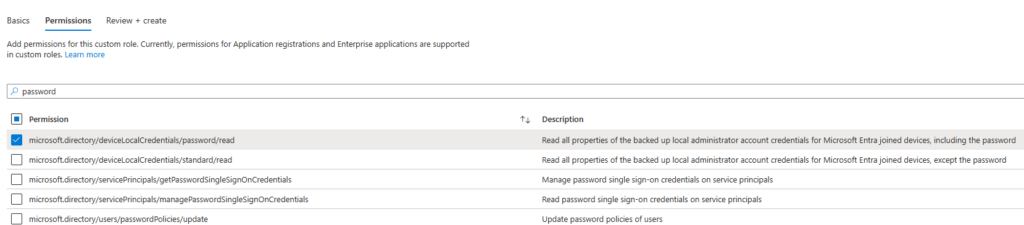
- Create a “LAPS Reader” role in Entra with the following permission: microsoft.directory/deviceLocalCredentials/password/read
- Delegate this role to a user and scope it to the device to which you want to grant the LAPS password to be retrieved
- With Entra P2 this can be achieved via GUI (and PIM and all the P2 goodness)
- With Entra P1 you will need Graph Powershell/Graph API request:
- POST to
https://graph.microsoft.com/v1.0/roleManagement/directory/roleAssignmentswith the following payload:{
"@odata.type" : "#microsoft.graph.unifiedRoleAssignment",
"principalId" : "<user objectId>",
"roleDefinitionId" : "<LAPS_reader role's ID>",
"directoryScopeId" : "/<device objectId>"
}
- POST to
Creating the role
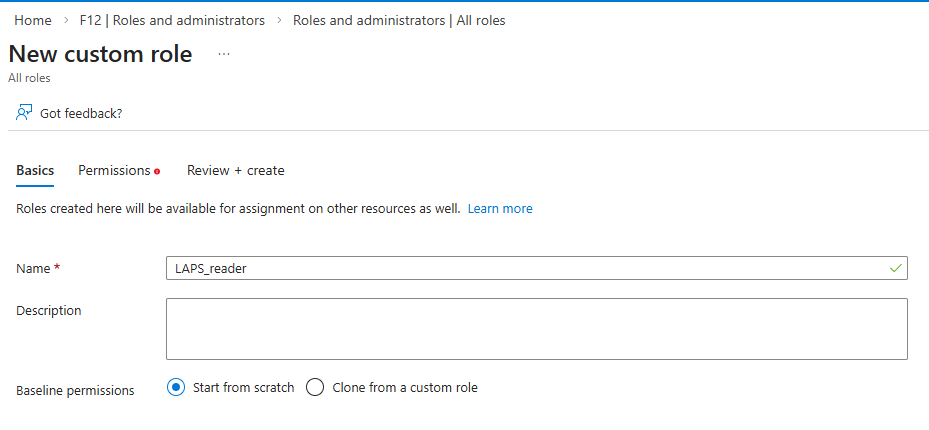
Nothing special here, create a custom role with the following permission only: microsoft.directory/deviceLocalCredentials/password/read
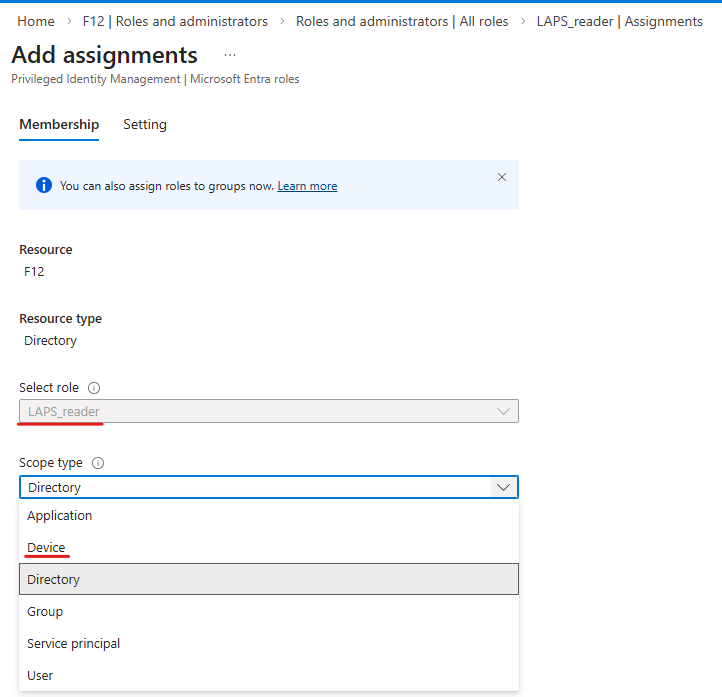
Next, if you have Entra P2, when you assign a role to a user, you can select “Device” as a scope type:
Now you have the option to select the device of which you want to grant the LAPS password to be revealed, then the user who will be given access:
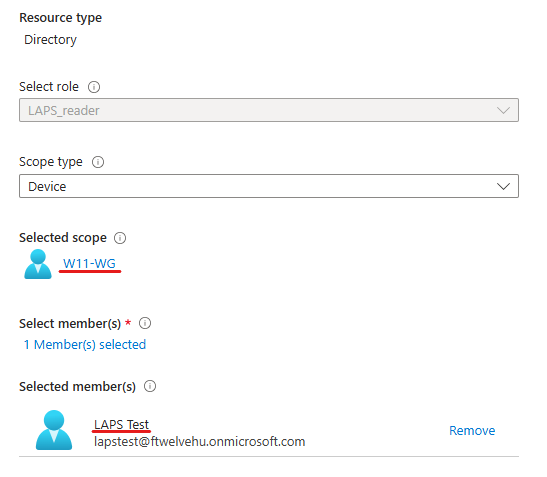
I will not cover the options given by Entra P2 PIM functionality, but you can consider requiring additional MFA, notification email, approval flow, etc.*
*By giving a Role assingment to a user, it will be considered as an “administrator” – so these users will be able to access the portal even if “Restrict access to Microsoft Entra admin center” option is set to yes:
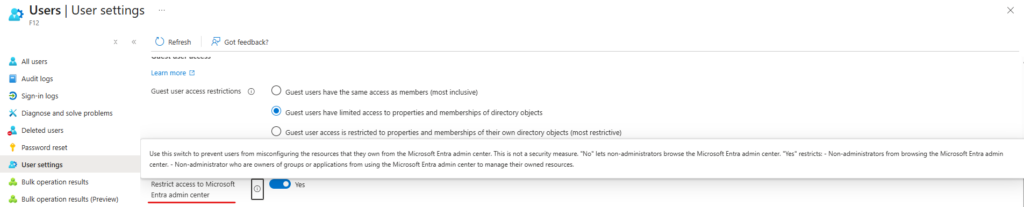
*If the role is assigned as ‘Eligible’, I thought that this restriction will effectively block the user from activating the Role, but in reality, PIM will still be reachable via the Azure portal – but the recommendation is to activate the role via MyAccess.
Now the problem is, that with Entra P1, Microsoft does not offer this granular scoping – at least on a GUI level. But what about some Graph API? Apparently, this can work. I still have issues with Graph Powershell, but according to the documentation, the New-MgRoleManagementDirectoryRoleAssignment command should do the trick.
But what the trick is? You will need 3 parameters: directoryScopeId, principalId and roleDefinitionId.
- directoryScopeId is the objectID of the device
- principalID should be the user’s objectID
- roleDefinitionId can be queried or you can simply copy it from the URL when you open the role’s page:

So we will issue a POST request to https://graph.microsoft.com/v1.0/roleManagement/directory/roleAssignments with the following payload:
{
   	"@odata.type" : "#microsoft.graph.unifiedRoleAssignment",
	"principalId" : "<user objectId>",
	"roleDefinitionId" : "<LAPS_reader role's ID>",
	"directoryScopeId" : "/<device objectId>"
}Make sure you have inserted the “/” before the device ID in directoryScopeId.
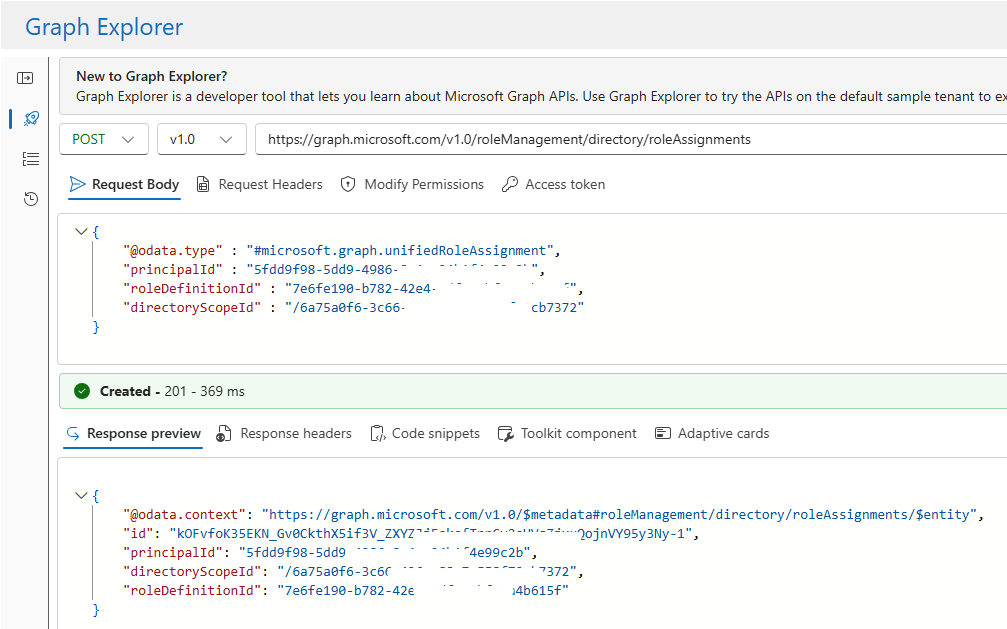
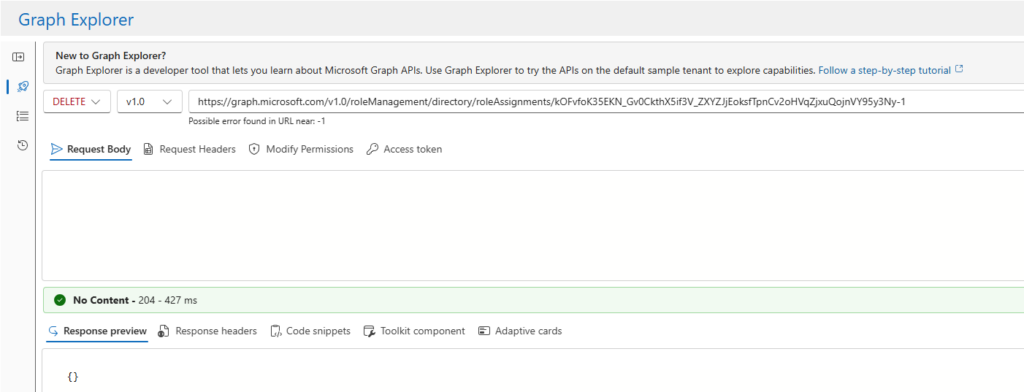
Unfortunately, while you can verify the results on the portal, you will not be able to delete assignments of this kind. However, you can delete it via Graph API: the only thing required is the id of the assignment (this is returned in the response [see above in my example it’s id: k0Fv….])
To delete the assignment issue a DELETE request to the “https://graph.microsoft.com/v1.0/roleManagement/directory/roleAssignments/<assignmentID>” endpoint:
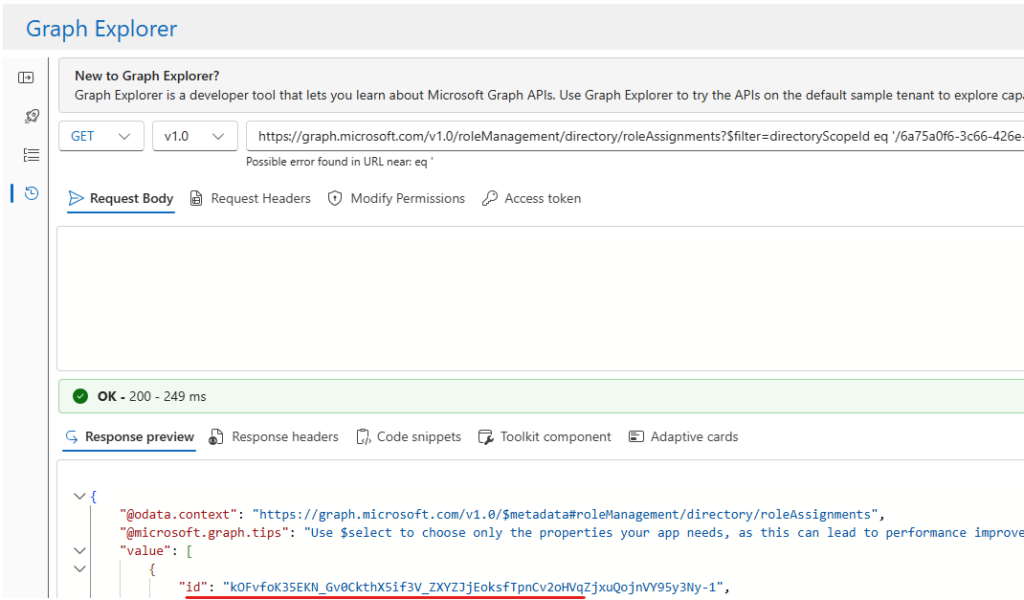
If you don’t know this ID, you will need to query the roleAssingments (the most effective way probably is to filter by directoryScopeId [aka deviceID]):
https://graph.microsoft.com/v1.0/roleManagement/directory/roleAssignments?$filter=directoryScopeId eq '/<deviceId>'
For advanced users (or IT support who will have this role for several computers) you can show the admin portal and how to access the devices. If there is only a 1-to-1 relation, you can directly send the link to the user.
https://portal.azure.com/#view/Microsoft_AAD_Devices/DeviceDetailsMenuBlade/~/LocalAdminPassword/objectId/<device objectID>/deviceId/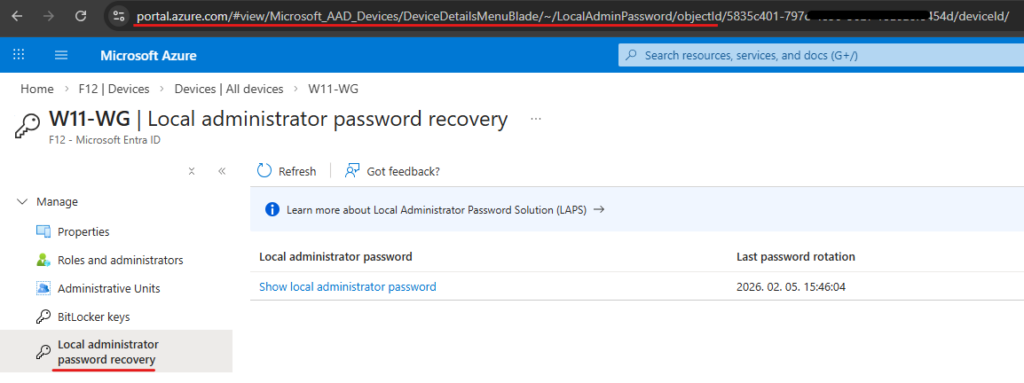
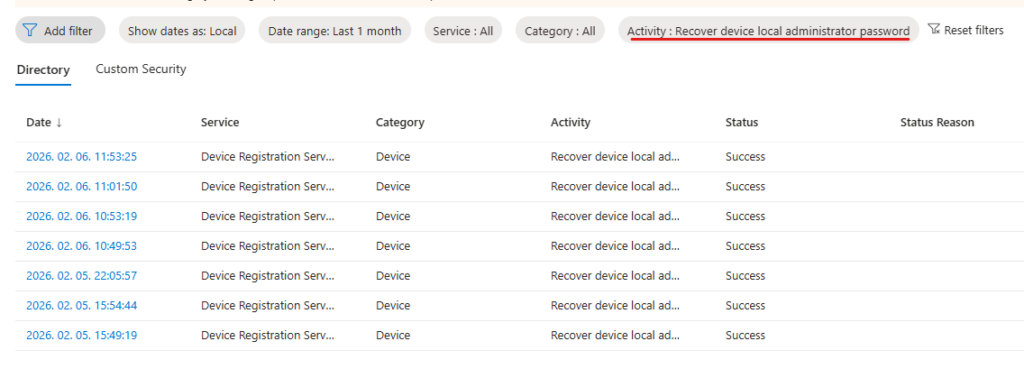
If you want to see the audit events, look for “Recover device local administrator password” activity type in Entra Audit logs:
That’s it. Not a sophisticated solution and it clearly has some security implications, but it is probably still better than assigning localadmin rights permanently to a user 🙃