
(Mis)understanding Software OATH token in Entra
Just me, overcomplicating something that is supposed to be easy: migrating to Authentication methods policy in Entra. Yes, I’m late to the party and I probably did not read all the documentation*, but wanted to share my journey with Software OATH tokens.
* I indeed did not read enough documentation
TL;DR
- MS Authenticator (push + optional OTP) is displayed as Software OATH token too in User registration details
- MS Authenticator (push + optional OTP) is not in scope for the Software OATH token Authentication method if you disable it
- MS Graph exposes some valuable information (lastUsedDateTime) for the authentication methods, which is probably useful for housekeeping
- AzureAD Graph stores even more information
- Chaos theory: SW token backup in a personal account may lead to total takeover of work account
So, the Automated migration guide just suggested to enable all the authentication methods and I’m fortunate enough to be surrounded with really smart people who said: we don’t need hardware- and software OATH tokens, just disable it. First, I agreed, then disagreed and finally I agreed again.
NOTE: While looking for some documentation, I found some great articles that explains my issue in a more structured manner:
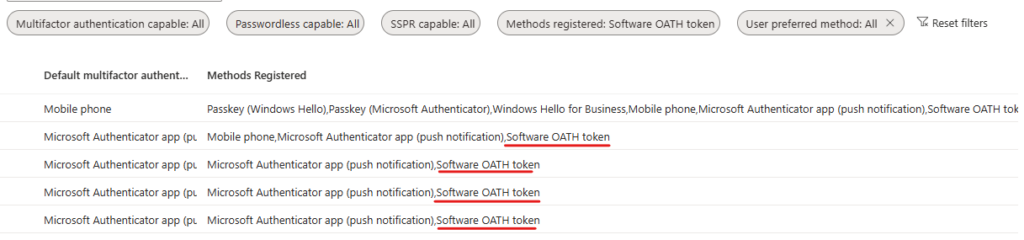
As a first step, I went to the User registration details and filtered the Methods registered to “Software OATH token” and saw that every user with the Authenticator app has also this method registered
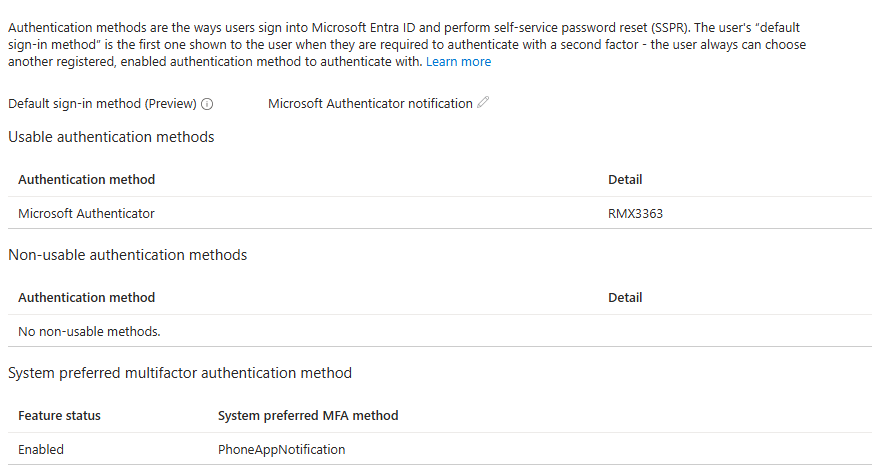
However, navigating to the user’s Authentication methods page, it showed Microsoft Authenticator only, no separate entry for OATH token
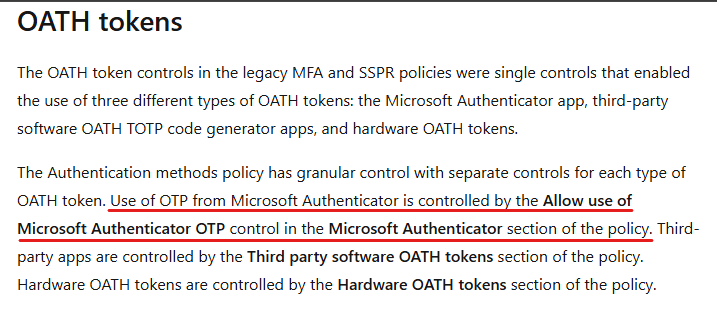
Heading back to the Authentication methods | Policies menu, Microsoft was kind enough to confuse me with the description for this method:

At this point, I probably could have created a Conditional Access Policy in Report-only mode that requires an Authentication strenght that requires anything but Software OTP, check the results… but I don’t like to take the easy way.
Now in the playground, I set up a user with Authenticator (push+optional OTP) + Google Authenticator + Microsoft Authenticator (Software OTP), let’s see what happens when I log in with Authenticator (optional) OTP:
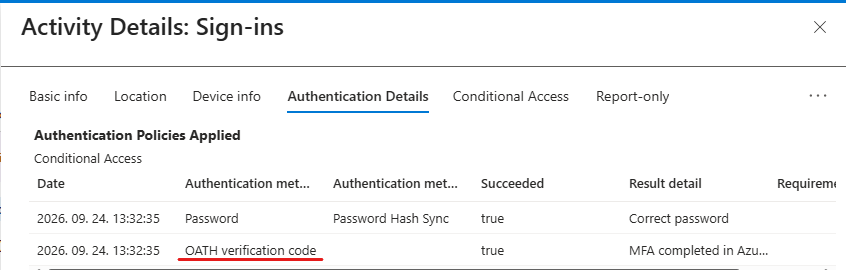
And when using Authenticator (configured as Software OATH token [more on this later]):
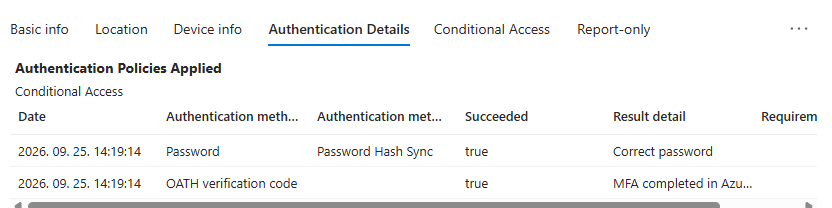
To make sure, here is one where I used Google Authenticator:
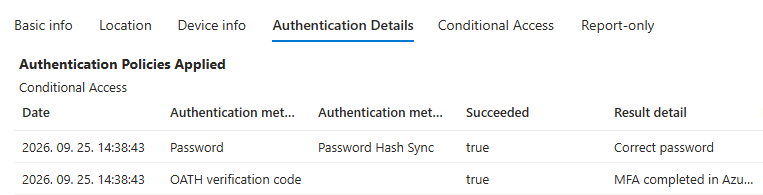
So far:
– User registration details report is misleading, because Authenticator app (notification + optional OTP) shows up as Software OATH token too
– Sign-in logs are also misleading, because there is no distinction between Authentication optional OTP and other Software OATH tokens
– Even the Software OATH tokens authentication method policy is misleading: “This policy control manages the ability to register and use any authenticator app including Microsoft Authenticator to manage software OATH tokens.” – I may have highlighted here that it does not effect the optional OTP method, which can be configured under Microsoft Authenticator
Don’t get me wrong, I don’t want to make excuses for not doing my homework and reading the manual carefully – I’m here to share what I learnt by this mistake. Now let’s bring some value to this post…
Differences between a Software OATH token and the Authenticator optional OTP
The Authentication methods page for a given user does not reveal too much interesting information:
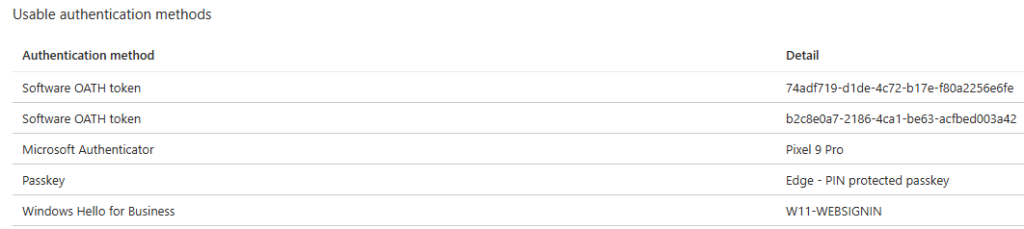
However, hidden information can be revealed with my favorite button (F12): when you click on the auth methods page, a graph request is made:
GET https://graph.microsoft.com/beta/users/<userid>/authentication/methods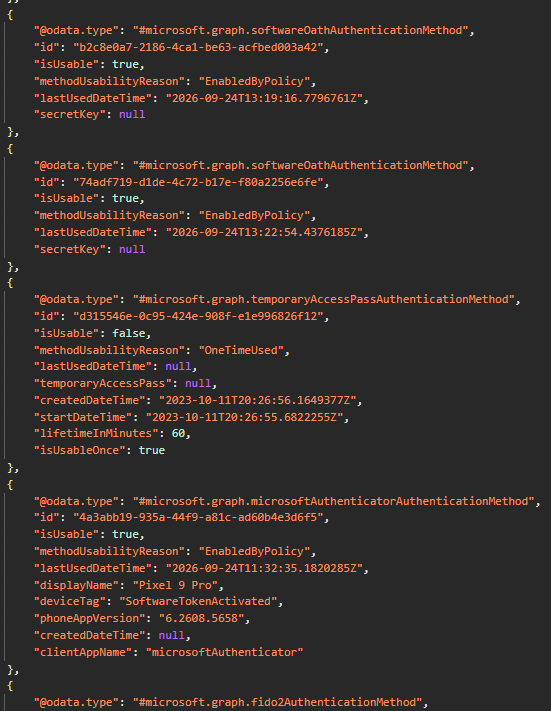
So we have some additional information that can be useful:
"@odata.type": "#microsoft.graph.softwareOathAuthenticationMethod",
            "id": "74adf719-d1de-4c72-b17e-f80a2256e6fe",
            "isUsable": true,
            "methodUsabilityReason": "EnabledByPolicy",
            "lastUsedDateTime": "2026-09-24T13:22:54.4376185Z",
            "secretKey": null
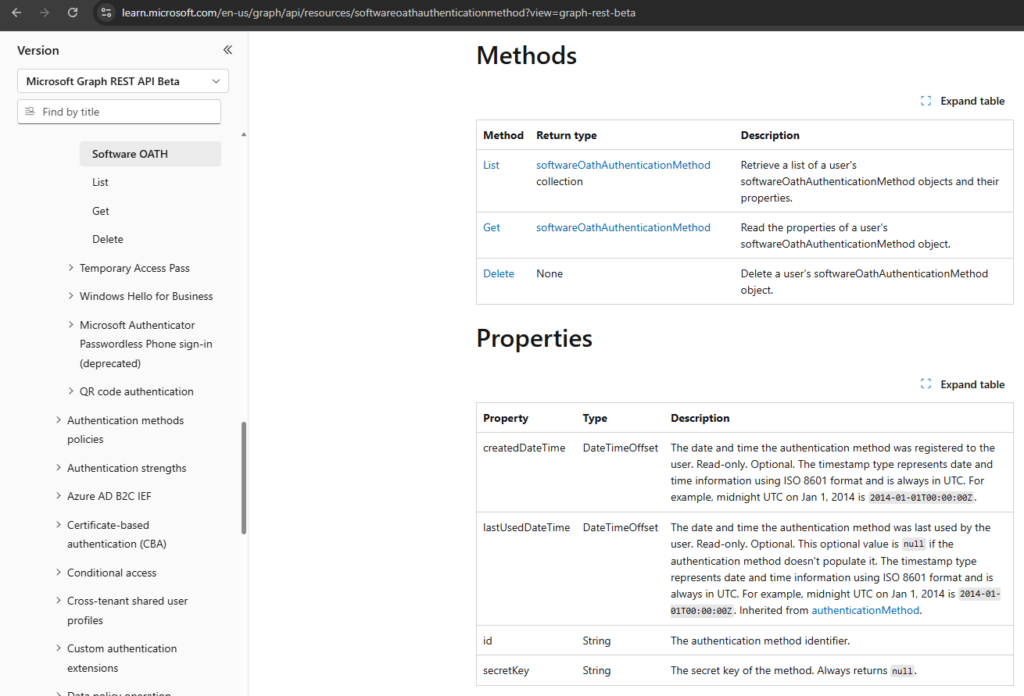
lastUsedDateTime may be useful when cleaning up old registrations, isUsable can also be used to find methods that can be removed (admitting here I’m a compulsive cleaner). Funny thing is that the Graph API documentation does not really mention these properties:
What about the OG AzureAD Graph?
GET https://graph.windows.net/myorganization/users/<userid>?api-version=1.6-internalUnder strongAuthenticationDetail we have phoneAppDetails property:
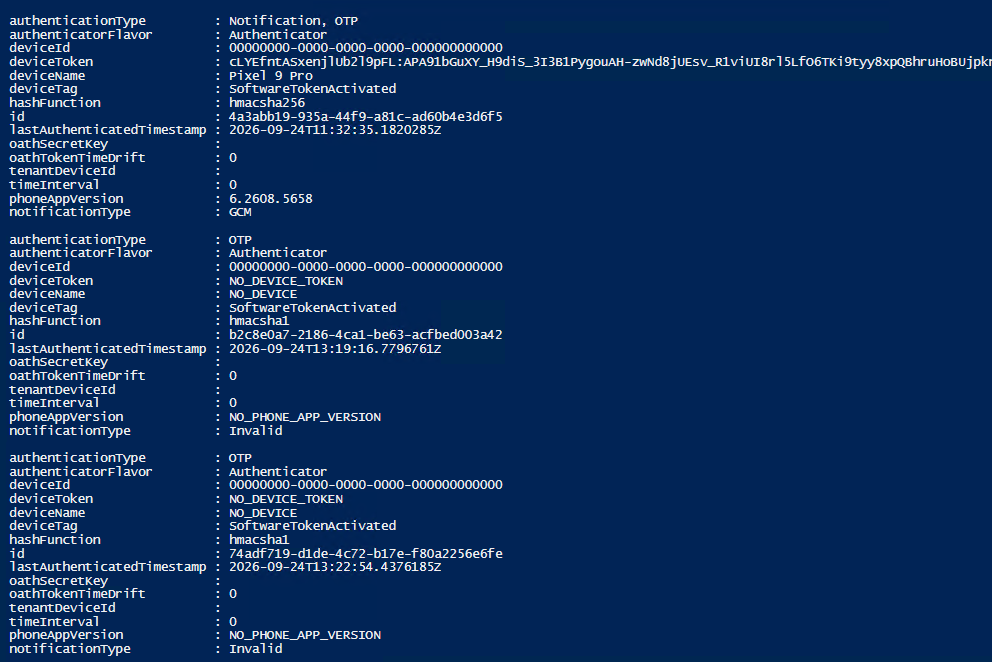
A bit interesting is that under oathTokenMetadata property, the push notification Authenticator seems to be the only one that is not enabled:
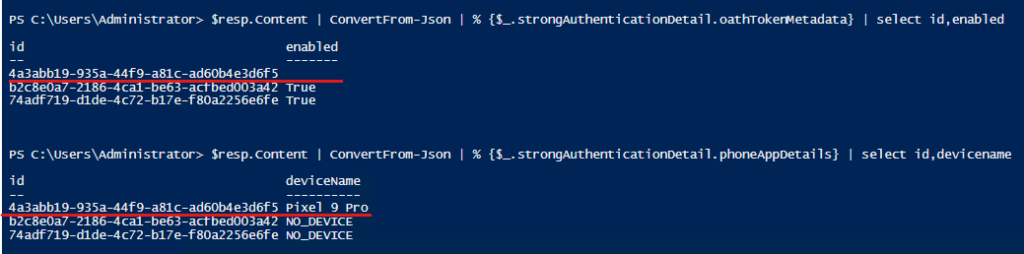
I’m not sure if this information is useful, but at least interesting.
Based on this my theory is, that the User registration details use the information from AzureAD Graph to populate the registered methods. However, both the Authenticator (notification + optional OTP) and the alternative authenticator apps have the deviceTag set to “SoftwareTokenActivated” which is translated to “Software OATH token” and this is confusing (at least for me).
WARNING: Unverified chaos theory below
What bothers me about enabling SW auth tokens is that they can be backed up and restored. Microsoft authenticator uses a personal Microsoft account, but work or school accounts cannot be restored
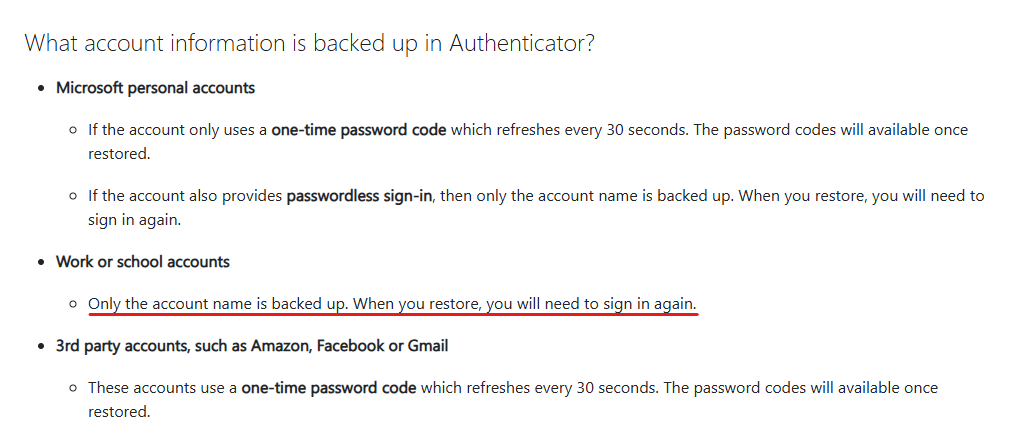
However – I need to verify this – when MS Authenticator is set up az SW OATH token, it is treated as a personal account (so it can be restored)
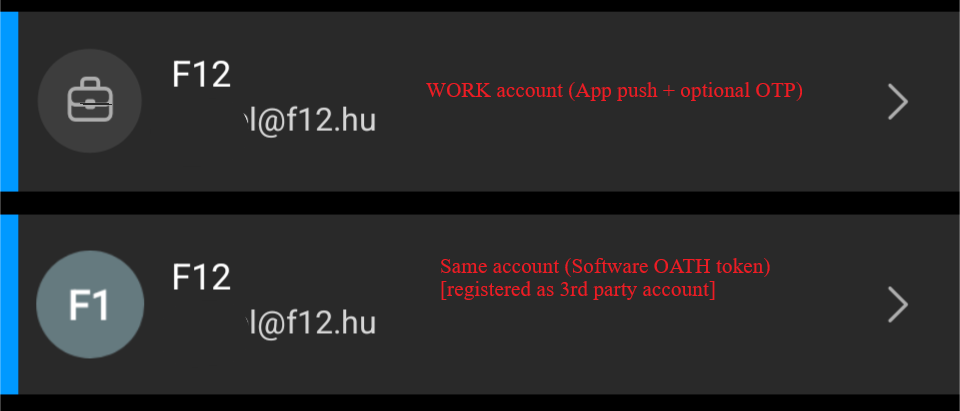
It is easier to imagine this scenario with Google Authenticator where the token is backed up to the user’s Google account. If we enabled email OTP for SSPR with the same email address then the compromised Google account can be used for total account takeover: restored Authenticator for MFA (SW OATH token) + email access for SSPR.
Please correct me if I’m wrong: LinkedIn
https://f12.hu/2026/09/26/misunderstanding-software-oath-token-in-entra/
Prevent disabling passkeys on Windows
I recently read an article from Dr. Emin Huseynov about the toggle in Windows settings that disables passkeys for every user.
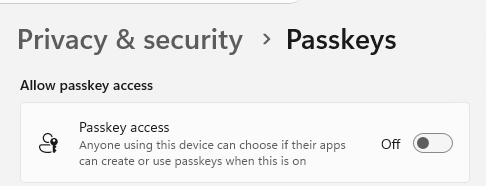
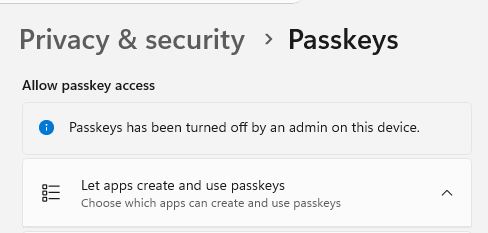
While there can be specific circumstances where an organization may intentionally disable passkey usage, I – passkey fan – want to make sure it is enabled.
I did not find any official solution to restrict disabling passkeys, so I share my approach.
TL;DR
- The toggle state can be queried via registry
- HKLM\SOFTWARE\Microsoft\Windows\CurrentVersion\
CapabilityAccessManager\ConsentStore\passkeys\Value (REG_SZ) = Deny / Allow
- HKLM\SOFTWARE\Microsoft\Windows\CurrentVersion\
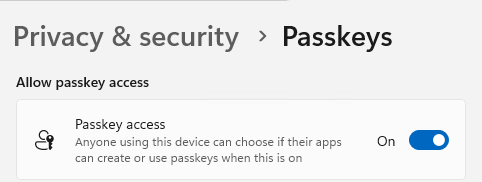
- When you slide the toggle to on, the following command kicks in:
- “C:\Windows\system32\SystemSettingsAdminFlows.exe” SetCamSystemGlobal passkeys 1
- We know how to detect the drift and how to remediate, it’s up to our favorite device management solution to handle it (I’m sharing my first Intune remediation script – but don’t worry SCCM, you will always be my favorite)
Note: It is not enough to set the registry value to “Allow”. The command above invokes “svchost.exe -k osprivacy -p -s camsvc” which applies the relevant settings.
I guess I summarized everything so let’s cut to the Intune remediation.
Detection script:
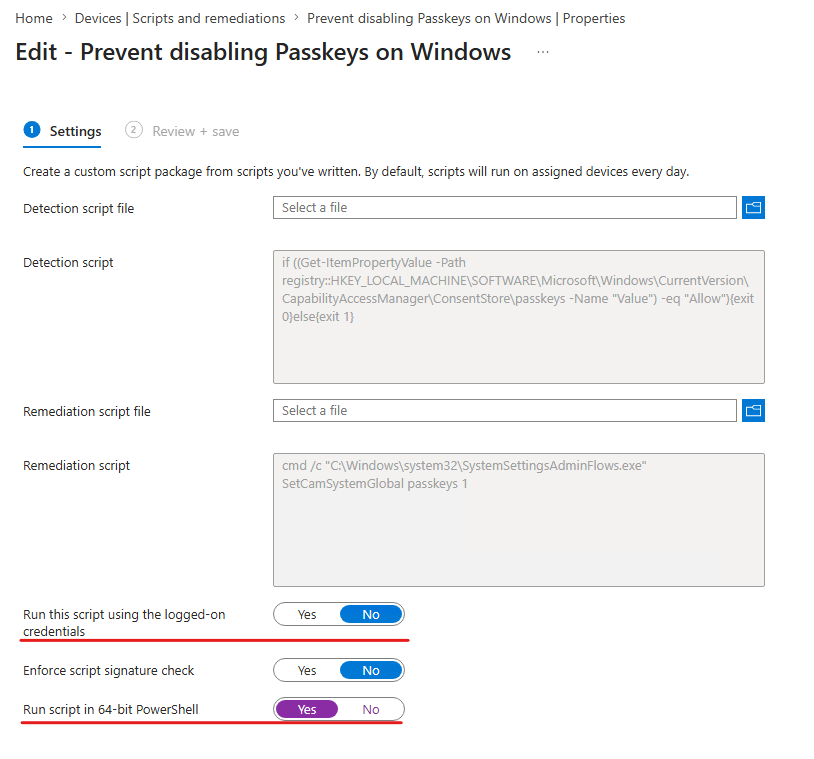
if ((Get-ItemPropertyValue -Path registry::HKEY_LOCAL_MACHINE\SOFTWARE\Microsoft\Windows\CurrentVersion\CapabilityAccessManager\ConsentStore\passkeys -Name "Value") -eq "Allow"){exit 0}else{exit 1}Remediation script:
cmd /c "C:\Windows\system32\SystemSettingsAdminFlows.exe" SetCamSystemGlobal passkeys 1Create the Intune setting:
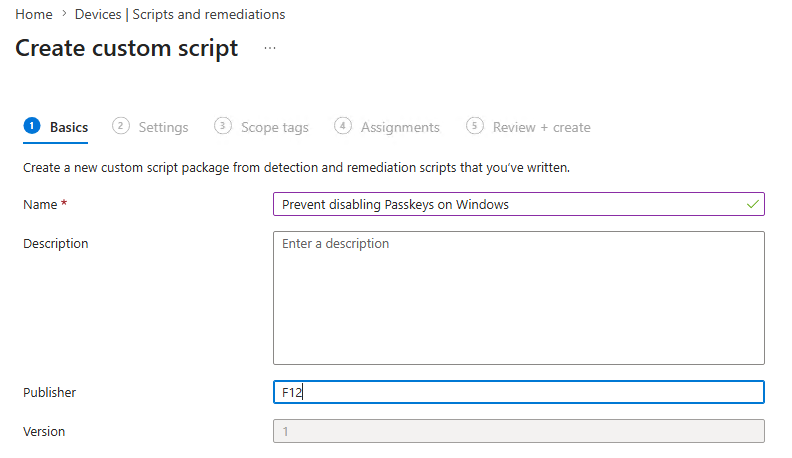
Upload the detection and remediation scripts. As per my experience, this requires admin privileges so make sure “Run this script using the logged-on credentials” is set to “No” and “Run script in 64-bit PowerShell” is set to “Yes” (registry detection would fail because of the 32bit redirection)
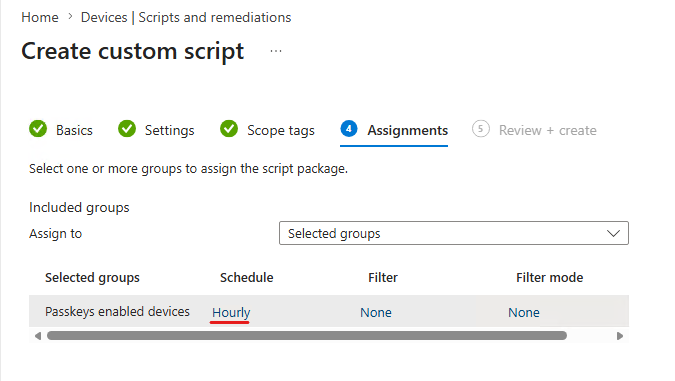
I guess this can be deployed to All devices, but for testing purposes I deployed it to a dedicated group with Hourly schedule:
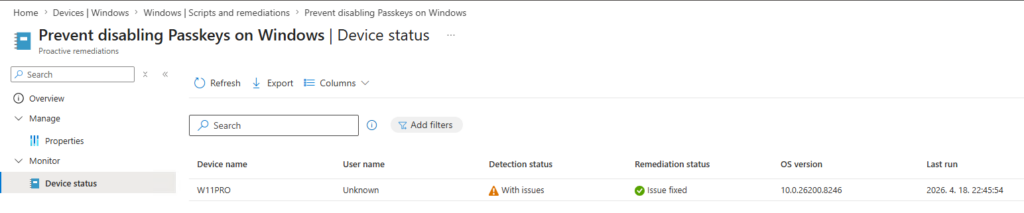
After “enforcing” the remediation, the issue is now fixed:
Happy passkeying!
https://f12.hu/2026/04/18/prevent-disabling-passkeys-on-windows/
Delegating LAPS password retrieval at device level
In Entra News #134 I came across Michael Frank’s wonderful Self-Service LAPS automation solution – which gave me inspiration to finally write about my more simplistic approach to delegate access to the LAPS password.
TL;DR
- Create a “LAPS Reader” role in Entra with the following permission: microsoft.directory/deviceLocalCredentials/password/read
- Delegate this role to a user and scope it to the device to which you want to grant the LAPS password to be retrieved
- With Entra P2 this can be achieved via GUI (and PIM and all the P2 goodness)
- With Entra P1 you will need Graph Powershell/Graph API request:
- POST to
https://graph.microsoft.com/v1.0/roleManagement/directory/roleAssignmentswith the following payload:{
"@odata.type" : "#microsoft.graph.unifiedRoleAssignment",
"principalId" : "<user objectId>",
"roleDefinitionId" : "<LAPS_reader role's ID>",
"directoryScopeId" : "/<device objectId>"
}
- POST to
Creating the role
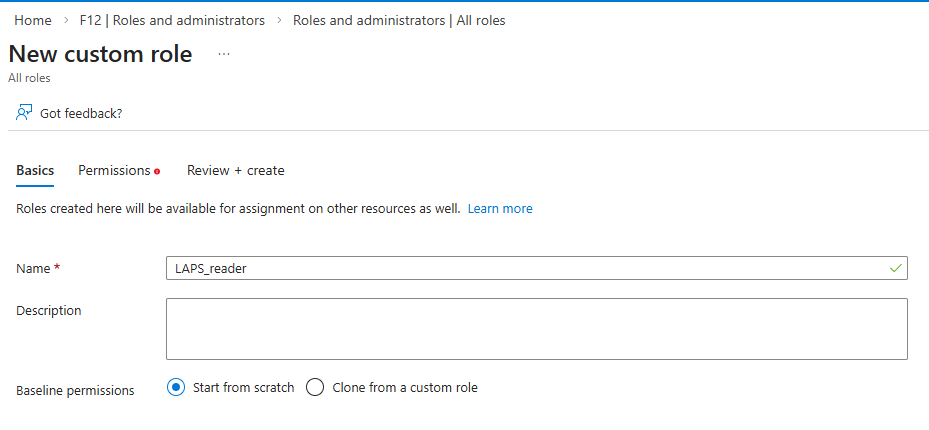
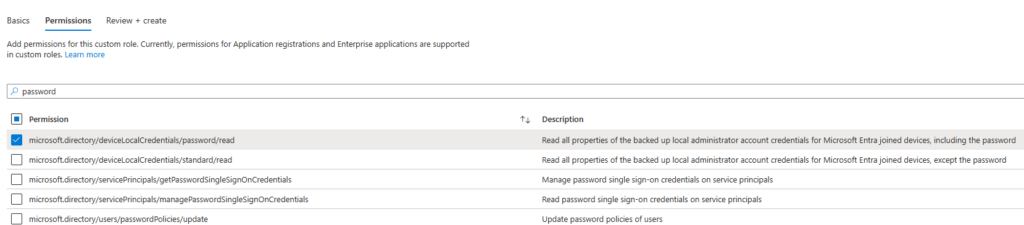
Nothing special here, create a custom role with the following permission only: microsoft.directory/deviceLocalCredentials/password/read
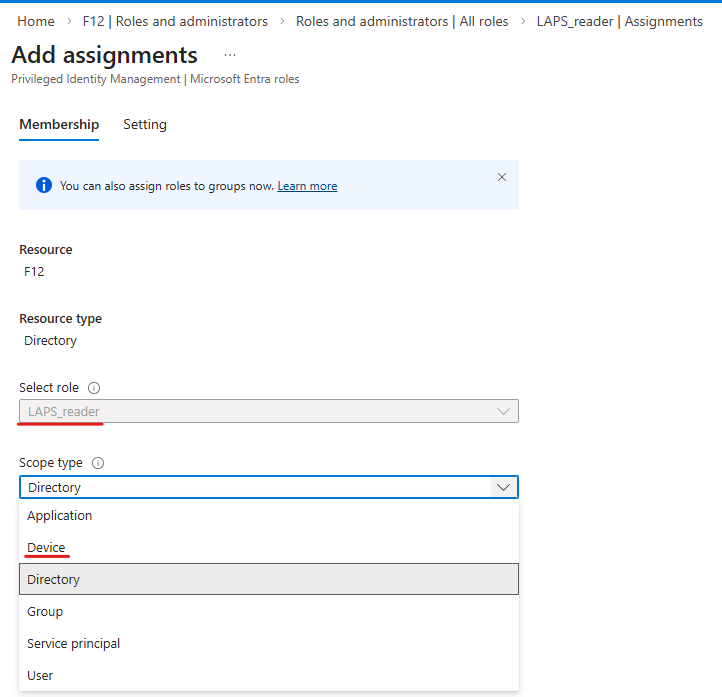
Next, if you have Entra P2, when you assign a role to a user, you can select “Device” as a scope type:
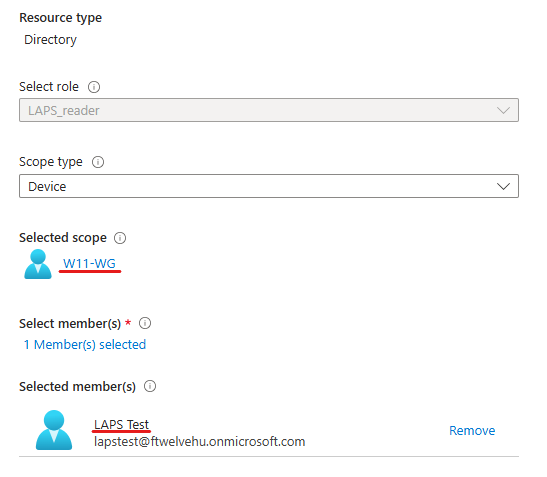
Now you have the option to select the device of which you want to grant the LAPS password to be revealed, then the user who will be given access:
I will not cover the options given by Entra P2 PIM functionality, but you can consider requiring additional MFA, notification email, approval flow, etc.*
*By giving a Role assingment to a user, it will be considered as an “administrator” – so these users will be able to access the portal even if “Restrict access to Microsoft Entra admin center” option is set to yes:
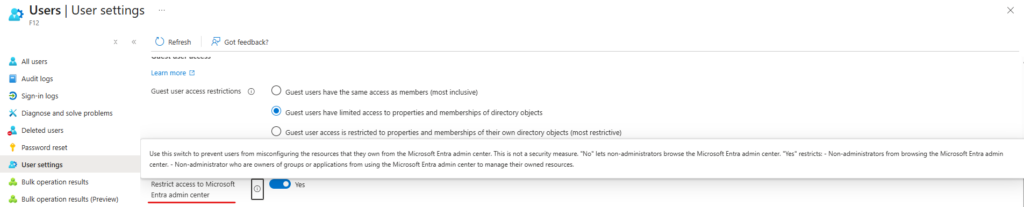
*If the role is assigned as ‘Eligible’, I thought that this restriction will effectively block the user from activating the Role, but in reality, PIM will still be reachable via the Azure portal – but the recommendation is to activate the role via MyAccess.
Now the problem is, that with Entra P1, Microsoft does not offer this granular scoping – at least on a GUI level. But what about some Graph API? Apparently, this can work. I still have issues with Graph Powershell, but according to the documentation, the New-MgRoleManagementDirectoryRoleAssignment command should do the trick.
But what the trick is? You will need 3 parameters: directoryScopeId, principalId and roleDefinitionId.
- directoryScopeId is the objectID of the device
- principalID should be the user’s objectID
- roleDefinitionId can be queried or you can simply copy it from the URL when you open the role’s page:

So we will issue a POST request to https://graph.microsoft.com/v1.0/roleManagement/directory/roleAssignments with the following payload:
{
   	"@odata.type" : "#microsoft.graph.unifiedRoleAssignment",
	"principalId" : "<user objectId>",
	"roleDefinitionId" : "<LAPS_reader role's ID>",
	"directoryScopeId" : "/<device objectId>"
}Make sure you have inserted the “/” before the device ID in directoryScopeId.
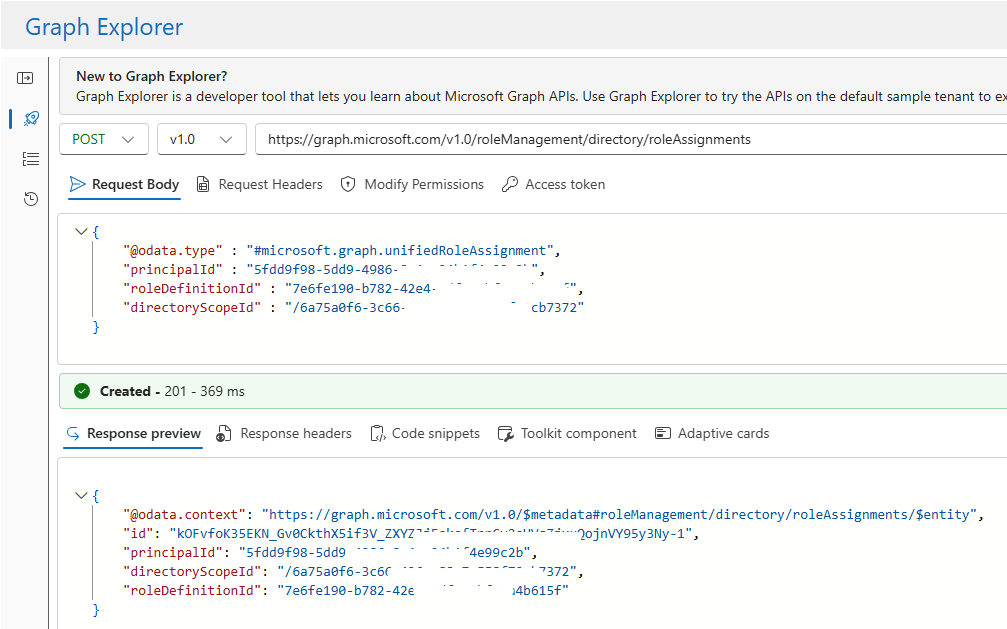
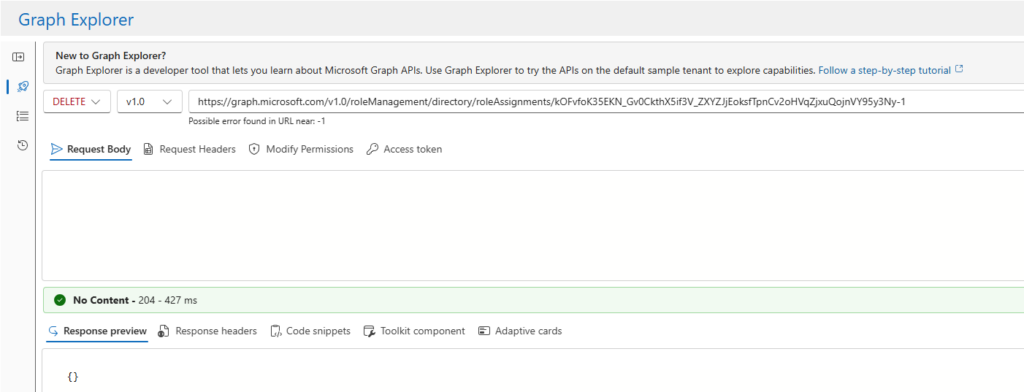
Unfortunately, while you can verify the results on the portal, you will not be able to delete assignments of this kind. However, you can delete it via Graph API: the only thing required is the id of the assignment (this is returned in the response [see above in my example it’s id: k0Fv….])
To delete the assignment issue a DELETE request to the “https://graph.microsoft.com/v1.0/roleManagement/directory/roleAssignments/<assignmentID>” endpoint:
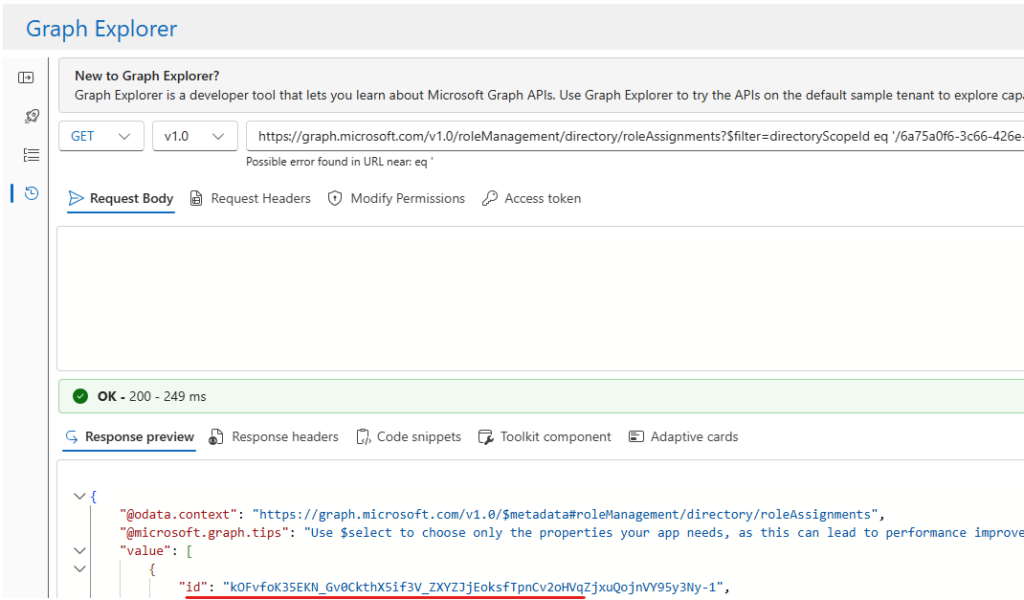
If you don’t know this ID, you will need to query the roleAssingments (the most effective way probably is to filter by directoryScopeId [aka deviceID]):
https://graph.microsoft.com/v1.0/roleManagement/directory/roleAssignments?$filter=directoryScopeId eq '/<deviceId>'
For advanced users (or IT support who will have this role for several computers) you can show the admin portal and how to access the devices. If there is only a 1-to-1 relation, you can directly send the link to the user.
https://portal.azure.com/#view/Microsoft_AAD_Devices/DeviceDetailsMenuBlade/~/LocalAdminPassword/objectId/<device objectID>/deviceId/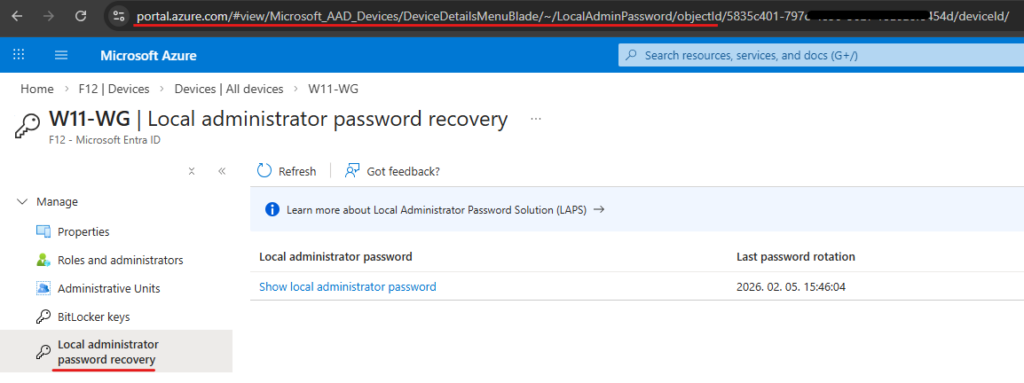
If you want to see the audit events, look for “Recover device local administrator password” activity type in Entra Audit logs:
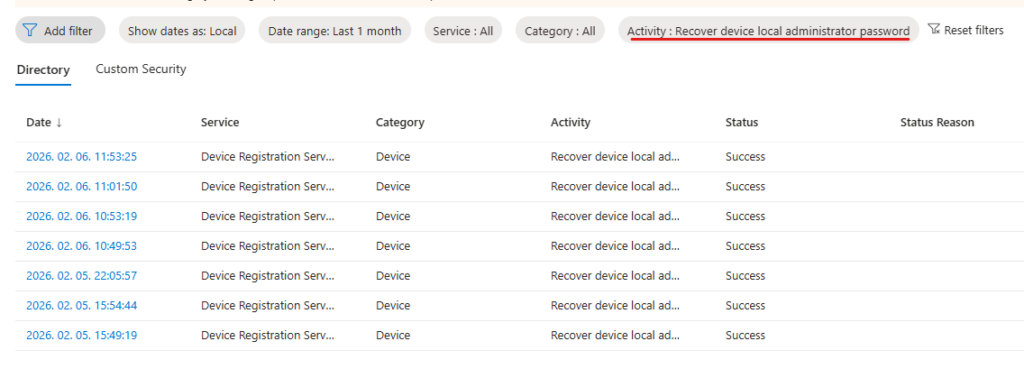
That’s it. Not a sophisticated solution and it clearly has some security implications, but it is probably still better than assigning localadmin rights permanently to a user 🙃
https://f12.hu/2026/02/22/delegating-laps-password-retrieval-at-device-level/
Entra App instance property lock vs SAML signing certificate – an uncommon way of self-sabotage
Recently I tried to set up ClaimXRay NG with the guidance of DSInternals, learned things, failed here and there and stumbled upon a totally-not-helpful error message: “There was an error in the uploading the private certificate and password. Please try again or contact support.”
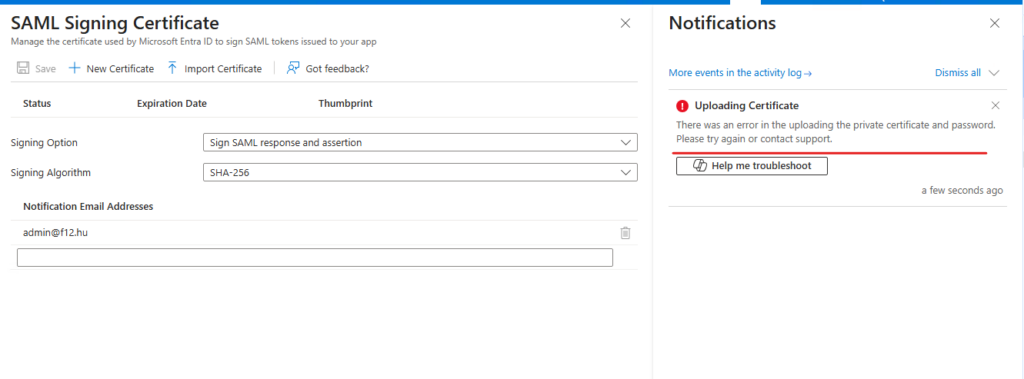
To cut to the chase: This message appeared when I was trying to upload a SAML signing certificate to one of my Enterprise Applications in Entra – which was caused by the App instance property lock enabled on the corresponding application registration object.
TL;DR
- App instance property lock is enabled by default for OIDC applications (“App you’re developing”), but not for SAML applications (Non-gallery)
- When you add the tag “WindowsAzureActiveDirectoryCustomSingleSignOnApplication” to the service principal, the Enterprise application will display the SAML/custom SSO settings
- If you happen to have “converted” your application to SAML this way, the app instance property lock will prevent adding SAML signing certificates to your app
The journey
As mentioned, I encountered this issue when attempting to set up ClaimsXRay NG – but instead of doing it via PowerShell, I wanted to understand each step and do it via GUI if possible. And this is why – I guess – the guide does not mention app instance property lock: because it is turned on by default (only) for applications created in the Entra Admin Center (docs)

To reproduce and understand the issue, let’s see what happens when a SAML/customSSO and an OIDC application is registered in the portal (sorry, still using Azure portal not the Entra admin center) under the Enterprise applications menu.
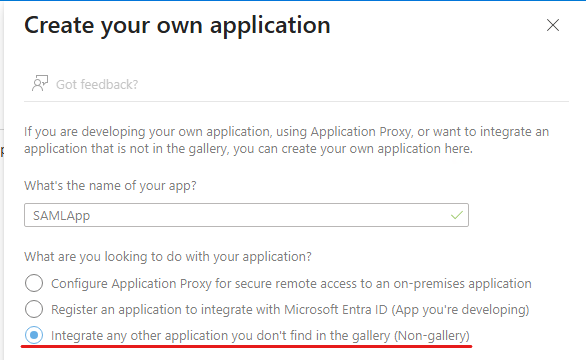
Creating the applications “OIDCApp” and “SAMLApp”, nothing else specified:
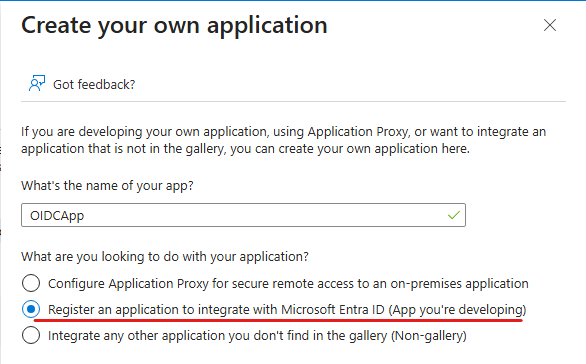
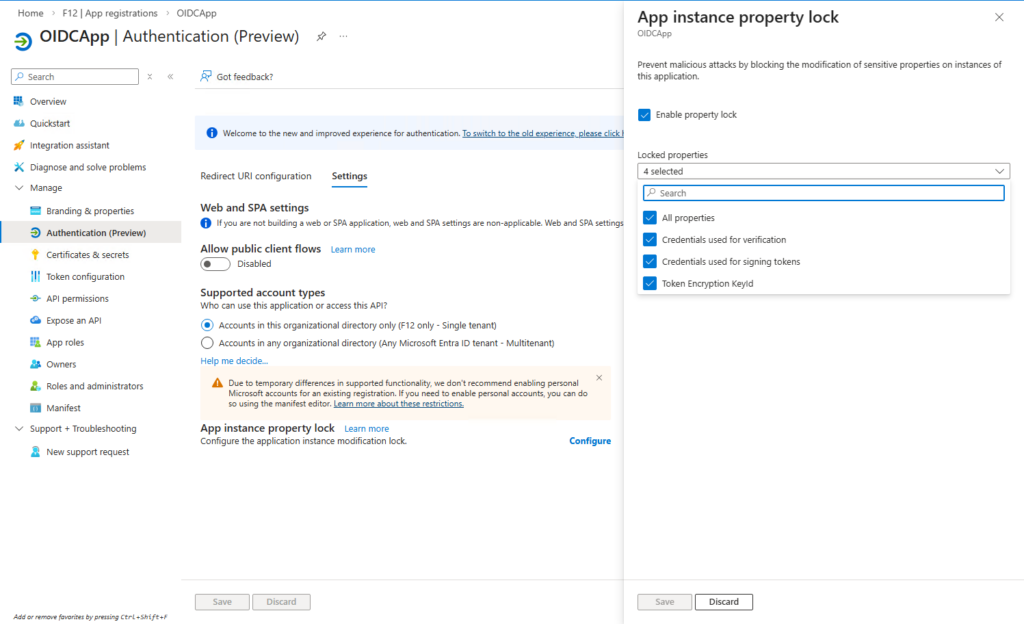
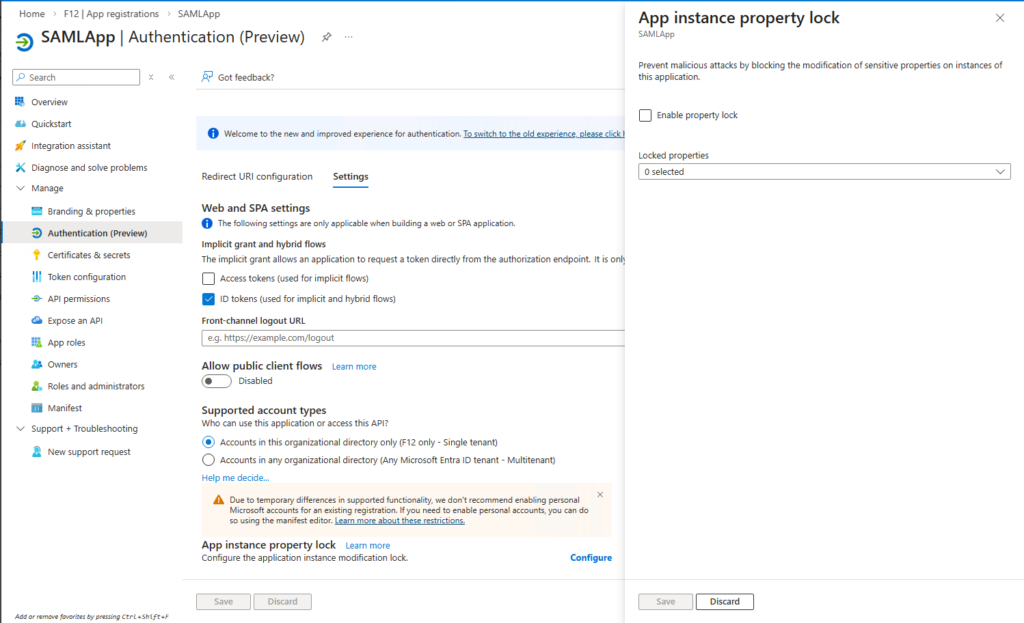
On the App registrations pane, looking at the corresponding application object’s properties (Manage – Authentication (Preview) – Settings – App instance property lock) we can see that App instance property lock is enabled for all properties on the OIDCApp, but not for SAMLApp:
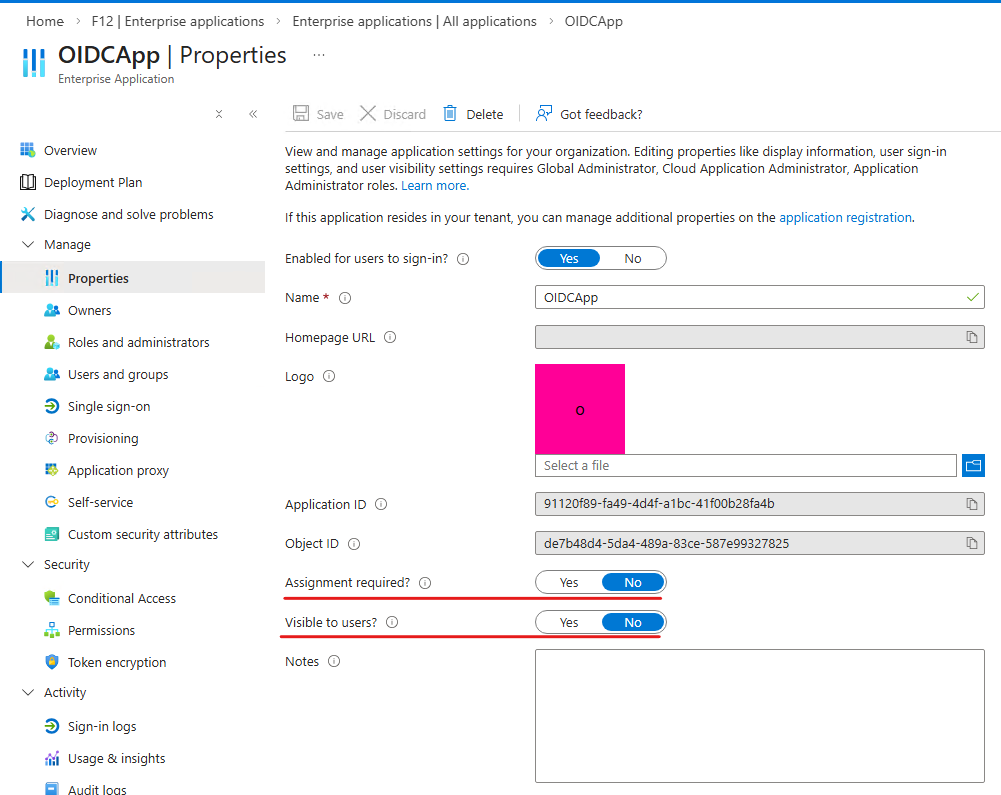
It was also a suprise for me that the Assignment settings are different for the two applications (on the Enterprise Application pane) – OIDCApp does not require assignment but is hidden, while SAMLApp requires assignment but isn’t hidden:

There is no GUI option to inspect the tags assigned to a service principal, so it needs to be done via Graph API:
GET https://graph.microsoft.com/v1.0/servicePrincipals/<objectID of service principal>?$select=tags,appDisplayName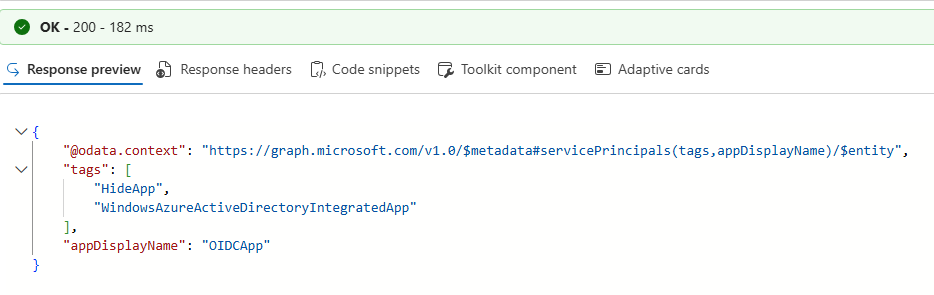
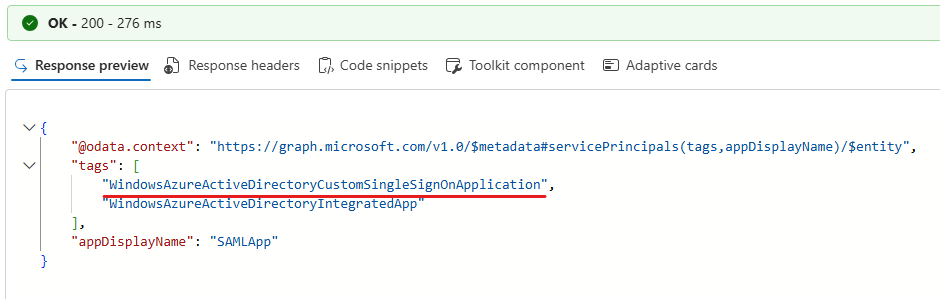
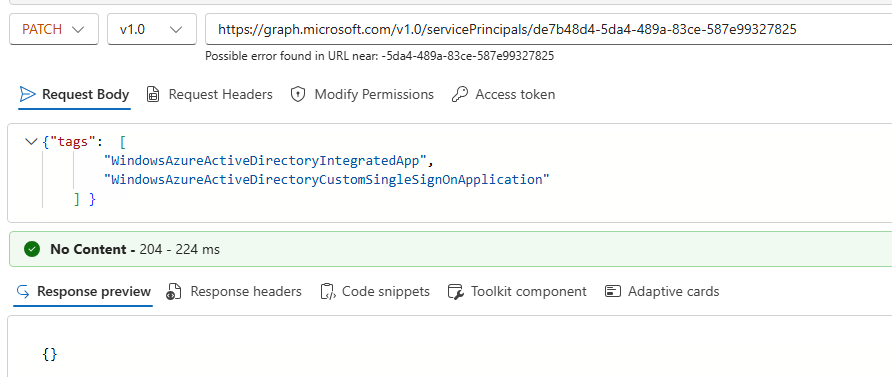
Let’s “convert” OIDCApp to a SAML application:
PATCH https://graph.microsoft.com/v1.0/servicePrincipals/<objectid of OIDCApp's servicePrincipal>
Body: {"tags": [
 "WindowsAzureActiveDirectoryIntegratedApp",
 "WindowsAzureActiveDirectoryCustomSingleSignOnApplication"
]}
Heading back to the portal, OIDCApp now offers the option to set up SAML SSO:
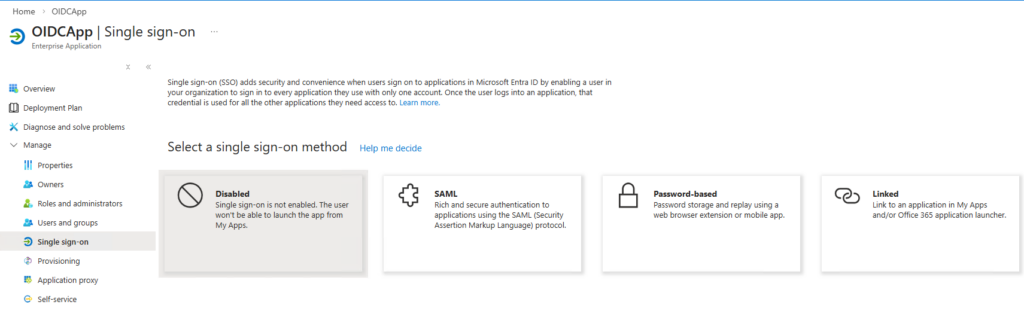
Keep in mind that the corresponding application object has App instance property lock enabled. Let’s configure the Basic SAML Configuration:
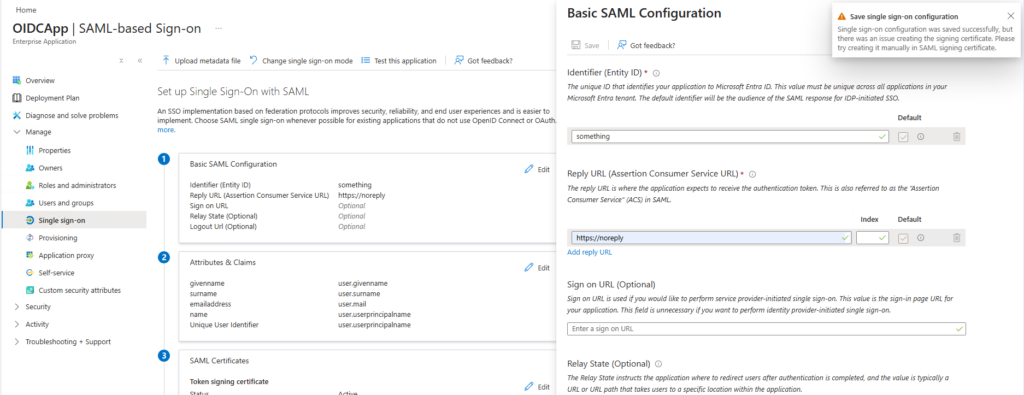
After adding the Entity ID and the Reply URL, hitting save resulted in a warning message saying: “Single sig-on configuration was saved successfully, but there was an issue creating the signing certificate. Please try creating it manually in SAML signing certificate.“
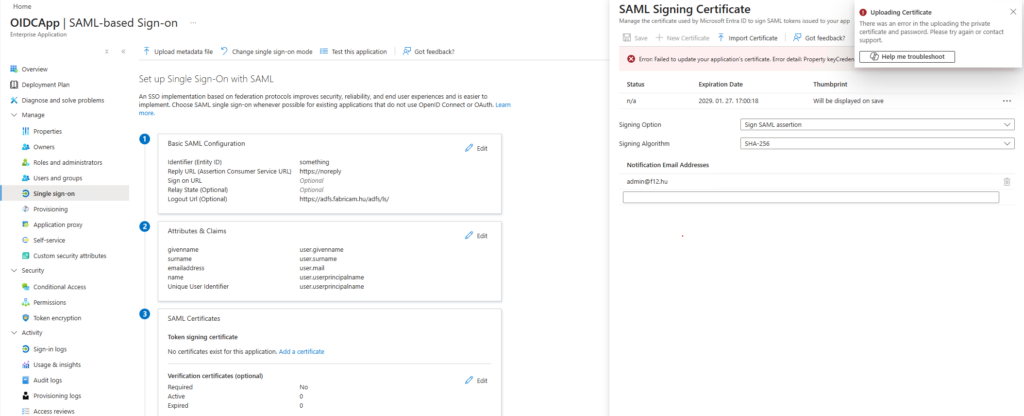
At this point I had no clue what caused this, but since it was only a warning message, I ignored it and tried to add a certificate myself, which resulted in another error message: “There was an error in the uploading the private certificate and password. Please try again or contact support“
Let’s try this Copilot “Help me troubleshoot” button 🙂
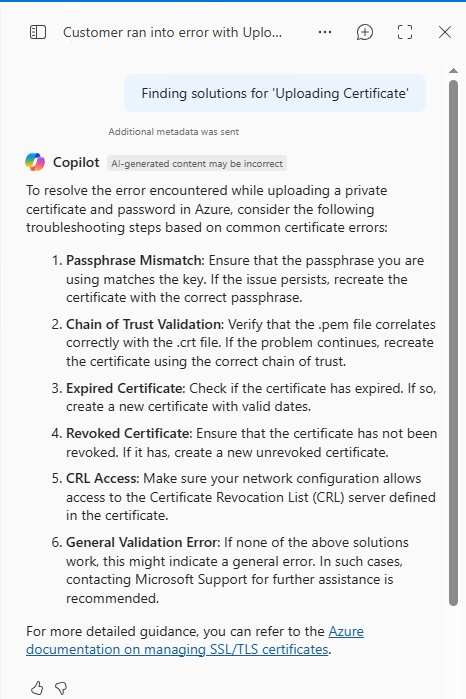
Nothing was useful in this troubleshooting guide, so I tried the “Help myself troubleshoot” button (F12) and analyze the network traffic. This led me to this error message: “Property keyCredentials is invalid“
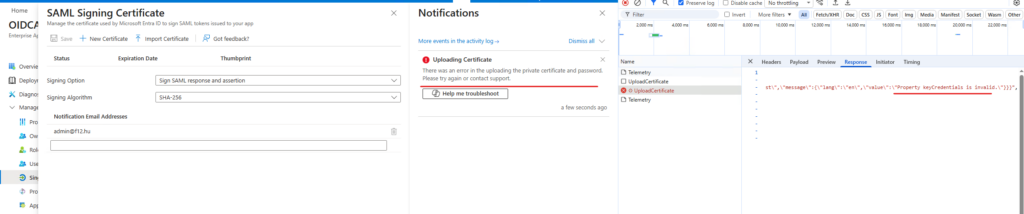
I don’t know why, but this error immediately ringed the bell about App instance property lock – so after disabling it, I could successfully upload/create a signing certificate.
I’m sure that this is a really uncommon situation and probably nobody will encounter this – but I learned a lot from it and hope someone else can also benefit from my journey as well. 🙃
https://f12.hu/2026/01/29/entra-app-instance-property-lock-vs-saml-signing-certificate-an-uncommon-way-of-self-sabotage/
Multitenant organization “cheat” to add group(s) to the default sync scope
Back in the days when M365 MTO was in preview, it was possible to add group(s) to the default sync scope – today, the documentation states that if you want to sync groups, “you must configure cross-tenant synchronization directly in Microsoft Entra ID”. It doesn’t say “it is impossible to add groups to the default sync scope” – but clearly implies that this is not supported. Anyways, I’m sharing this cheat, but keep in mind that this is not a supported scenario.
TL;DR
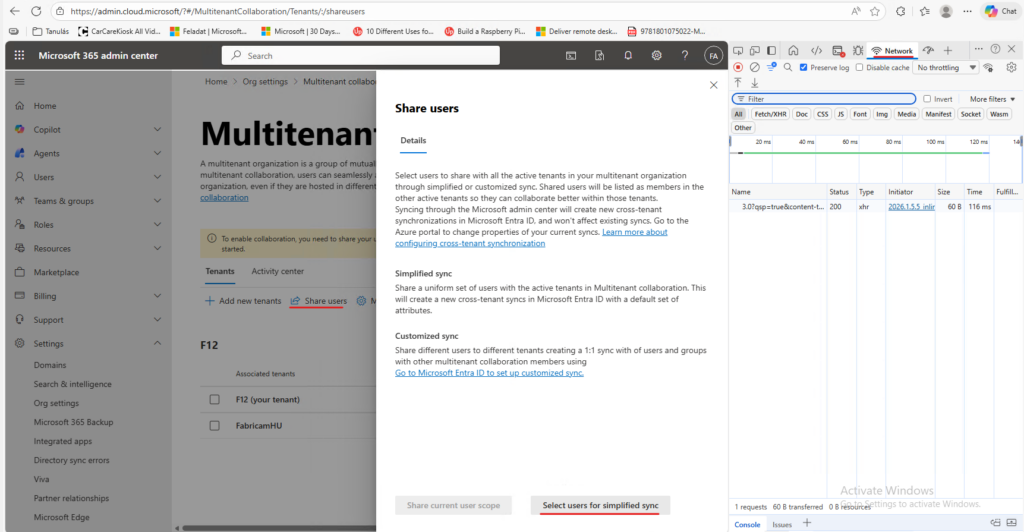
– In the M365 Admin center when you click on “Share users” on the Multitenant collaboration page, an HTTP POST is sent to https://admin.cloud.microsoft/admin/api/tenantRelationships/userSyncApps/assign which contains the userID(s) of the users to be synchronized
– This request can be modified to contain the ID of the group that you want to sync (the JSON node itself is named “userAndGroupIds“, so I guess only the GUI has been restricted to lookup users only 🙃)
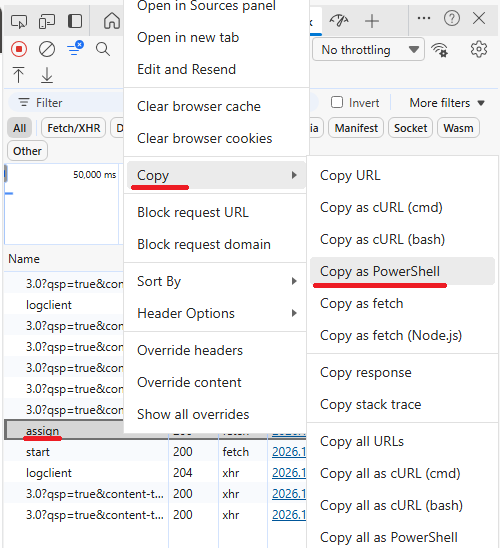
– The cheat is to replay a modification payload (developer tools -> <request> -> Copy -> Copy as Powershell) replacing the required userIDs with the desired groupIDs
The cheat in short
As a first step, you need to add a user to the sharing scope (with developer tools open on the network tab):
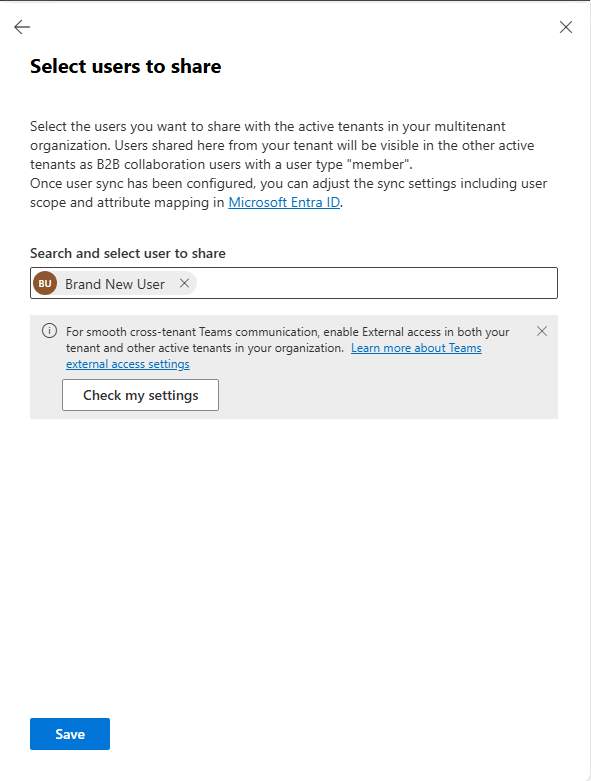
Add a user and hit save:
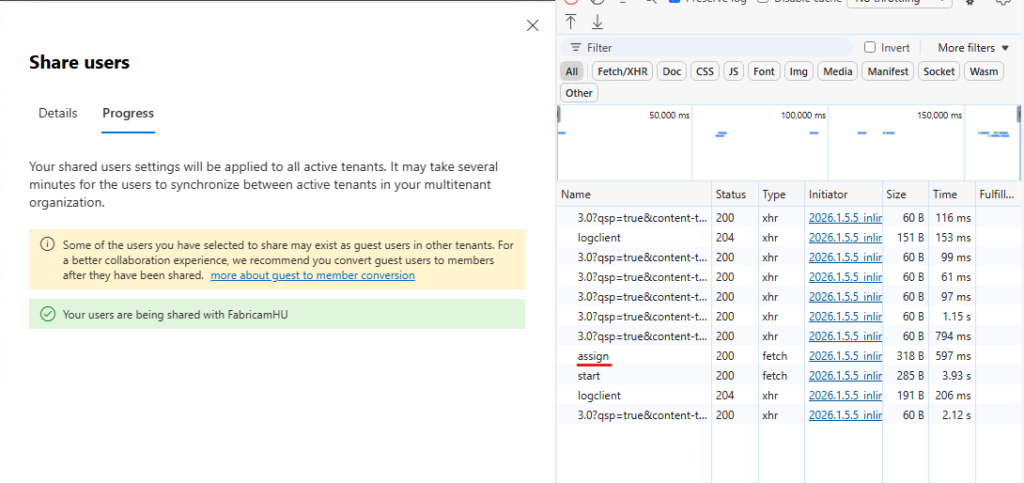
After confirmation, locate the request to the assign endpoint:
Right click – Copy – Copy as PowerShell:
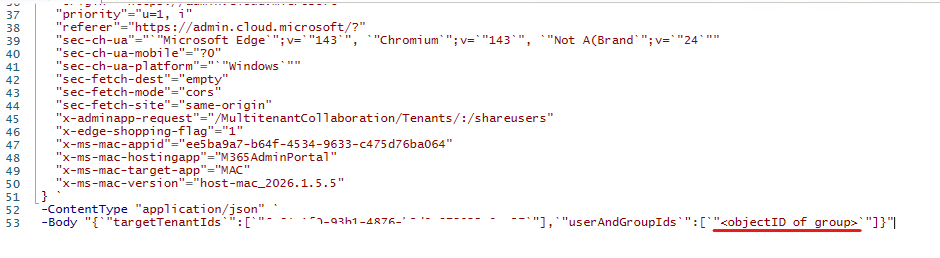
Paste the content into your favorite code editor (like PowerShell ISE), locate the -Body parameter of the request and modify the userAndGroupIds node in the payload (replace the userID with the objectID of the group to be synced) and run the script:
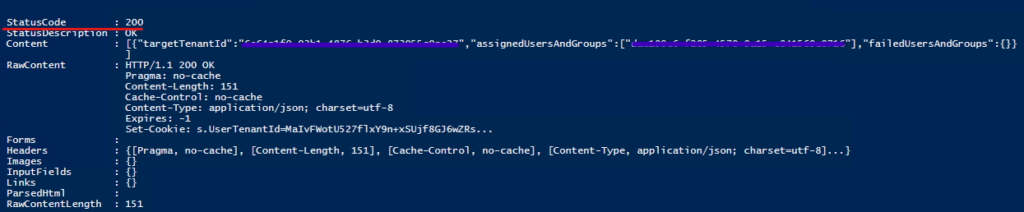
If everything went well, you should receive an HTTP status code 200 (OK):
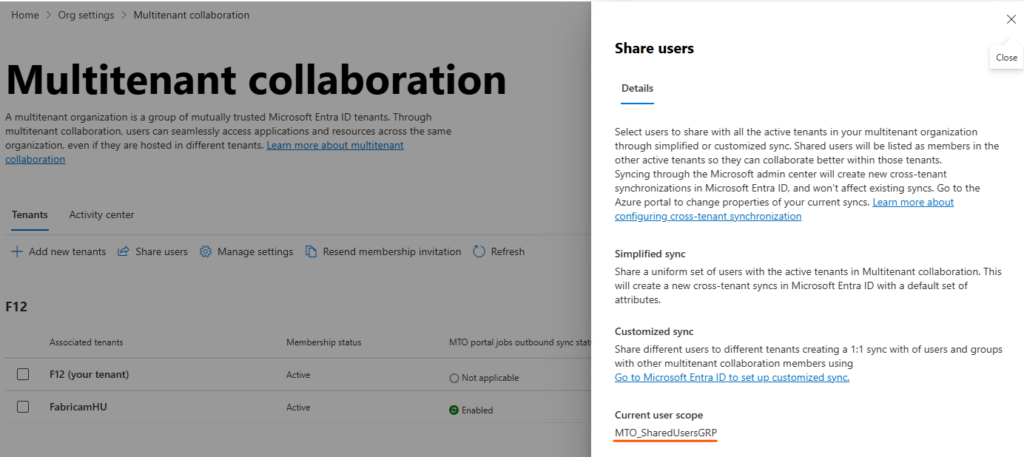
If you go back to the portal, you can verify the result:
Some story and remarks
When multitenant organizations in Microsoft 365 was in preview, the documentation recommended to set up security groups in Entra ID and add users to be synchronized:
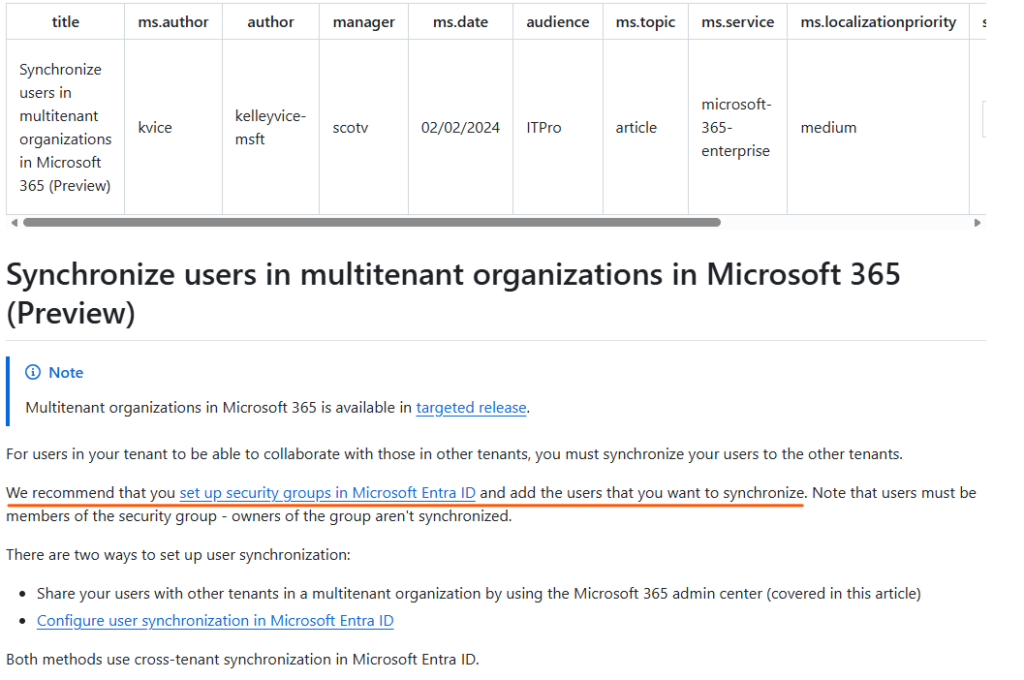
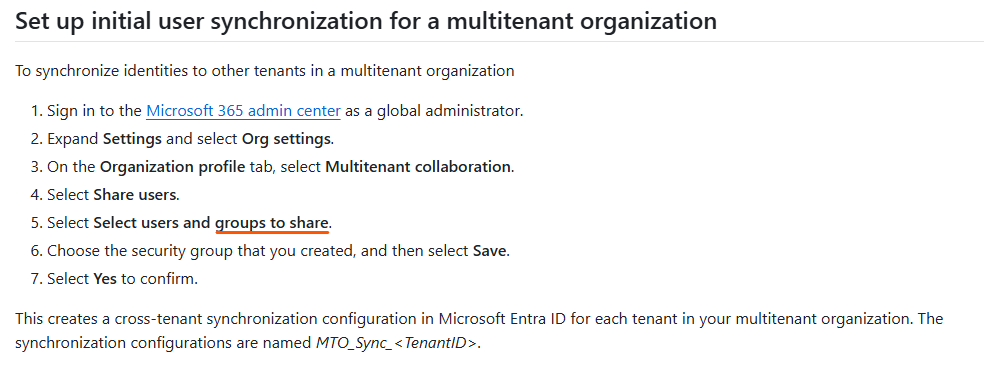
Now it states that: If you want to synchronize different users to different tenants or use Entra groups to determine which users are in scope for provisioning, then you must configure cross-tenant synchronization directly in Microsoft Entra ID.
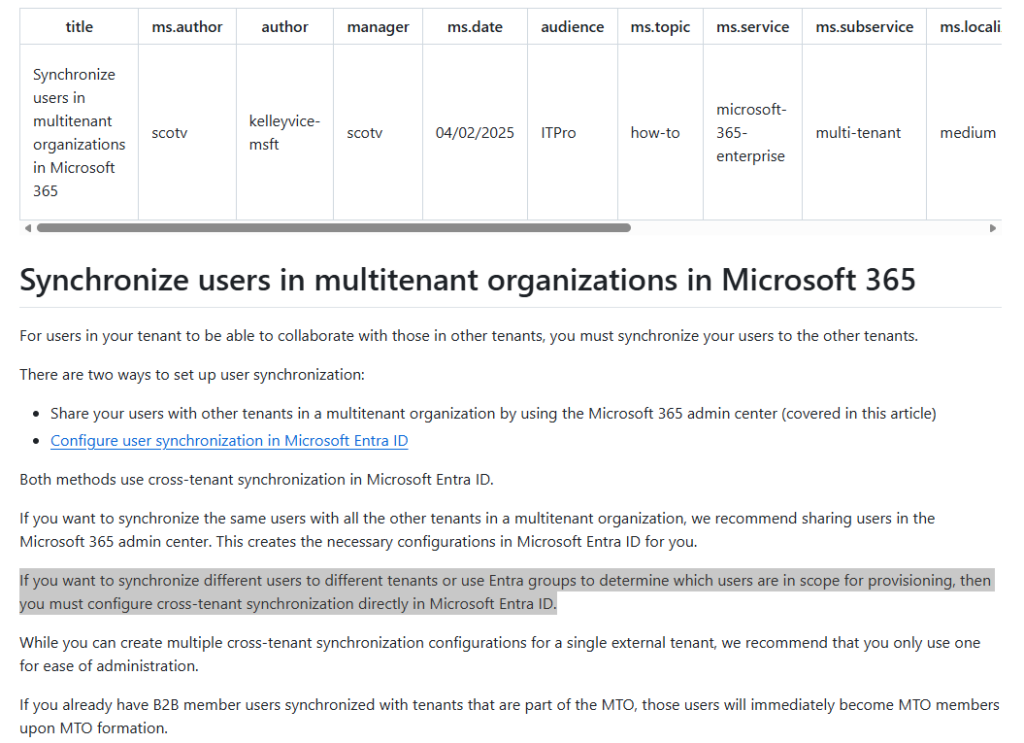
I guess this feature was removed (or at least hidden) to prevent accidental oversharing (make sure you really want to sync this group to a freshly added tenant).
Also, keep in mind that only members of the group are synced, owners are not.
Also keep in mind that this “cheat” uses the authentication cookies from the browser session – some limits may apply (Conditional Access) and the cookies are only valid for the authenticated session (the code is not reusable, try to reproduce the steps within an hour).
https://f12.hu/2026/01/12/multitenant-organization-cheat-to-add-groups-to-the-default-sync-scope/
Find personal Microsoft accounts with corporate email address
Having a personal Microsoft account registered with a corporate email address can cause confusion for users (and I’m pretty sure that it has some security implications as well). When a domain is already added to an Entra tenant as a verified custom domain, you cannot create a personal account with an email address from that domain – but if this domain is just getting “onboarded” to Entra, it is likely that users have already signed up for a personal account.
There is already a solution that can lookup users with personal account: https://sysmansquad.com/2020/11/23/find-microsoft-accounts/
However, I tried to find a different solution which does not require an app registration and provides an anonymous method to find if the user has a personal account or not.
TL;DR
– the signup.live.com page (where you can create a personal account) uses the CheckAvailableSigninNames API endpoint to verify the email address
– we can use this API to query addresses in batch
– if we find users with a registered account, we can instruct them to change the alias to avoid confusion
The script (explained below):
#example: Check-MSAccountAssociation -emailAddress user@domain.com

function Check-MSAccountAssociation ($emailAddress){
Start-Sleep 2 #to avoid "Too many Requests"
#Initialize session
$session = New-Object Microsoft.PowerShell.Commands.WebRequestSession
$req1 = Invoke-WebRequest -UseBasicParsing -Uri "https://signup.live.com" -WebSession $session

#Extract ServerData
$regex_pattern = 'var ServerData=.*;' #find response starting with 'var ServerData' ending with a semicolon -
$matches = [regex]::Match($req1.Content, $regex_pattern)
$data = ($matches.Value.Split(";"))[0]
$data = $data.Replace("var ServerData=","")
$sessionData = $data | ConvertFrom-Json


    $body = @{
        uaid = $sessionData.sUnauthSessionID
        signInName = $emailAddress
        scid = "100118"
        hpgid = "200225"
        uiflvr = "1001"
        }

    $headers = @{
        'client-request-id' = $sessionData.sUnauthSessionID
        correlationId = $sessionData.sUnauthSessionID
        Origin = "https://signup.live.com"
        Referer = "https://signup.live.com/?lic=1"
        hpgid = "200225"
        canary = $sessionData.apiCanary
        }

$response = Invoke-RestMethod -method Post -Headers $headers -uri "https://signup.live.com/API/CheckAvailableSigninNames?lic=1" -ContentType "application/json" -WebSession $session -Body ($body | ConvertTo-Json -Compress) -UseBasicParsing
#error 1242 = already exists
#error 1184 = no MSA account, can't sign up with work or school account
#error 1181 = email belongs to a reserved domain (other than outlook.com or hotmail.com)
# isAvailable : false = MS account username is taken (outlook.com or hotmail.com)
    [pscustomobject]@{
        emailAddress = $emailAddress
        resultCode = $response.error.code
        MicrosoftAccount = switch ($response.error.code){'1242' {$true} '1184' {$false}}
        }
}
Example:

This is a PowerShell function, so it is up to you how you pass the addresses to it.
Story
This method is similar to the one used in the solution linked above, but uses an application registered in an Entra tenant. However, I found that it may return incorrect results, because it looks for the HasPassword property with a 1 value, but since it is possible to create a passwordless Microsoft account, this property can be 0
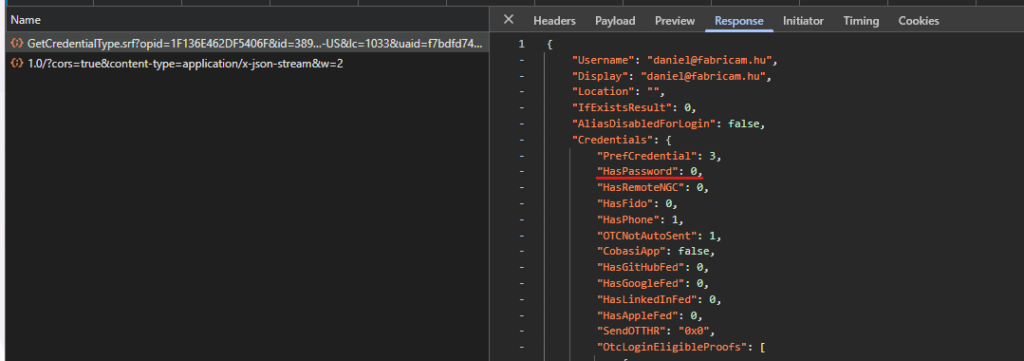
Instead of creating an application for this purpose, I wanted to find a solution without this dependency – like trying to create a personal account.
So I went to signup.live.com, pressed F12 to see what happens behind the scenes. When you enter an email address, a POST request is issued to the following endpoint: https://signup.live.com/API/CheckAvailableSigninNames?lic=1
The payload contains some IDs and the signInName to be checked:
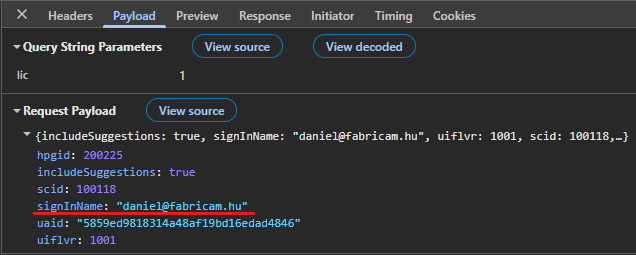
Unfortunately, this endpoint requires some session data, you cannot just submit this payload. So it needs to be figured out, which headers/cookies are needed and how to obtain this info. Right clicking on the request, we can use the “Copy as PowerShell” option which will set all headers as static values – and we can strip it to the bare minimum. After trying a lot of combinations, I came to the conclusion that the following headers are the absolute minimum:
– client-request-id (dynamic)
– correlationID (dynamic)
– Origin (can be static)
– Referer (can be static)
– hpgid (can be static)
– canary (dynamic)
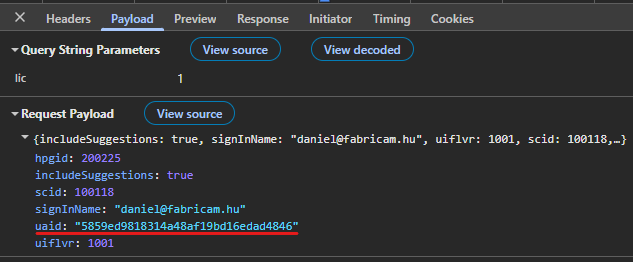
In the payload, the uaid is the only value that cannot be static.
If we take a closer look, we can see that the client-request-id and the correlationID is the same:
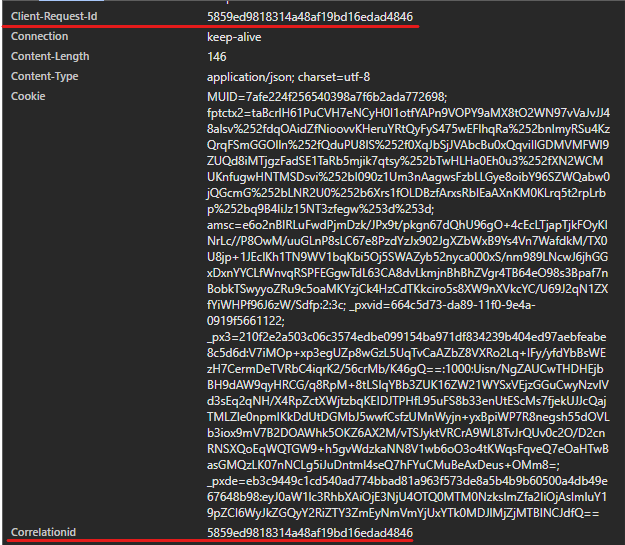
And the uaid in the payload is this same value:
This ID along with the canary is returned upon the first request to https://signup.live.com (after some redirections):
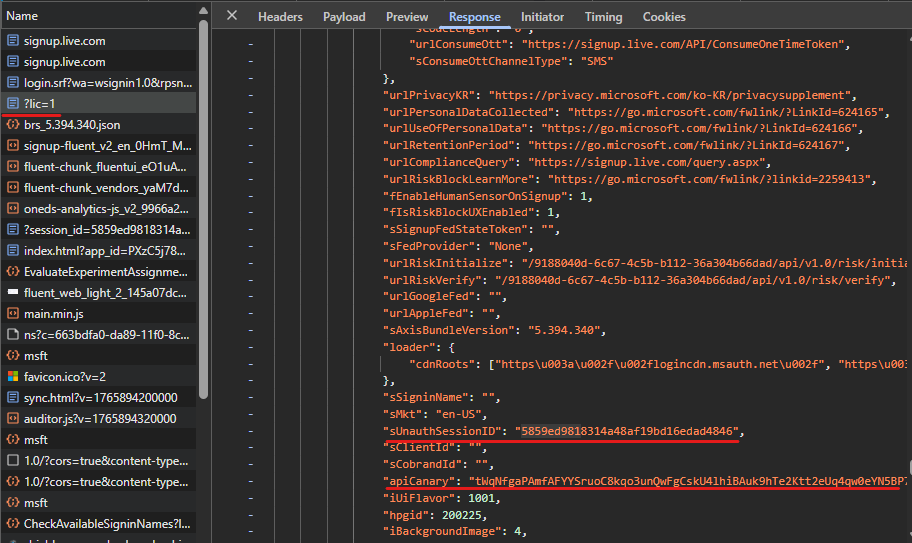
This information is returned in a variable called ServerData – this needs to be parsed in Powershell. There are probably more sophosticated ways to do this, but I used the following method:
- Invoke a request to https://signup.live.com, let PS handle the redirections, store session data in $session variable:
$session = New-Object Microsoft.PowerShell.Commands.WebRequestSession
$req1 = Invoke-WebRequest -UseBasicParsing -Uri “https://signup.live.com” -WebSession $session - Using regex, find a string that starts with “var ServerData=” and ends with a semicolon
$regex_pattern = ‘var ServerData=.*;’
$matches = [regex]::Match($req1.Content, $regex_pattern) - Drop everything after the semicolon, and replace “var ServerData=” with nothing (~trim). The remaining content is a JSON data which can be natively parsed by PowerShell:
$data = ($matches.Value.Split(“;”))[0]
$data = $data.Replace(“var ServerData=”,””)
$sessionData = $data | ConvertFrom-Json
The response apparently has always the same structure: an error block with varying code depending on the submitted address:
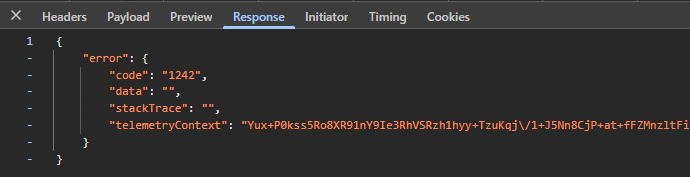
As per my testing, the following codes are possible:
- 1242 = Microsoft account exists
- 1184 = No MS account, domain cannot be used for signup (~verified domain in Entra)
- 1064 = address contains invalid character (don’t ask 🙈)
- 1181 = reserved domain
Note: when testing outlook.com or hotmail.com accounts, the response has a different structure but I didn’t feel the need to handle this scenario in the script.
Note2: The function starts with a 2 seconds pause, because I experienced some throttling when querying multiple addresses (rejected after ~150 requests).
To get rid of the work address – personal account association, the following Microsoft support article can help: link
https://f12.hu/2025/12/16/find-personal-microsoft-accounts-with-corporate-email-address/
Disabling Entra Seamless SSO – some extra notes
There are some great resources on this topic (link, link2) and it is supposed to be an easy task – but why not overcomplicate it? So I thought I share my experiences.
TL;DR
– Seamless SSO is a nice convenience feature, with some drawbacks. It is easy and recommended to disable it, even if it causes minimal inconvenience
– The documentation was not clear enough for me, so I tried to track the SSO flow from the beginning
– I tried to cover some scenarios (browsers) to prepare the transition to PRT based SSO – but keep in mind, that domain-only clients will not benefit from Seamless SSO (which doesn’t necessarily mean that users will be overwhelmed by authentication prompts)
– After disabling the feature, some extra steps may be needed for a complete removal (GPO, monitoring, documentation)
Seamless SSO on a web browser
The documentation (link) provides a detailed explanation on the behaviour, but it does not make easy to connect the dots – so I share my interpretation:
User tries to access a web application, gets redirected to the Entra sign-in page
After entering the username, the GetCredentialType endpoint (https://login.microsoftonline.com/common/GetCredentialType?mkt=en-US) returns the EstsProperties which contains a “DesktopSsoEnabled” node with “true” value:
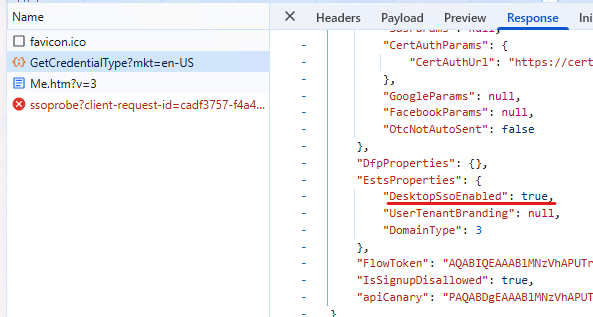
This triggers a connection to the tenant specific autologon URL (SSOprobe): https://autologon.microsoftazuread-sso.com/<upnsuffix>/winauth/ssoprobe?<parameters>

The endpoint returns a 401 Unauthorized response, challenging the browser to provide a Kerberos ticket. The browser needs to be configured to trust this endpoint enough to provide a Kerberos ticket (eg. by adding the site to the intranet zone)
The client will attempt to find the SPN for HTTP/autologon.microsoftazuread-sso.com in AD. This SPN is registered to the AZUREADSSOACC computer account:
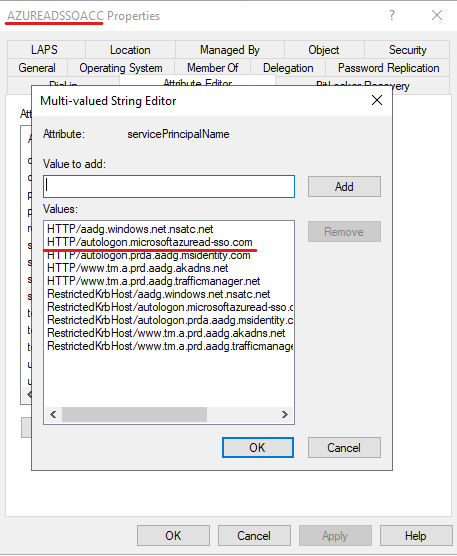
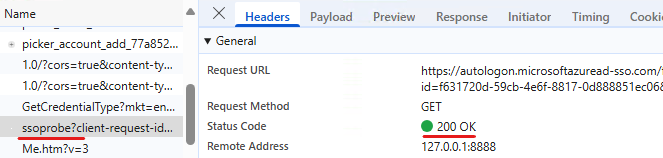
The client requests the ticket for this service, sends this ticket to the ssoprobe. Entra verifies the ticket. This results in an HTTP 200 OK request to the ssoprobe endpoint:
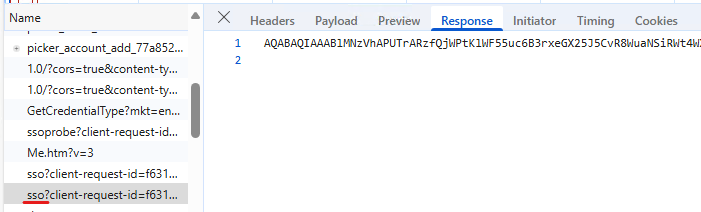
The next step is a request to the sso endpoint which returns the dssoToken: https://autologon.microsoftazuread-sso.com/<upnsuffix>/winauth/sso?<parameters>
This is followed by a POST to the https://login.microsoftonline.com/common/instrumentation/dssostatus endpoint, which returns some additional cookies (fpc) used during authentication:
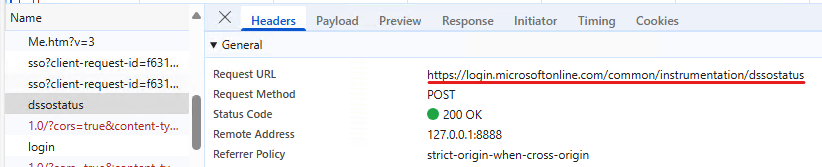
Next the “actual login” is performed on the https://login.microsoftonline.com/common/login endpoint, using the dssoToken and the cookies received:

From an admin standpoint, at this stage it’s like the user entered the password. If additional controls are in place (like MFA requirement or other Conditional Access policies), these are evaluated and access is granted (or not).
The flow described above assumes that the user is not signed into Edge and no other settings are in place that automates that sign-in process.
Seamless SSO on a client application
The same logic applies in this scenario: the docs are a bit shady, so I try to understand what is happening in the background. Fiddler + OneDrive login is used here:
The user is not signed in, “the native application retrieves the username of the user from the device’s Windows session” – this one is very interesting. First I thought that it uses the UserPrincipalName and sends the UPN suffix (see next step), but this is may not true. As it is stated in another doc:
Sign-in username can be either the on-premises default username (userPrincipalName) or another attribute configured in Microsoft Entra Connect (Alternate ID). Both use cases work because Seamless SSO uses the securityIdentifier claim in the Kerberos ticket to look up the corresponding user object in Microsoft Entra ID.
My guess is that if the UPN suffix corresponds to a verified custom domain, then the common endpoint is queried (see below) – if Alternate_id is used, then the client is configured with a DomainHint which determines the tenant to be used.
The client issues an HTTP GET to the following endpoint (no authentication):
https://login.microsoftonline.com/common/UserRealm/?user=f12.hu&api-version=1.0&checkForMicrosoftAccount=false&fallback_domain=ftwelvehu.onmicrosoft.comThis request in itself does not return the MEX endpoint, but inserting the following header to the request does the job:
"tb-aad-env-id" = "10.0.26100.5074"The result:
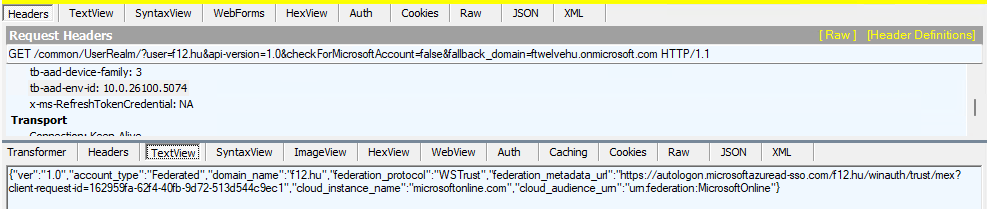
It even works with the on-premises domain name – just replace the URL’s ?user=<domain> with ?user=<on-premises domain> – the only difference here is that the domain will be replaced by the fallback domain*, eg.:
{"ver":"1.0","account_type":"Federated","domain_name":"ftwelvehu.onmicrosoft.com","federation_protocol":"WSTrust","federation_metadata_url":"https://autologon.microsoftazuread-sso.com/ftwelvehu.onmicrosoft.com/winauth/trust/mex?client-request-id=9c122fb5-263b-46af-a2fc-508ffab7bf3c","cloud_instance_name
":"microsoftonline.com","cloud_audience_urn":"urn:federation:MicrosoftOnline"}
*in case of the on-premises domain, the fallback_domain needs to be specified in the URL. I didn’t find any trace of how this information is fetched, but it is an easy task so I didn’t investigate that part (any verified domain’s fallback domain can be queried).
So now we have the MEX endpoint, the next step is a request to the MEX endpoint which returns a lot of information – I guess this is the step described in the documentation as follows:
The app then queries the WS-Trust MEX endpoint to see if integrated authentication endpoint is available.
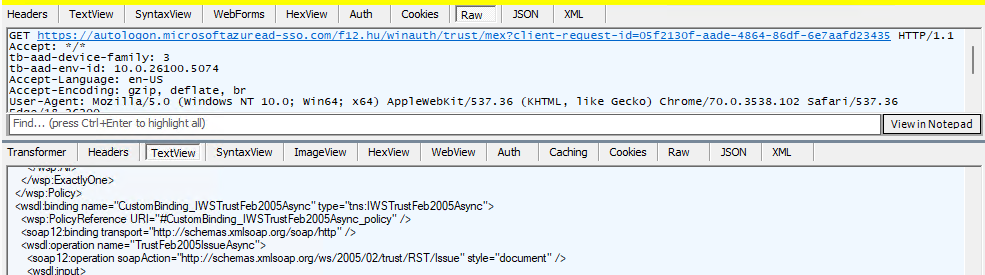
Integrated authentication endpoint is available, so a Kerberos challenge is issued (HTTP 401 at first):

Since the autologon URL is added to the intranet zone list, the client requests a ticket for HTTP/autologon.microsoftazuread-sso.com, then this ticket is passed to Entra and a SAML token (including the DesktopSsoToken) is returned (POST to https://autologon.microsoftazuread-sso.com/f12.hu/winauth/trust/2005/windowstransport?client-request-id=<id>) :

The SAML token is then presented to the OAuth2 endpoint and we have a refresh token, access token and id token.
Now that I’ve come to understand how the feature works, let’s get rid of it 🙃
Prepairing for the non-DSSO world
On domain joined devices you don’t have a PRT (Primary Refresh Token), so you have to either Hybrid Join the computers affected or accept that SSO will not work here (users will be prompted for authentication when accessing cloud resources). Microsoft is a bit more professional on this:
Seamless SSO is an opportunistic feature. If it fails for any reason, the user sign-in experience goes back to its regular behavior – that is, the user needs to enter their password on the sign-in page.
DesktopSSO login does not provide information on the device identity in Entra. This makes sense on a domain-only device, but may cause some headaches on Hybrid Joined devices
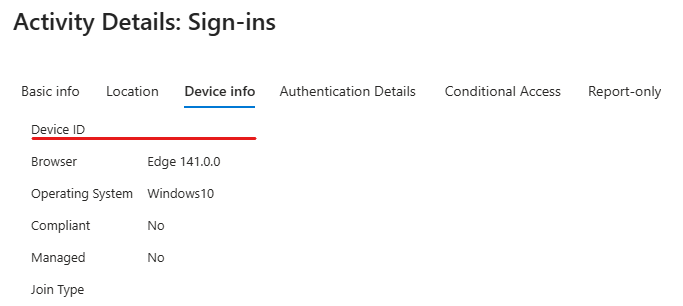
Example: if you require a compliant device to access a resource, but DSSO is used (hence no device identity is provided) the user will get blocked.
To overcome this issue, the client browsers need to be instructed to use the PRT (Primary Refresh Token) for the authentication process. Microsoft provided some guidance here.
Let’s start with 3rd party browsers:
– Chrome: enable CloudAPAuth as described in the previous link (same logic applies to other Chromium based browsers)
– Firefox: the Microsoft guidance says “Allow Windows single sign-on for Microsoft, work, and school accounts”. If you use group policy to configure the setting, import the Firefox ADMX and look for Windows SSO setting under Mozilla/Firefox
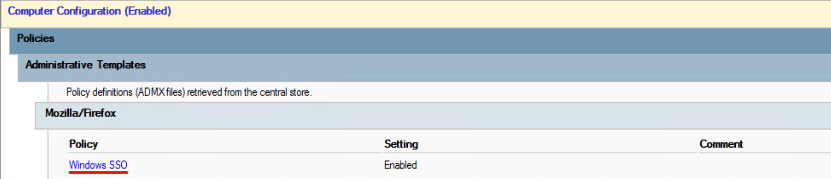
Edge: the docs state that Edge 85+ requires the user to be signed in to the browser to properly pass device identity:

This is the official and supported scenario – however, since the new Edge is Chromium based, you can also enable CloudAPAuth. Enforcing signing into Edge combined with implicit sign-in may probably fit for standard scenarios, but in my case it just resulted in more questions than answers (overcomplicating, as usual 🙃).
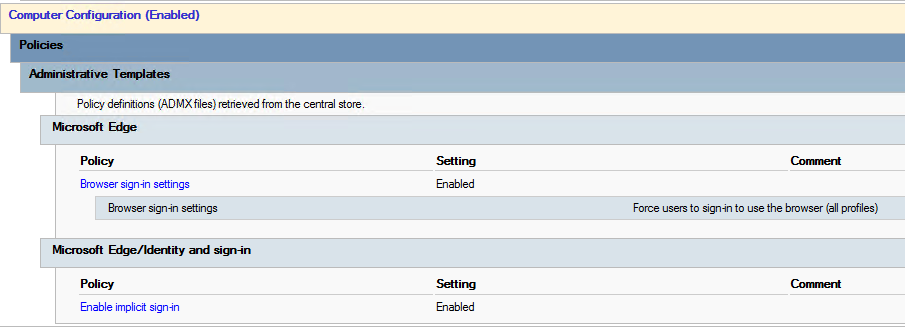
So as an alternative, I used the following setting:
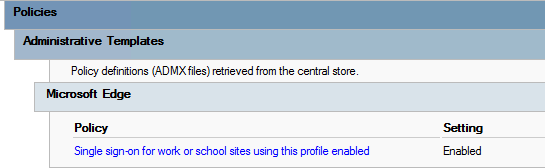
Either setting will make the browser skip the DSSO flow and use the signed-in user’s credentials.
Unfortunately, I don’t have experience with native clients. Microsoft apps automatically use the user’s cloud identity on a hybrid joined device (or at least they transition when disabling DSSO)
Detecting DSSO usage
This topic was greatly covered by Nathan McNulty and Daniel Bradley. One thing to overcomplicate this topic: if you happen to have Defender for Endpoint on your devices, you can use the DeviceNetworkEvents table to find which process is connecting to autologon.microsoftazuread-sso.com
DeviceNetworkEvents
| where RemoteUrl == @"autologon.microsoftazuread-sso.com"
| project TimeGenerated,DeviceName, InitiatingProcessFileName, InitiatingProcessAccountName, InitiatingProcessParentFileName, DeviceId, InitiatingProcessCommandLine
| sort by TimeGenerated desc
This will return an enormous amount of events that I wasn’t able to process – but revealed some funny circumstances (like computer accounts that didn’t successfully finish the hybrid join process; or that Edge attempts to reach this URL when running as a network service [probably some update mechanism])
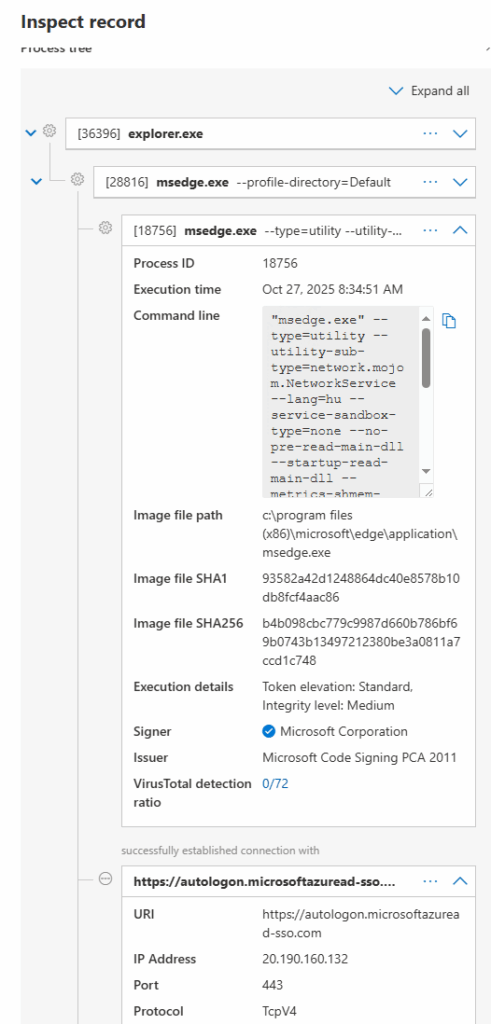
Most of these events will disappear when DSSO is “deactivated”.
Disabling DSSO
Microsoft provides a detailed guidance on disabling the feature. I opted for the Powershell approach:

The state can be verified under the Connect Sync menu
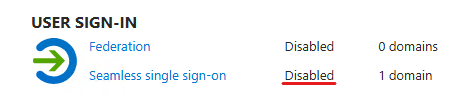
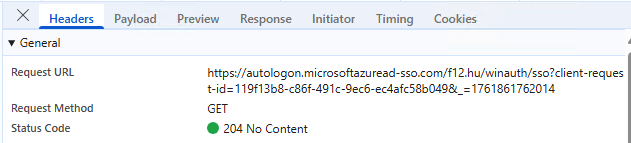
At this point, the configuration is not removed so it can be re-enabled if needed. On the client side, DSSO will still be attempted, but the SSO endpoint will not return any data (no dssotoken is received):
This means that users/applications will transition to other modern authentication flows (which also means that DSSO will be phased out, will not be tried again). I think 1-2 weeks is enough to wait for user feedback. If everything is okay, the feature can be completely removed:
Disable-AzureADSSOForest -DomainFqdn <on-premises domain>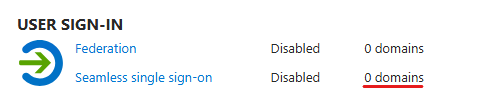
Then finally, the AZUREADSSOACC computer account can be deleted from AD.
Some additional cleanup
Entra SSSO does not work out of the box – the autologon URLs need to be added to the intranet zone settings (docs). This may be implemented via GPO or Intune, but my point is that for a complete removal, you may want to remove these settings as well.
If you set up some automation to remind you for the Kerberos decryption key rotation (eg. by monitoring the AZUREADSSOACC computer account’s password age), don’t forget to remove it.
And update your documentation 😉
https://f12.hu/2025/10/31/disabling-entra-seamless-sso-some-extra-notes/
Quicknote: Hybrid Exchange mailbox migration account vs. modern authentication policy
Recently, I came across an uncommon issue while disabling legacy authentication in a hybrid Exchange environment. Since I did not find any exact solutions, I thought I share my story about modern authentication in on-premises Exchange server and how it affects the mailbox migration account. Spoiler: it breaks the mailbox migration
TL;DR
– Exchange Online uses NTLM authentication for MRSProxy
– if you set the Exchange organization config to disable legacy authentication as default authentication policy, the mailbox migration account will not be able to authenticate (except when this account has a dedicated “allow legacy auth” policy assigned)
The story
So the Exchange Team blogged about disabling legacy authentication in Exchange (link) and I thought that this is an easy win: we have HMA enabled, we notified the users about the upcoming change, all we have to do is to create the “Block Legacy Auth” policy, gradually roll it out to users then set it as default (Set-OrganizationConfig -DefaultAuthenticationPolicy “Block Legacy Auth”). Everything went well, but some weeks later a mailbox migration batch to Exchange Online failed with the following error:
Error: CommunicationErrorTransientException: The call to 'https://<exchangeserver>/EWS/mrsproxy.svc' failed. Error details: The HTTP request is unauthorized with client authentication scheme 'Negotiate'. The authentication header received from the server was 'Negotiate, NTLM'.. --> The HTTP request is unauthorized with client authentication scheme 'Negotiate'. The authentication header received from the server was 'Negotiate, NTLM'.We figured it out that it has to do something with the new authenticationpolicy – but every other aspect of the hybrid config was working fine. So as a workaround we created a “Allow legacy authentication” policy (to be honest, it’s more like: “don’t disable any authentication method”) and assigned it to the mailbox migration account:
Get-User _srv_exombxmigr | Set-User -AuthenticationPolicy "Allow legacy authentication"Authentication policies take up to 30 minutes to apply, or iisreset will reload the config immediately.
To make it more secure, it is sufficient to enable legacy auth for only EWS (omit –BlockLegacyAuthWebServices)
New-AuthenticationPolicy "Enable EWS legacy auth" -BlockLegacyAuthImap -BlockLegacyAuthActiveSync -BlockLegacyAuthOfflineAddressBook -BlockLegacyAuthRpc -BlockLegacyAuthAutodiscover -BlockLegacyAuthMapi -BlockLegacyAuthPop

get-user _srv_exombxmigr | set-user -AuthenticationPolicy "Enable EWS legacy auth"
Also worth checking: troubleshooting guide for hybrid migration
https://f12.hu/2025/09/25/quicknote-hybrid-exchange-mailbox-migration-account-vs-modern-authentication-policy/
Powershell with Entra CBA – unattended access to Defender portal when Graph API or Application permission does not fit
One of my previous posts covered a “basic” way to track secure score changes using Graph API with application permissions. While I still prefer application permissions (over service accounts) for unattended access to certain resources, sometimes it is not possible – for example when you want to access resources which are behind the Defender portal’s apiproxy (like the scoreImpactChangeLogs node in the secureScore report). To overcome this issue, I decided to use Entra Certificate-based Authentication as this method provides a “scriptable” (and “MFA capable”) way to access these resources.
Lot of credit goes to the legendary Dr. Nestori Syynimaa (aka DrAzureAD) and the AADInternals toolkit (referring to the CBA module as this provided me the foundamentals to understand the authentication flow). My script is mostly a stripped version of his work but it targets the security.microsoft.com portal. Credit goes to Marius Solbakken as well for his great blogpost on Azure AD CBA which gave me the hint to fix an error during the authentication flow (details below).
TL;DR
- the script uses certificate-based auth (not to be confused with app auth with certificate) to access https://security.microsoft.com/apiproxy/mtp/secureScore/security/secureScoresV2 which is used to display secure score informations on the Defender portal
- prerequisites: Entra CBA configured for the “service account”, appropriate permissions granted for the account to access secure score informations, certificate to be used for auth
- the script provided is only for research/entertainment purposes, this post is more about the journey and the caveats than the result
- tested on Windows Powershell ( v5.1), encountered issues with Microsoft Powershell (v7.5)
The scipt
$tenantID = "<your tenant id>"
$userUPN = "<CBA user UPN>"
$thumbprint = "<thumbprint of certificate installed in Cert:\CurrentUser\My\ >"

function Extract-Config ($inputstring){
    $regex_pattern = '\$Config=.*'
    $matches = [regex]::Match($inputstring, $regex_pattern)
    $config= $matches.Value.replace("`$Config=","") #remove $Config=
    $config = $config.substring(0, $config.length-1) #remove last semicolon
    $config | ConvertFrom-Json
}

#https://learn.microsoft.com/en-us/entra/identity/authentication/concept-authentication-web-browser-cookies
##Cert auth to security.microsoft.com
# Credit: https://github.com/Gerenios/AADInternals/blob/master/CBA.ps1
# STEP1 - Invoke the first request to get redirect url
$webSession = New-Object Microsoft.PowerShell.Commands.WebRequestSession
$response = Invoke-WebRequest -Uri "https://security.microsoft.com/" -Method Get -WebSession $webSession  -ErrorAction SilentlyContinue -MaximumRedirection 0 -UseBasicParsing
$url = $response.Headers.'Location'

# STEP2 - Send HTTP GET to RedirectUrl
$login_get = Invoke-WebRequest  -Uri $Url -Method Get -WebSession $WebSession -ErrorAction SilentlyContinue -UseBasicParsing -MaximumRedirection 0

# STEP3 - Send POST to GetCredentialType endpoint
#Credit: https://goodworkaround.com/2022/02/15/digging-into-azure-ad-certificate-based-authentication/
$GetCredentialType_Body = @{
    username = $userUPN
    flowtoken = (Extract-Config -inputstring $login_get.Content).sFT
    }

$getCredentialType_response = Invoke-RestMethod -method Post -uri "https://login.microsoftonline.com/common/GetCredentialType?mkt=en-US" -ContentType "application/json" -WebSession $webSession -Headers @{"Referer"= $url; "Origin" = "https://login.microsoftonline.com"} -Body ($GetCredentialType_Body | convertto-json -Compress) -UseBasicParsing

#STEP 4 - Invoke REST POST to certauth endpoint with ctx and flowtoken using certificate
$CBA_Body = @{
    ctx = (Extract-Config -inputstring $login_get.Content).sctx
    flowtoken = $getCredentialType_response.FlowToken
    }
$CBA_Response = Invoke-RestMethod -UseBasicParsing -Uri "https://certauth.login.microsoftonline.com/$TenantId/certauth" -Method Post -Body $CBA_Body -Certificate (get-item Cert:\CurrentUser\My\$thumbprint)

#STEP 5 - Send authentication information to the login endpoint
$login_msolbody = $null
$login_msolbody = @{
        login = $userUPN
        ctx = ($CBA_Response.html.body.form.input.Where({$_.name -eq "ctx"})).value
        flowtoken = ($CBA_Response.html.body.form.input.Where({$_.name -eq "flowtoken"})).value
        canary = ($CBA_Response.html.body.form.input.Where({$_.name -eq "canary"})).value
        certificatetoken = ($CBA_Response.html.body.form.input.Where({$_.name -eq "certificatetoken"})).value
        }

$headersToUse = @{
        'Referer'="https://certauth.login.microsoftonline.com/"
        'Origin'= "https://certauth.login.microsoftonline.com"
        }

$login_postCBA = Invoke-WebRequest -UseBasicParsing -Uri "https://login.microsoftonline.com/common/login" -Method Post -Body $login_msolbody -Headers $headersToUse -WebSession $webSession

#STEP 6 - Make a request to login.microsoftonline.com/kmsi to get code and id_token
$login_postCBA_config = (Extract-Config -inputstring $login_postCBA.Content)
        $KMSI_body = @{
            "LoginOptions" = "3"
            "type" = "28"
            "ctx" = $login_postCBA_config.sCtx
            "hpgrequestid" = $login_postCBA_config.sessionId
            "flowToken"	= $login_postCBA_config.sFT
            "canary" = $login_postCBA_config.canary
            "i19" = "2326"
        }


$KMSI_response = Invoke-WebRequest -UseBasicParsing -Uri "https://login.microsoftonline.com/kmsi" -Method Post -WebSession $WebSession -Body $KMSI_body

#STEP 7 - add sessionID cookie to the websession as this will be required to access security.microsoft.com (probably unnecessary)
#$websession.Cookies.Add((New-Object System.Net.Cookie("s.SessID", ($response.BaseResponse.Cookies | ? {$_.name -eq "s.SessID"}).value, "/", "security.microsoft.com"))) #s.SessID cookie is retrived during first GET to defender portal

#STEP 8 - POST the id_token and session information to security.microsoft.com to get sccauth and XSRF-TOKEN cookies
$securityPortal_POST_body = @{
    code = ($KMSI_response.InputFields.Where({$_.name -eq "code"})).value
    id_token = ($KMSI_response.InputFields.Where({$_.name -eq "id_token"})).value
    state = ($KMSI_response.InputFields.Where({$_.name -eq "state"})).value
    session_state = ($KMSI_response.InputFields.Where({$_.name -eq "session_state"})).value
    correlation_id = ($KMSI_response.InputFields.Where({$_.name -eq "correlation_id"})).value
    }
$securityPortal_POST_response = Invoke-WebRequest -UseBasicParsing -Uri "https://security.microsoft.com/" -Method Post -WebSession $webSession -Body $securityPortal_POST_body -MaximumRedirection 1
##END of Cert auth to security.microsoft.com

## Query the secureScoresV2
#Decode the XSRF-TOKEN
$xsrfToken = $webSession.Cookies.GetCookies("https://security.microsoft.com") | ? {$_.name -eq "XSRF-TOKEN"} | % {$_.value}
$xsrfToken_decoded = [System.Web.HttpUtility]::UrlDecode($xsrfToken)

#Send GET to secureScoresV2 with the decoded XSRF-TOKEN added to the headers
$SecureScoresV2_headers = @{
    "x-xsrf-token" = $xsrfToken_decoded
    }
$secureScoresV2_response = Invoke-WebRequest -UseBasicParsing -Uri "https://security.microsoft.com/apiproxy/mtp/secureScore/security/secureScoresV2?`$top=400" -WebSession $webSession -Headers $SecureScoresV2_headers

#RESULT
$secureScoreInfo = $secureScoresV2_response.Content | ConvertFrom-Json
$secureScoreInfo.value
Explained
Since I’m not a developer, I will explain all the steps (result of research and lot of guesswork) as I experienced them (let’s call it sysadmin aspect). So essentially, this script “mimics” the user opening the Defender portal, authenticates with CBA, clicks on Secure Score and returns the raw information which is transformed in the browser to something user-friendly. As a prerequisite, the certificate (with the private key) needs to be installed in the Current User personal certificate store of the user running the script.
Step 0 is to populate the $tenantID, $userUPN and $thumbprint variables accordingly

Step 1 is creating a WebRequestSession object (like a browser session, from my perspective the $websession variable is just a cookie store) and navigating to https://security.microsoft.com. When performed in a browser, we get redirected to the login portal – if we open the browser developer tools, we can see in the network trace that this means a 302 HTTP code (redirect) with a Location header in the response. This is where we get redirected:
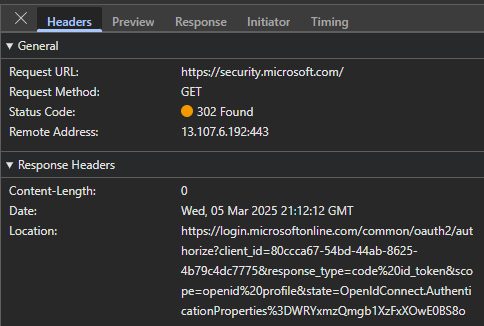
From the script aspect, we will store this Location header in the $url variable:

Notice that every Invoke-WebRequest/Invoke-Restmethod command uses the -UseBasicParsing parameter. According to documentation, this parameter is deprecated in newer PowerShell versions and from v6.0.0 all requests are using basic parsing only. However, I’m using v5.1 which uses Internet Explorer to get the content – so if it is not configured, disabled or anything else, the command could fail.
At this point the $webSession variable contains the following cookies for security.microsoft.com: s.SessID, X-PortalEndpoint-RouteKey and an OpenIdConnect.nonce:

Step 2 is to open the redirectUrl:

When opened, we receive some cookies for login.microsoftonline.com, including buid,fpc,esctx (documentation for the cookies here):

But the most important information is the flowtoken (sFT) which can be found in the response content. In the browser trace it looks like this:

In PowerShell, the response content is the $login_get variable’s Content member, returned as string. This needs to be parsed, because it is embedded in a script HTML node, beginning with $Config:

I’m using the Extract-Config function to get this configuration data (later I found that AADInternals is using the Get-Substring function defined in CommonUtils.ps1 which is more sophisticated 🙃):

Step 3 took some time to figure out. When I tried to use AADInternals’ Get-AADIntadminPortalAccessTokenUsingCBA command I got an error message:

Luckily I found this blogpost which led me to think that this GetCredentialType call is missing in AADInternals (probably something is misconfigured on my side and this can be skipped). This call – from my standpoint – is returning a new flowtoken and this new one needs to be sent to the certauth endpoint. (Until I figured it out, every other attempt to authenticate on the certauth endpoint resulted in AADSTS90036).
Step 4 is basically the same as in the AADInternals’ module: the flowtoken and ctx is posted to the certauth.login.microsoftonline.com endpoint.

Notice here, that the ContentType parameter is set to “application/json” – where it is not specified, it defaults to “application/x-www-form-urlencoded” for a POST call. In the browser trace, this is defined in the Content-Type header:
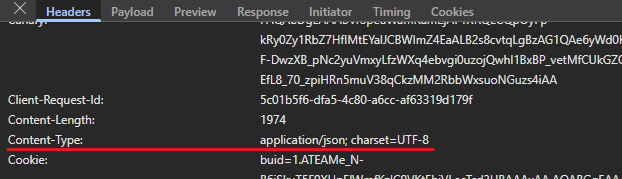
Step 5 is slightly different from AADInternals’ CBA module, but follows the same logic: send the login (userprincipalname), ctx, flowtoken, canary and certificatetoken content to the https://login.microsoftonline.com/common/login endpoint and in turn we receive the updated flowtoken, ctx, sessionid, canary informations which are posted to the https://login.microsoftonline.com/kmsi endpoint in Step 6


The KMSI_response contains the id_token, code, state, session_state and correlation_id. When we look back on the browser trace, we will see that these parameters are passed to the security.microsoft.com portal to authenticate the user.
Step 7 is probably totally unnecessary (commented out) and can be the result of too much desparate testing. It is just adding the s.SessID cookie to our websession which is also needed during authentication (without this cookie, you will immedately receive some timeout errors). This cookie is received upon the first request (I guess my testing involved clearing some variables… anyways, it won’t hurt)
Step 8 is the final step in this authentication journey: we post content we received in the $KMSI_response variable. In the browser trace we can see that an HTTP 302 is the status code for this request, followed by a new request to the same endpoint.
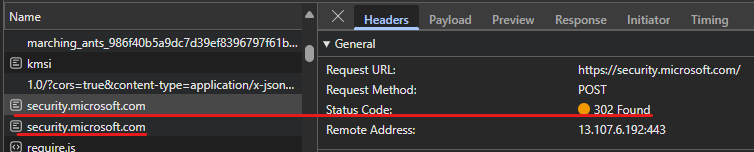
This is why the -MaximumRedirection parameter is set to 1 in this step. (Some of my tests failed with 1 redirection allowed, so if it fails, it can be increased to 5 for example).

Finally we have the sccauth and XSRF-TOKEN cookies which are required to access resources.

I thought this is the green light, all I need is to use the websession to access the secureScoresv2 – but some tweaking was required because the Invoke-WebRequest failed with the following error message:
Invoke-WebRequest : {"Message":"The web page isn\u0027t loading correctly. Please reload the page by refreshing your browser, or try deleting the cookies from your browser and then sign in again. If the problem persists, contact
Microsoft support."
Taking a look on the request, I noticed that the XSRF-TOKEN is used as X-Xsrf-Token header info (even though the cookie is present in the $websession)
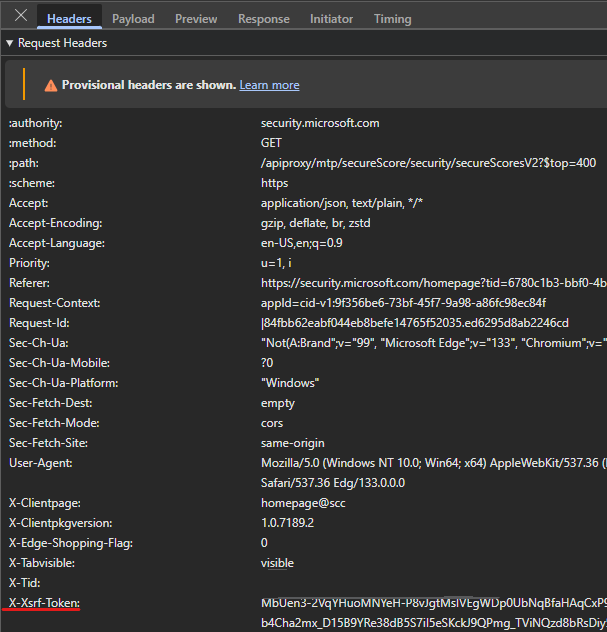
Took some (~a lot) time to figure out that this token is encoded so it needs to be decoded as well before using it as header:

So once we have the decoded token, it can be used as x-xsrf-token:

The response content is in JSON format, the ConvertFrom-Json cmdlet will do the parsing.

Compared to secureScore exposed by Graph API, here we have the ScoreImpactChangeLogs property which is missing in Graph.
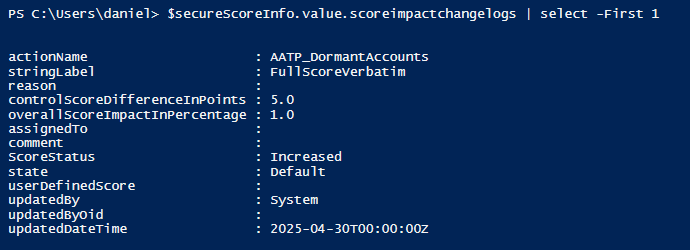
This is just one example (of endless possibilities) of using Entra CBA to access the Defender portal, but my main goal was to share my findings and give a hint on reaching other useful stuff on security.microsoft.com.
https://f12.hu/2025/05/02/powershell-with-entra-cba-unattended-access-to-defender-portal-when-graph-api-or-application-permission-does-not-fit/