Backup AzureAD Conditional Access Policies v2 – Graph API

AzureAD Powershell is planned for deprecation (link) so I redesigned my Conditional Access Policy Backup solution originally posted here. This v2 edition uses an AzureAD app registration for unattended access (eg. scheduled script) and the Microsoft Graph API (but not the Microsoft Graph PowerShell module).

The idea and the logic is the same as in the previous version: Conditional Access Policies can be exported as JSON and if the policy in AzureAD differs from or latest version then we need an “incremental” backup.

TL;DR
– Create an app registration with Policy.Read.All Application permission (and grant admin consent) and a client secret (don’t forget to update the secret in the script before it expires)
– Copy the script below, fill the variables $tenantID, $appID,$appSecret (and $backupDir if you want it elsewhere)
– Schedule the script (based on my testing, SYSTEM/LOCAL SERVICE can’t be used for REST calls, so I’m using a user account for this purpose – to be fixed)
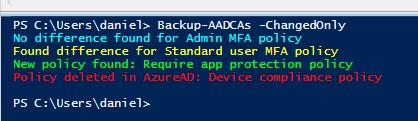
– If you need a “full backup” you can run the function Backup-AADCAs without the -ChangedOnly parameter

AzureAD App registration

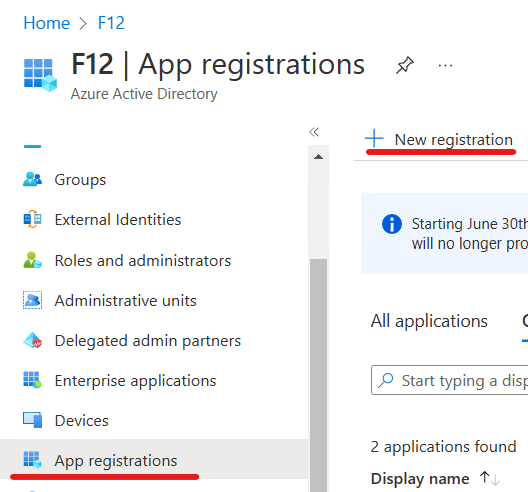
In AzureAD go to App registrations and click on New registration:

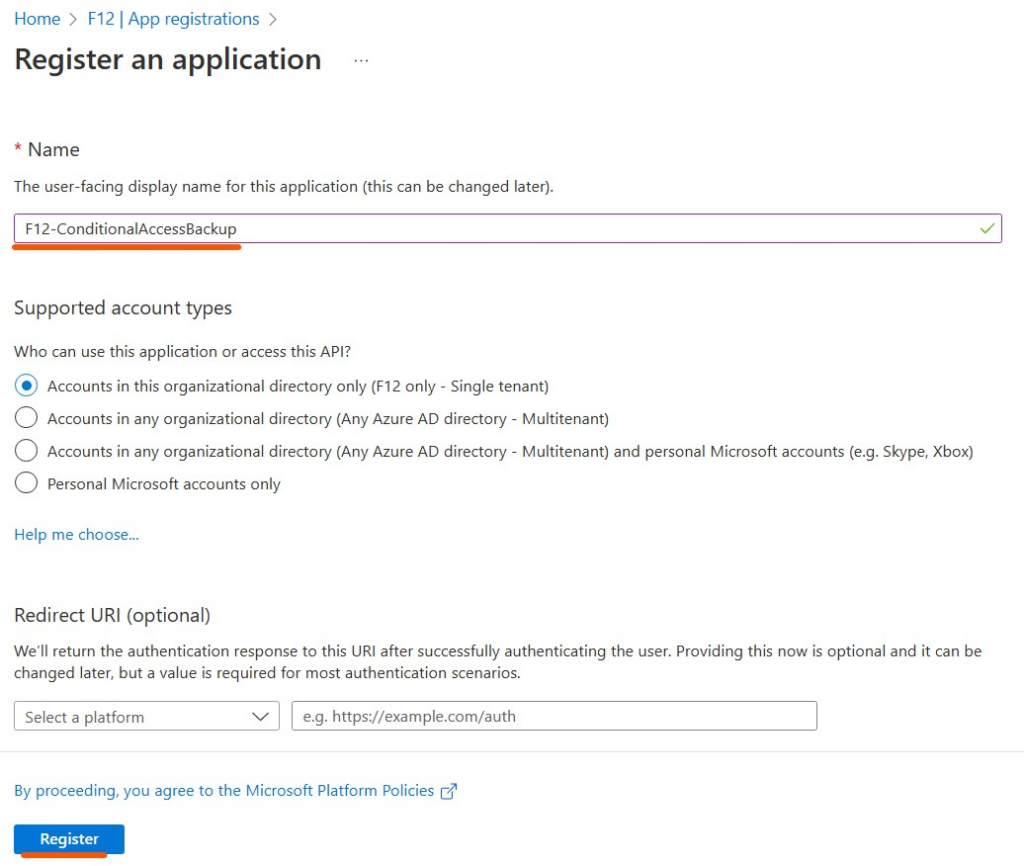
Give the app a name and click on Register:

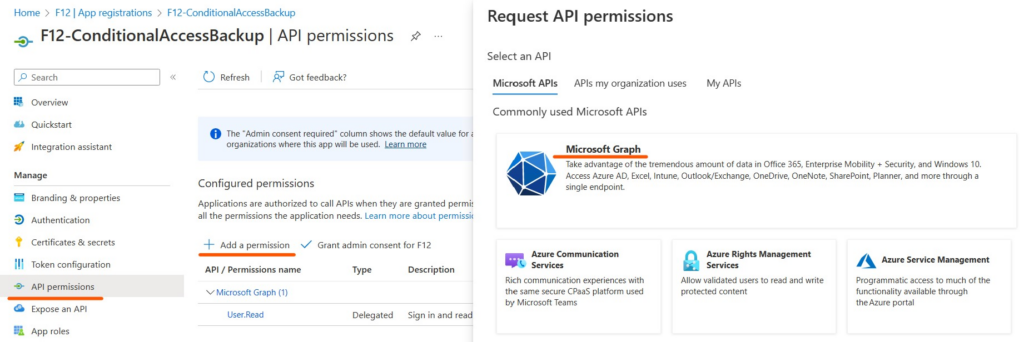
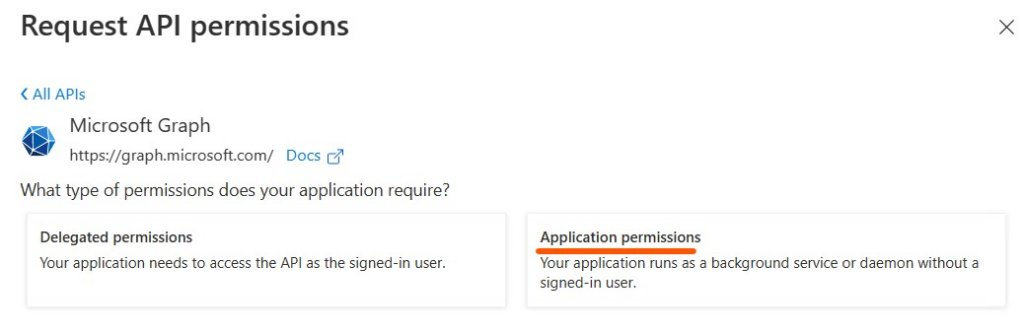
On the app registration page navigate to API permissions – Add a permission – Microsoft Graph – Application permissions

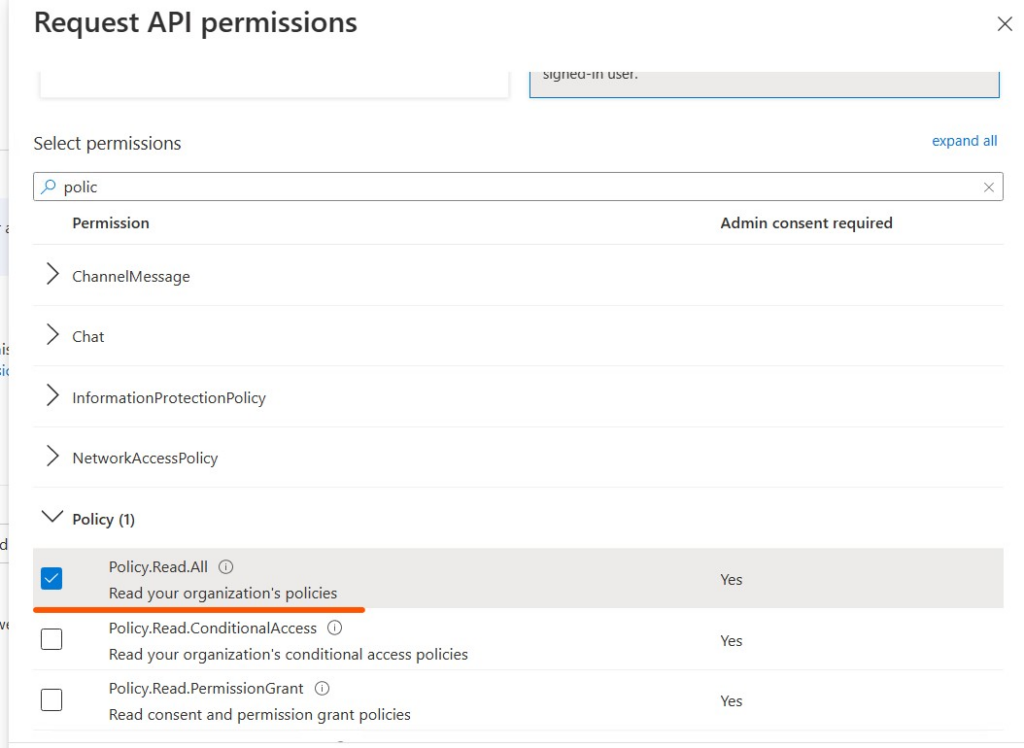
Add Policy.Read.All permission

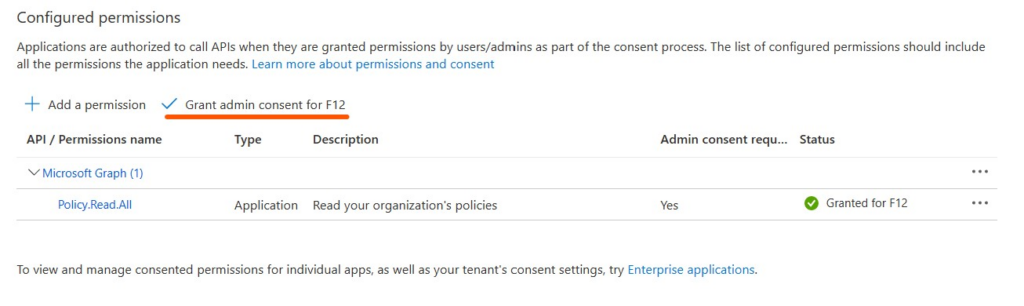
You can remove the default User.Read permission, then grant admin consent for Policy.Read.All

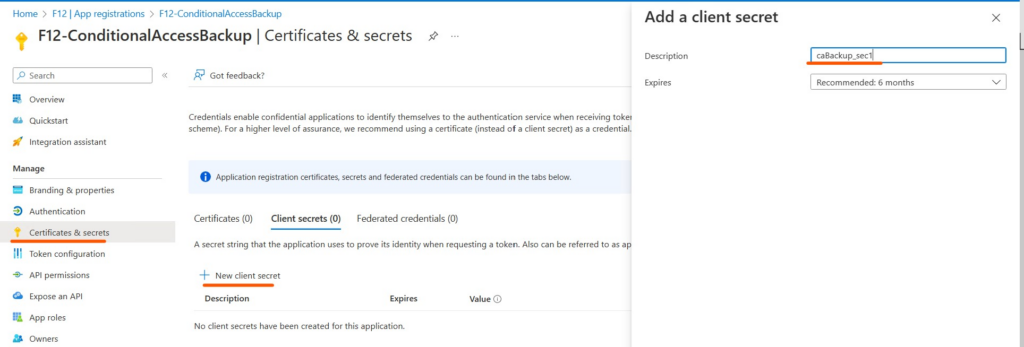
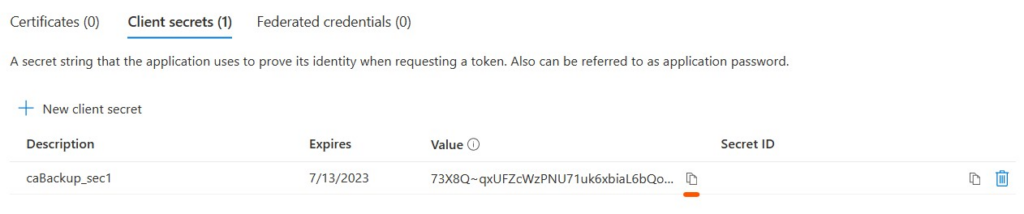
Navigate to Certificates & secrets – New client secret – create a new secret (don’t forget to refresh the secret in the script before it expires)

Copy the client secret (use the copy button) and insert it in the $appSecret variable in the script

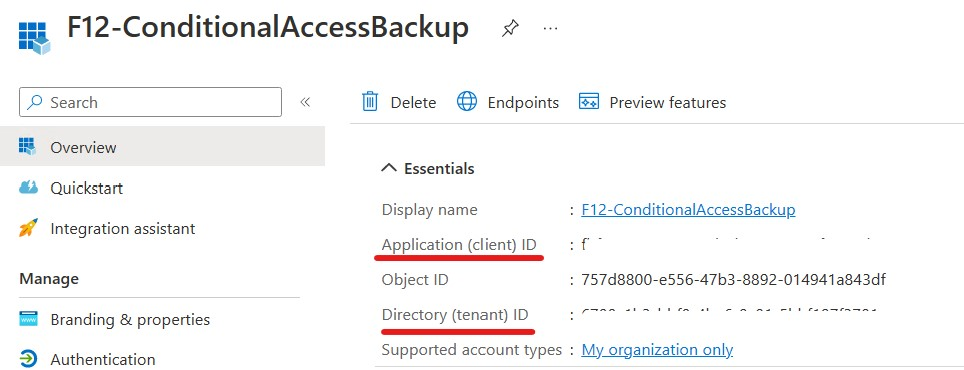
Head back to Overview, copy the tenant ID to $tenantID and application (client) ID to $appID

Schedule the scipt according to your needs.

Script

$backupDir = "C:\AAD_CA_Backup"

[Net.ServicePointManager]::SecurityProtocol = [Net.SecurityProtocolType]::Tls12

$tenantID = '' #tenantID
$appID = ''#appID
$appSecret = '' #appSecret
$scope = 'https://graph.microsoft.com/.default'
$oAuthUri = "https://login.microsoftonline.com/$TenantId/oauth2/v2.0/token"
$body = [Ordered] @{
    scope = "$scope"
    client_id = "$appId"
    client_secret = "$appSecret"
    grant_type = 'client_credentials'
}
$response = Invoke-RestMethod -Method Post -Uri $oAuthUri -Body $body -ErrorAction Stop
$aadToken = $response.access_token

#Conditional Access policies web request body
$url = 'https://graph.microsoft.com/v1.0/identity/conditionalAccess/policies'
$headers = @{ 
    'Content-Type' = 'application/json'
    'Accept' = 'application/json'
    'Authorization' = "Bearer $aadToken" 
}

function Import-AADCABackups {
    gci -File -Recurse $backupDir -Include *.json | % {
        [pscustomobject]@{
         ID = ($_.Name.Split("_"))[0]
         Version =[datetime]::ParseExact( ($_.BaseName.Split("_"))[1], 'yyyyMMddHHmm', $null)
         JSON = Get-Content $_.FullName #| ConvertFrom-Json
         Name = (Get-item $_.Directory).Name
         }
        }
}

function Backup-AADCAs {
    Param(
    [Parameter(Mandatory=$false)]
    [switch]$ChangedOnly
    )
    $import_CABackups = Import-AADCABackups

    $AAD_CAs = Invoke-WebRequest -Method Get -Uri $url -Headers $headers -ErrorAction Stop | ConvertFrom-Json | % {$_.value}
    $strDate = Get-date -Format yyyyMMddHHmm

    foreach ($CA in $AAD_CAs){
        #create backup directory if it does not exist
        if (!(Test-Path "$backupDir\$($CA.displayname)")){New-item -ItemType Directory -Path "$backupDir\$($CA.displayname)" >> $null }
        
        #load JSON
        $CA_JSON = $CA | ConvertTo-Json -Depth 6 -Compress
        
        #Export changes only  
        if ($ChangedOnly){
            $import_CABackup_latest_JSON = ($import_CABackups | where({$_.ID -eq $CA.id}) | sort version | select -Last 1).JSON
            #New CA
            if ($import_CABackup_latest_JSON -eq $null){
                Write-Host "New policy found: $($CA.DisplayName)" -ForegroundColor Green
                Out-File -InputObject $CA_JSON -Encoding utf8 -FilePath "$backupDir\$($CA.displayname)\$($ca.id)_$strdate.json"
                }
            #Difference found
            if (([bool]$import_CABackup_latest_JSON) -and ($import_CABackup_latest_JSON -ne $CA_JSON)){
                Write-Host "Found difference for $($CA.DisplayName)" -ForegroundColor Yellow
                Out-File -InputObject $CA_JSON -Encoding utf8 -FilePath "$backupDir\$($CA.displayname)\$($ca.id)_$strdate.json"
                }
            #No difference found
            if (([bool]$import_CABackup_latest_JSON) -and ($import_CABackup_latest_JSON -eq $CA_JSON)){
                Write-Host "No difference found for $($CA.DisplayName)" -ForegroundColor Cyan
                }

        #Export all
        }else{
            Out-File -InputObject $CA_JSON -Encoding utf8 -FilePath "$backupDir\$($CA.displayname)\$($ca.id)_$strdate.json"
         }
    }
    #Deleted CA
    $import_CABackups | ? {$_.id -notin $AAD_CAs.id} | % {
                Write-Host "Policy deleted in AzureAD: $($_.Name)" -ForegroundColor Red
                }

 }


Backup-AADCAs -ChangedOnly

Monitor AzureAD Conditional Access Policy changes with PowerShell (Scheduled Script)

When there are multiple administrators in an AzureAD tenant, it is inevitable that one may change settings in Conditional Access policies – without notifying everyone involved. To keep track of changes you could regualarly check the AzureAD audit logs, or have an automation for it. I may be a bit old-fashioned, but I prefer to have PowerShell scripts running on-premises with Scheduled Tasks, etc. So this blogpost covers monitoring Conditional Access policy changes with a scheduled PowerShell script.

TL;DR

  • Create a self-signed cert in your local machine store (on which you plan to run the scheduled script), export the public key
  • Create an App registration in your tenant, grant the following Microsoft Graph API permissions (type=Application):
    • AuditLog.Read.All
    • Directory.Read.All
  • Add the exported certificate to the app registration
  • Note the tenantID, clientID and certificate thumbprint
  • Install Microsoft.Graph.Authentication, Microsoft.Graph.Reports Powershell modules on the computer which will run the script
  • Modify the below script accordingly:
    • $scheduleMins = task repetition in minutes. It is used to filter audit records by timestamp. Eg.: when this value is set to 60 (run every hour) it will look for audit events generated in the past 60 minutes
    • $clientID = client ID/app ID of App registration created in your AzureAD tenant
    • $tenantID = your AzureAD tenant ID
    • $certThumbprint = thumbprint of the self signed certificate
    • modify Send-MailMessage parameters on the last line to your needs
  • Schedule the task (with admin rights to read the local machine cert store, I use SYSTEM account for this purpose, but this may be a security concern)

The script:

$scheduleMins = 60

$clientID = "" #clientID of registered app
$tenantID = "" #your tenant ID
$certThumbprint = "" #thumbprint of certificate used to connect to Graph API

Connect-MgGraph -ClientId $clientID -TenantId $tenantID -Certificate (gci Cert:\LocalMachine\my | ? {$_.thumbprint -eq $certThumbprint }) -ContextScope Process

### Search audit logs
    $activitiesAfter = (Get-date).AddMinutes(-$scheduleMins).ToUniversalTime().ToString("yyyy-MM-ddTHH:mmZ")
    $CAAuditEvents = Get-MgAuditLogDirectoryAudit -filter "(activityDateTime ge $activitiesAfter) and (loggedbyservice eq 'Conditional Access')"
    #exit if no events found
    if (!($CAAuditEvents)){exit}

## Create report
$report_CAEvents = foreach ($event in $CAAuditEvents){
    [pscustomobject]@{
        Action = $event.ActivityDisplayName
        UTCTimeStamp = $event.ActivityDateTime
        Initiator = $event.InitiatedBy.User.UserPrincipalName
        TargetDisplayName = $event.TargetResources.DisplayName
        TargetID = $event.TargetResources.Id
        OldValue = $event.TargetResources.modifiedproperties.OldValue
        NewValue = $event.TargetResources.modifiedproperties.NewValue
        }
    }

$Header = @"
<style>
TABLE {border-width: 1px; border-style: solid; border-color: black; border-collapse: collapse;}
TD {border-width: 1px; padding: 3px; border-style: solid; border-color: black;}
TH {border-width: 1px; padding: 3px; border-style: solid; border-color: black;}
</style>
"@
[string]$html = $report_CAEvents | ConvertTo-Html -Title "Conditional Access policy modifications" -Head $Header

Send-MailMessage -From <sender> -to <recipient> -Subject "Conditional Access Policy change alert" -Body $html -BodyAsHtml -SmtpServer <smtpserver> -Port 25

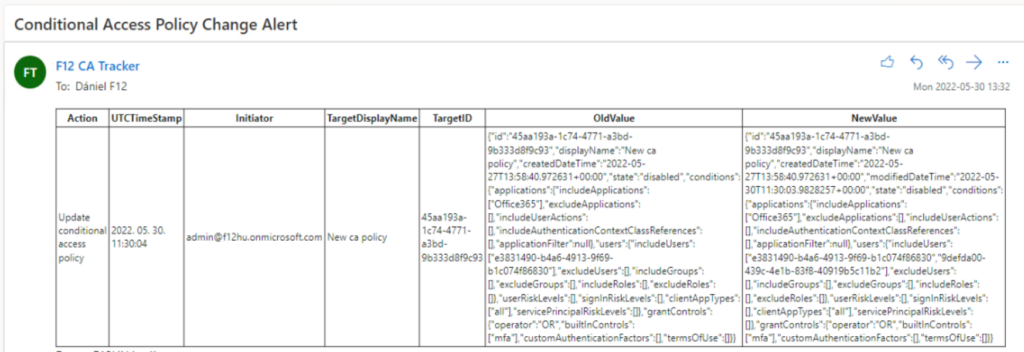
The result will show the old and new JSON notation of each modified policy. When there is a new policy, OldValue column will be empty, while a deleted policy’s report will have an empty NewValue column (for logical reasons πŸ™‚ )

Example output

Check if IP address is already an AzureAD Named Location using PowerShell

In a large corporate environment, it’s not unusual to have several Azure AD Named Locations (should it be trusted or not). It is even more challenging to keep track of these locations when there are several admins managing the environment. I thought it would be useful to have a script to determine if an IP address is already listed as a Named Location.

This scipt will require AzureAD PowerShell module and an AzureAD account with appropriate privileges to read these locations. It contains a stripped version of the IPInRange tool (link) and basically uses this tool to check if an IP is in one of the Named Location IP ranges.

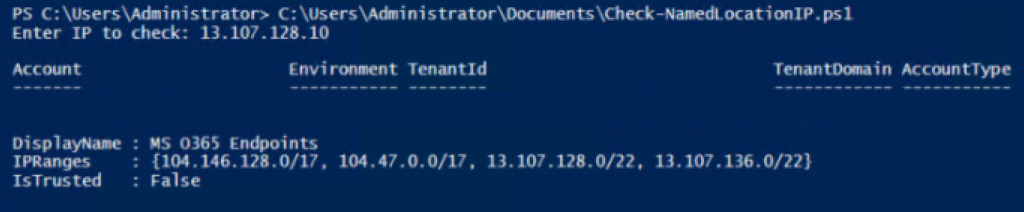
Sample results:

Result for an IP that is already an AzureAD Named Location
Result for an IP that is not listed in any AzureAD Named Location

Error: This mailbox database is associated with one or more move requests…

Recently, I was migrating from Exchange 2016 to Exchange 2019 and when I tried to uninstall Exchange 2016, I encountered the following error message:

Error: This mailbox database is associated with one or more move requests. To get a list of all move requests associated with this database, run Get-MoveRequest -SourceDatabase and Get-MoveRequest -TargetDatabase . To remove a move request, run Remove-MoveRequest .

I went through the basics:

  • ran the Get-MoveRequest commands with mailbox databases attached (with and without specifying the database), but it didn’t list any request
  • ran the Get-MailboxExportRequest command and removed the completed exports

After googling a while, I found this Microsoft document which seemed unrelevant at first: Can’t move mailboxes to Exchange Online – Exchange | Microsoft Docs

But this phrase took my attention:

Another example for an orphaned local move request for a primary or archived mailbox would be if there’s no move request on-premises for it, but there are attributes set, such as the following:

  • msExchMailboxMoveSourceMDBLink
  • msExchMailboxMoveTargetMDBLink
  • msExchMailboxMoveSourceArchiveMDBLink
  • msExchMailboxMoveTargetArchiveMDBLink

A quick Powershell oneliner (below) found 3 users with msExchMailboxMoveTargetMDBLink attribute set to the mailbox database, but these users were already migrated to Exchange Online, so I was sure that this is an orphaned local move request.

get-aduser -Properties msExchMailboxMoveTargetMDBLink -filter * | ? {$_.msExchMailboxMoveTargetMDBLink}

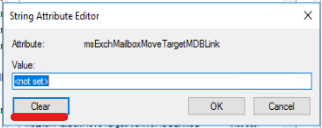
So the solution was to open ADUC, find the users, open Attribute Editor, find the attribute and hit on Clear:

Use at your own risk πŸ™‚

Backup AzureAD Conditional Access Policies – a different approach

Update: as the AzureAD PowerShell is being deprecated, I made an updated version which can be found here

Backing up AAD Conditional Access policies is relatively straightforward with Get-AzureADMSConditionalAccessPolicy cmdlet (don’t forget to update your AzureAD module if the cmdlet is not recognized). In this post, I want to share my own backup “solution” which can detect changes based on the previously exported settings.

TL;DR
– Ensure you have appropriate permissions to read AAD CAs
– Make sure to use up-to-date AzureAD PowerShell module
– Modify $backupDir variable accordingly

The script is here

Explained

First, we define the directory where policies will be exported, which will be created if it does not exist:
$backupDir = "C:\AAD_CA"
if (!(Test-Path $backupDir)){mkdir $backupDir}

Next, we connect to AzureAD. Enter appropriate credentials in popup window
Connect-AzureAD

The next part is a function declaration, which imports the previous exports from the backup directory as a custom object:

function Import-AADCABackups {
gci -File -Recurse $backupDir -Include *.json | % {
[pscustomobject]@{
ID = ($_.Name.Split(""))[0] Version =[datetime]::ParseExact( ($.BaseName.Split(""))[1], 'yyyyMMddHHmm', $null)

JSON = Get-Content $.FullName
Name = (Get-item $_.Directory).Name
}
}
}

The main function is called Backup-AADCAs which has an optional parameter -ChangedOnly

function Backup-AADCAs {
Param(
[Parameter(Mandatory=$false)]
[switch]$ChangedOnly
)

It first imports the previous backups using the Import-AADCABackups function, then the actual ones using Get-AzureADMSConditionalAccessPolicy

$import_CABackups = Import-AADCABackups
$AAD_CAs = Get-AzureADMSConditionalAccessPolicy

After storing the actual date in $strDate variable, we loop through each actual policy:
– create a subdirectory with the same name as the policy
– convert the policy to JSON, store it in $CA_JSON variable

foreach ($CA in $AAD_CAs){
        #create backup directory if it does not exist
        if (!(Test-Path "$backupDir\$($CA.displayname)")){New-item -ItemType Directory -Path 

"$backupDir\$($CA.displayname)" >> $null }
        #load JSON
        $CA_JSON = $CA | ConvertTo-Json -Depth 6 -Compress

If the function is called with -ChangedOnly parameter, the following happens:
– try to find an existing backup of the policy based on its ID and select the latest one:

$import_CABackup_latest_JSON = ($import_CABackups.where({$_.ID -eq $CA.id}) | sort version | select -Last 1).JSON

– if it didn’t find a match, the CA in the loop is considered new and backup is created:

#New CA
           if ($import_CABackup_latest_JSON -eq $null){
                Write-Host "New policy found: $($CA.DisplayName)" -ForegroundColor Green
                Out-File -InputObject $CA_JSON -Encoding utf8 -FilePath "$backupDir\$($CA.displayname)\$($ca.id)_$strdate.json"
                }

– if there was a match, but the latest one’s content differs from the actual one, then it is considered to be changed:

#Difference found
            if (([bool]$import_CABackup_latest_JSON) -and ($import_CABackup_latest_JSON -ne $CA_JSON)){
                Write-Host "Found difference for $($CA.DisplayName)" -ForegroundColor Yellow
                Out-File -InputObject $CA_JSON -Encoding utf8 -FilePath "$backupDir\$($CA.displayname)\$($ca.id)_$strdate.json"
                }

– if there was a match and it’s content is the same as the actual one, then there was no change:

#No difference found
            if (([bool]$import_CABackup_latest_JSON) -and ($import_CABackup_latest_JSON -eq $CA_JSON)){
                Write-Host "No difference found for $($CA.DisplayName)" -ForegroundColor Cyan
                }

If -ChangedOnly parameter is not used, then everything is exported:

        }else{
            #Export all
            Out-File -InputObject $CA_JSON -Encoding utf8 -FilePath "$backupDir\$($CA.displayname)\$($ca.id)_$strdate.json"
         }
    }

The function lists those policies that were deleted:

#Deleted CA
    $import_CABackups | ? {$_.id -notin $AAD_CAs.id} | % {
                Write-Host "Policy deleted in AzureAD: $($_.Name)" -ForegroundColor Red
                }
 }

At the end of the script we chose if we call the Backup-AADCAs function with or without -ChangedOnly parameter.

Backup-AADCAs -ChangedOnly

Caveat: if a policy is renamed, a new directory is created. However, since the detection is based on policy ID, no other confusion should occour.

Grant admin consent to an AzureAD application via PowerShell

Recently, I was scripting an Azure App registration workflow and had some headaches figuring out how to grant admin consent to the application with PowerShell. Actually, if AzureCLI is installed you can use the following command:

az ad app permission admin-consent --id <application id>

However, I wanted to find some native PowerShell-way to solve this problem and this is how I came accross this solution. So this script is basically giving some context to the answer provided by Kitwradr.

TL;DR

  1. Ensure you have AzureRM Powershell module installed
  2. Modify the $appName variable’s value accordingly
  3. When prompted, enter tenant admin credentials

Script:

$appName = "<AppDisplayName>"

Login-AzureRmAccount
$context = Get-AzureRmContext
$tenantId = $context.Tenant.Id
$token = [Microsoft.Azure.Commands.Common.Authentication.AzureSession]::Instance.AuthenticationFactory.Authenticate($context.Account, $context.Environment, $TenantId, $null, "Never", $null, "74658136-14ec-4630-ad9b-26e160ff0fc6")
$headers = @{
  'Authorization' = 'Bearer ' + $token.AccessToken
  'X-Requested-With'= 'XMLHttpRequest'
  'x-ms-client-request-id'= [guid]::NewGuid()
  'x-ms-correlation-id' = [guid]::NewGuid()}

$azureApp = Get-AzureRmADApplication -DisplayName $appName
$azureAppId = $azureApp.ApplicationId
$url = "https://main.iam.ad.ext.azure.com/api/RegisteredApplications/$azureAppId/Consent?onBehalfOfAll=true"
Invoke-RestMethod -Uri $url -Headers $headers -Method POST -ErrorAction Stop
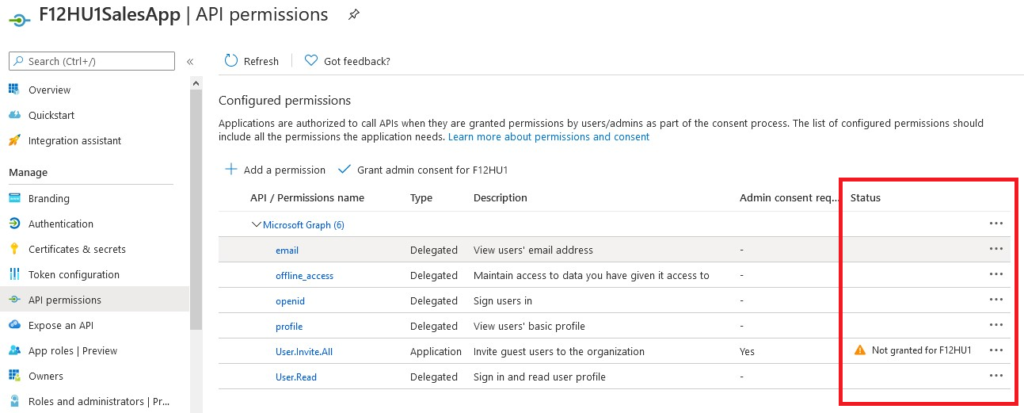
API permissions before running the script
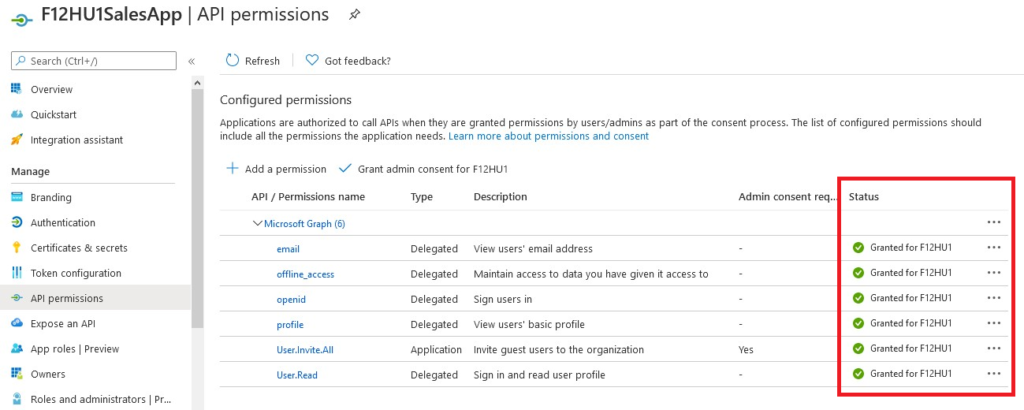
API permissions after running the script

Enjoy πŸ™‚

Querying AzureAD App registration credential expiration

Recently, I came across an interesting post on monitoring Azure AD App registration expiration – link here. I made a simplified version which only generates a report on the expiration date of each credential.

TL;DR
Running the script below will list each credential for AzureAD app registrations sorted by expiration date. To run the script, ensure you have AzureRM PowerShell module installed and you have appropriate permissions to read the informations.

Connect-AzureRmAccount
$RM_Apps = Get-AzureRmADApplication

$RM_Apps_Cred = foreach ($app in $RM_Apps){
    $tmp_cred = Get-AzureRmADAppCredential -ObjectId $app.objectid
    $tmp_cred | % {
        [pscustomobject]@{
        App = $app.DisplayName
        ObjId = $app.objectId
        CredType = $_.Type
        StartDate = $_.StartDate
        EndDate = $_.EndDate
    }
    Clear-Variable tmp_cred
 }
}

$RM_Apps_Cred | sort endDate | ft

To list only the latest credential for each application by type, the following will do:

#List only latest credentials
$RM_Apps_Unique = $RM_Apps_Cred | select app,credtype -Unique
$RM_Apps_Cred_latest = foreach ($obj in $RM_Apps_Unique){
    $RM_Apps_Cred.Where({($_.credtype -eq $obj.credtype) -and ($_.app -eq $obj.app)}) | sort enddate | select -Last 1
    }

$RM_Apps_Cred_latest | sort app | ft

Bug in Get-AzureMSConditionalAccessPolicy cmdlet?

Recently, I found an excellent blogpost on how to back up AzureAD Conditional Access policies (link) using the new AzureAD PowerShell module and decided to create my own when I encountered a little bug…

TL;DR
Instead of using ToJson() method use ConvertTo-Json cmdlet on the objects returned by Get-AzureMSConditionalAccessPolicy.

Explained
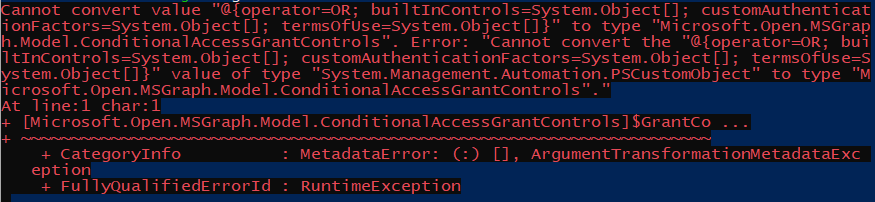
I was trying to create my own version of a restore script when I encountered the following error:

Cannot convert value "@{operator=OR; builtInControls=System.Object[]; customAuthenticationFactors=System.Object[]; termsOfUse=System.Object[]}" to type "Microsoft.Open.MSGraph.Model.ConditionalAccessGrantControls". Error: "Cannot convert the "@{operator=OR; builtInControls=System.Object[]; customAuthenticationFactors=System.Object[]; termsOfUse
=System.Object[]}" value of type "System.Management.Automation.PSCustomObject" to type "Microsoft.Open.MSGraph.Model.ConditionalAccessGrantControls"."
At line:2 char:1
+ [Microsoft.Open.MSGraph.Model.ConditionalAccessGrantControls]$GrantCo ...
+ ~~~~~~~~~~~~~~~~~~~~~~~~~~~~~~~~~~~~~~~~~~~~~~~~~~~~~~~~~~~~~~~~~~~~~
    + CategoryInfo          : MetadataError: (:) [], ArgumentTransformationMetadataException
    + FullyQualifiedErrorId : RuntimeException

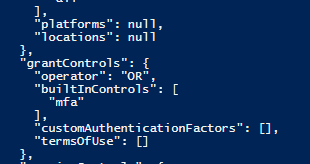
The main difference between my script and Barbara’s is that I used the ToJson() method on the returned Microsoft.Open.MSGraph.Model.ConditionalAccessPolicy type objects:

$CAs = Get-AzureADMSConditionalAccessPolicy
foreach ($CA in $CAs){$CA.ToJson()}

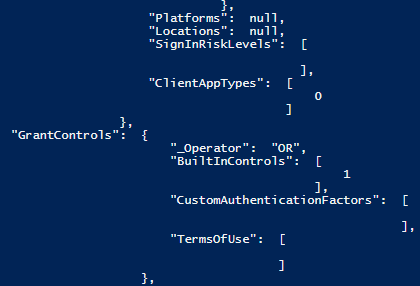
This way, the JSON output has no underscore prefix in “operator” compared to the output generated by ConvertTo-Json (“_Operator”):

Output when using ToJson() method:

Same object when using ConvertTo-Json:

Retrieve Bitlocker keys stored in AzureAD with PowerShell

Sample output

Bitlocker keys can be stored in Active Directory and in Azure Active Directory too – but querying the latter is a bit trickier than usual. The following script will export all Bitlocker recovery keys (from your Azure Active Directory tenant) to an HTML table.

TL;DR
1. Ensure that you meet the following prerequisites:
– you have adequate rights in AzureAD (Global Admin for example πŸ™‚ )
– the following PowerShell modules are installed: AzureRM, AzureAD
2. Run the script below (make sure that the path is valid).
– the script will prompt for AzureAD credentials twice, it is normal (scipt explained later)

The scipt itself:

$exportFile = "C:\TEMP\BitLockerReport.html"

#Install-Module AzureRM
Import-Module AzureRM.Profile
Login-AzureRmAccount

#Prepare Context - REQUIRES TENANT ADMIN
$context = Get-AzureRmContext
    $tenantId = $context.Tenant.Id
    $refreshToken = @($context.TokenCache.ReadItems() | Where-Object {$_.tenantId -eq $tenantId -and $_.ExpiresOn -gt (Get-Date)})[0].RefreshToken
    $body = "grant_type=refresh_token&refresh_token=$($refreshToken)&resource=74658136-14ec-4630-ad9b-26e160ff0fc6"
    $apiToken = Invoke-RestMethod "https://login.windows.net/$tenantId/oauth2/token" -Method POST -Body $body -ContentType 'application/x-www-form-urlencoded'
    $header = @{
        'Authorization'          = 'Bearer ' + $apiToken.access_token
        'X-Requested-With'       = 'XMLHttpRequest'
        'x-ms-client-request-id' = [guid]::NewGuid()
        'x-ms-correlation-id'    = [guid]::NewGuid()
    }


Connect-AzureAD
$AzureADDevices = Get-AzureADDevice -all $true | ? {$_.deviceostype -eq "Windows"}

# Retrieve BitLocker keys
$deviceRecords = @()

$deviceRecords = foreach ($device in $AzureADDevices) {
        $url = "https://main.iam.ad.ext.azure.com/api/Device/$($device.objectId)"
        $deviceRecord = Invoke-RestMethod -Uri $url -Headers $header -Method Get
        $deviceRecord
    }

$Devices_BitlockerKey = $deviceRecords.Where({$_.BitlockerKey.count -ge 1})

$obj_report_Bitlocker = foreach ($device in $Devices_BitlockerKey){
    foreach ($BLKey in $device.BitlockerKey){
        [pscustomobject]@{
            DisplayName = $device.DisplayName
            driveType = $BLKey.drivetype
            keyID = $BLKey.keyIdentifier
            recoveryKey = $BLKey.recoveryKey
            }
    }
}
#HTML report

<#-- Create HTML report --#>
$body = $null

$body += "<p><b>AzureAD Bitlocker key report</b></p>"
$body += @"
<table style=width:100% border="1">
  <tr>
    <th>Device</th>
    <th>DriveType</th>
    <th>KeyID</th>
    <th>RecoveryKey</th>
  </tr>
"@

$body +=  foreach ($obj in $obj_report_Bitlocker){
"<tr><td>" + $obj.DisplayName + " </td>"
    "<td>" + $obj.DriveType + " </td>"
    "<td>" + $obj.KeyID + " </td>"
"<td>" + $obj.RecoveryKey + "</td></tr>"
}
  
$body += "</table>"

$body > $exportFile

Explained

In the first line, $exportFile defines the output filename as a variable (it will be used at the end of the script).
$exportFile = "C:\TEMP\BitLockerReport.html"

Next, we will connect to the Azure Resource Manager (AzureRM) – to install the module, PowerShell should be running in elevated mode
Install-Module AzureRM
Import-Module AzureRM.Profile
Login-AzureRmAccount

Next, we are going to prepare the Rest API headers used to gather information. It basically consists of retrieving a RefreshToken, which is then used to create an Access Token. This token will grant access to resources (Authorization header).
$context = Get-AzureRmContext
$tenantId = $context.Tenant.Id
$refreshToken = @($context.TokenCache.ReadItems() | Where-Object {$_.tenantId -eq $tenantId -and $_.ExpiresOn -gt (Get-Date)})[0].RefreshToken
$body = "grant_type=refresh_token&refresh_token=$($refreshToken)&resource=74658136-14ec-4630-ad9b-26e160ff0fc6"
$apiToken = Invoke-RestMethod "https://login.windows.net/$tenantId/oauth2/token" -Method POST -Body $body -ContentType 'application/x-www-form-urlencoded'
$header = @{
'Authorization' = 'Bearer ' + $apiToken.access_token
'X-Requested-With' = 'XMLHttpRequest'
'x-ms-client-request-id' = [guid]::NewGuid()
'x-ms-correlation-id' = [guid]::NewGuid()
}

Next, we connect to AzureAD and query all AzureAD device with Windows operating system (Bitlocker applies only on Windows, so other devices are irrelevant):
Connect-AzureAD
$AzureADDevices = Get-AzureADDevice -all $true | ? {$_.deviceostype -eq "Windows"}

The following lines are basically the essence of the script: for each device it queries the old Azure endpoint for information (I’m sure that GraphAPI can be used as well)
$deviceRecords = @()
$deviceRecords = foreach ($device in $AzureADDevices) {
$url = "https://main.iam.ad.ext.azure.com/api/Device/$($device.objectId)"
$deviceRecord = Invoke-RestMethod -Uri $url -Headers $header -Method Get
$deviceRecord
}

And that was the only part which required the Access Token. NOTE: if you’re testing some parts of the script, make sure to run the previous block (starting with Get-AzureRMContext) as access tokens expire after 1 hour and you may experience errors.
Now, we filter out the devices that have Bitlocker information:
$Devices_BitlockerKey = $deviceRecords.Where({$_.BitlockerKey.count -ge 1})

The next block is basically creating a custom object to store the neccessary information as of my needs. The report should contain the following information on each line:
– Device DisplayName
– Drive Type
– Recovery Key ID
– Recovery Key
Because a device can have multiple key ids (OS disk, data disk, etc.), I need to loop through each device’s each BitlockerKey property, so that information can be printed to a simple table (no multivalued cells):
$obj_report_Bitlocker = foreach ($device in $Devices_BitlockerKey){
foreach ($BLKey in $device.BitlockerKey){
[pscustomobject]@{
DisplayName = $device.DisplayName
driveType = $BLKey.drivetype
keyID = $BLKey.keyIdentifier
recoveryKey = $BLKey.recoveryKey
}
}
}

Now that information is ready to be exported, we add the HTML tags to the information and export it:

$body = $null

$body += "<p><b>AzureAD Bitlocker key report</b></p>"
$body += @"
<table style=width:100% border="1">
  <tr>
    <th>Device</th>
    <th>DriveType</th>
    <th>KeyID</th>
    <th>RecoveryKey</th>
  </tr>
"@

$body +=  foreach ($obj in $obj_report_Bitlocker){
"<tr><td>" + $obj.DisplayName + " </td>"
    "<td>" + $obj.DriveType + " </td>"
    "<td>" + $obj.KeyID + " </td>"
"<td>" + $obj.RecoveryKey + "</td></tr>"
}
  
$body += "</table>"

$body > $exportFile

And that’s it πŸ™‚

Deploy Teams with custom settings (automatic login, run in background, etc.)

This blogpost is about deploying Teams with custom settings, like automatic startup, automatic login, open in background and so on. To make auto-logon work, AzureAD join is a prerequisite.

TL;DR
– Make sure AzureAD seamless SSO is set up (link)
– Download Teams installers from here (link)
– Create a folder in NETLOGON (or other share that can be accessed by users) and place the installers there
– Deploy the script below as user logon script, correct paths in the first two lines
+1: Use Microsoft’s script (link) as startup script to create firewall exceptions

$Teams_x64_installer = "\\domain.com\Netlogon\Teams\x64\Teams_windows_x64.exe"
$Teams_x86_installer = "\\domain.com\Netlogon\Teams\x86\Teams_windows.exe"
#OSCheck
if ((gwmi -query "select Caption from Win32_OperatingSystem").Caption -notmatch "Windows 10"){exit}

#Check office version
        $bitness = (get-itemproperty HKLM:\Software\Microsoft\Office\14.0\Outlook -name Bitness -ErrorAction SilentlyContinue).Bitness
        if($bitness -eq $null) {
        $bitness = (get-itemproperty HKLM:\Software\Microsoft\Office\15.0\Outlook -name Bitness -ErrorAction SilentlyContinue).Bitness}
        if($bitness -eq $null) {
        $bitness = (get-itemproperty HKLM:\Software\Microsoft\Office\16.0\Outlook -name Bitness -ErrorAction SilentlyContinue).Bitness}
        if($bitness -eq $null) {
        $bitness = (get-itemproperty HKLM:\SOFTWARE\WOW6432Node\Microsoft\Office\14.0\Outlook -name Bitness -ErrorAction SilentlyContinue).Bitness}
        if($bitness -eq $null) {
        $bitness = (get-itemproperty HKLM:\SOFTWARE\WOW6432Node\Microsoft\Office\15.0\Outlook -name Bitness -ErrorAction SilentlyContinue).Bitness}
        if($bitness -eq $null) {
        $bitness = (get-itemproperty HKLM:\SOFTWARE\WOW6432Node\Microsoft\Office\16.0\Outlook -name Bitness -ErrorAction SilentlyContinue).Bitness}
#if no Office found, set bitness to match OS architecture
if ($bitness -eq $null) {
$bitness = "x"+(gwmi -query "select osarchitecture from win32_operatingsystem").osarchitecture.substring(0,2)
}

#select installer
switch ($bitness){
    "x64"{$EXE_teamsInstall = $Teams_x64_installer}
    "x86"{$EXE_teamsInstall = $Teams_x86_installer}
}

#Check if Teams is already present, install if needed 
    If (Test-Path "$env:USERPROFILE\Appdata\Local\Microsoft\Teams\Update.exe"){}else{
        #Install Teams
        $Command_teamsInstall = "$EXE_teamsInstall -s"
        Invoke-Expression $Command_teamsInstall
        
	#Wait for install process to finish
        while (Get-Process | ? {$_.Path -eq "$EXE_teamsInstall"}){
        Start-Sleep 1}
    }

$desktopConfig = "$env:appdata\Microsoft\Teams\desktop-config.json"

##If it was not previously backed up, then back it up and modify configuration
if (Test-Path "$desktopConfig.original"){}else{
 #Create backup
 Copy-Item $desktopConfig -Destination "$desktopConfig.original"
 
 #Import JSON config
 $JSON_desktopConfig = Get-Content $desktopConfig -Raw | ConvertFrom-Json
 
 #Set JSON config 
  $JSON_desktopConfig.isAppFirstRun = $false
  $JSON_desktopConfig | Add-Member -MemberType NoteProperty -Name "isForeground" -Value $false -Force
  $JSON_desktopConfig | Add-Member -MemberType NoteProperty -Name "isMaximized" -Value $false -Force
  $JSON_desktopConfig | Add-Member -MemberType NoteProperty -Name "teamsUrlProtocolsRegistered" -Value $true -Force
  $JSON_desktopConfig | Add-Member -MemberType NoteProperty -Name "lyncUrlProtocolsRegistered" -Value $true -Force
  $JSON_desktopConfig | Add-Member -MemberType NoteProperty -Name "appPreferenceSettings" -Value "" -Force
  $JSON_desktopConfig.appPreferenceSettings = [pscustomobject]@{
        openAsHidden = $true
        openAtLogin = $true
        runningOnClose = $true
        }
  $JSON_desktopConfig | Add-Member -MemberType NoteProperty -Name "isLoggedOut" -Value $false -Force
  $JSON_desktopConfig | Add-Member -MemberType NoteProperty -Name "pastModernAuthSucceeded" -Value $true -Force

  #Export JSON config
  $JSON_desktopConfig | ConvertTo-Json -Depth 20 | Set-Content $desktopConfig

}

#If it is not set to run automatically, then change this behavior
    if (Get-ItemProperty HKCU:\Software\Microsoft\Windows\CurrentVersion\Run\ -Name com.squirrel.Teams.Teams -ErrorAction SilentlyContinue){}else{
    #Create startup registry setting
    New-ItemProperty -Path "HKCU:\Software\Microsoft\Windows\CurrentVersion\Run\" -name "com.squirrel.Teams.Teams" -PropertyType String  -Value ("$env:USERPROFILE" + '\Appdata\Local\Microsoft\Teams\Update.exe --processStart "Teams.exe" --process-start-args "--system-initiated"')
}

Explained

To enable automatic login, AzureAD seamless SSO is needed. It’s very easy to set up, just follow Microsoft’s guide (link)

Downloading Teams EXE installers is also very straightforward:

https://teams.microsoft.com/uswe-01/downloads#allDevicesSection

Next step is to place these installers to a shared folder where users have at least READ permission. I prefer to use the domains NETLOGON folder for this:

Next, prepare the deployment script. This one consists of the following:

First, the paths of the exe files are defined in separate variables:
$Teams_x64_installer = "\domain.com\Netlogon\Teams\x64\Teams_windows_x64.exe"
$Teams_x86_installer = "\domain.com\Netlogon\Teams\x86\Teams_windows.exe"

Then, there is an OS check (it will install only on Windows 10):
if ((gwmi -query "select Caption from Win32_OperatingSystem").Caption -notmatch "Windows 10"){exit}

The following lines are looking for Office (Outlook exactly) to determine the bitness – so that the script will install the same version of Teams:
$bitness = (get-itemproperty HKLM:\Software\Microsoft\Office\14.0\Outlook -name Bitness -ErrorAction SilentlyContinue).Bitness
if($bitness -eq $null) {
$bitness = (get-itemproperty HKLM:\Software\Microsoft\Office\15.0\Outlook -name Bitness -ErrorAction SilentlyContinue).Bitness}
if($bitness -eq $null) {
$bitness = (get-itemproperty HKLM:\Software\Microsoft\Office\16.0\Outlook -name Bitness -ErrorAction SilentlyContinue).Bitness}
if($bitness -eq $null) {
$bitness = (get-itemproperty HKLM:\SOFTWARE\WOW6432Node\Microsoft\Office\14.0\Outlook -name Bitness -ErrorAction SilentlyContinue).Bitness}
if($bitness -eq $null) {
$bitness = (get-itemproperty HKLM:\SOFTWARE\WOW6432Node\Microsoft\Office\15.0\Outlook -name Bitness -ErrorAction SilentlyContinue).Bitness}
if($bitness -eq $null) {
$bitness = (get-itemproperty HKLM:\SOFTWARE\WOW6432Node\Microsoft\Office\16.0\Outlook -name Bitness -ErrorAction SilentlyContinue).Bitness}

If Office is not found, the matching OS architecture will be used:
if ($bitness -eq $null) {$bitness = "x"+(gwmi -query "select osarchitecture from win32_operatingsystem").osarchitecture.substring(0,2)}

Based on the determined architecture, $EXE_teamsInstall variable is defined:
switch ($bitness){
"x64"{$EXE_teamsInstall = $Teams_x64_installer}
"x86"{$EXE_teamsInstall = $Teams_x86_installer}
}

Then the script is checking if Teams is already installed. If not, the installer invokes the installation command and waits for the process to finish:
If (Test-Path "$env:USERPROFILE\Appdata\Local\Microsoft\Teams\Update.exe"){}else{
#Install Teams
$Command_teamsInstall = "$EXE_teamsInstall -s"
Invoke-Expression $Command_teamsInstall
#Wait for install process to finish
while (Get-Process | ? {$_.Path -eq "$EXE_teamsInstall"}){
Start-Sleep 1}
}

The following step is to configure the Teams client. Teams stores its configuration data in a JSON file, this is what we have to manipulate. You can find an awesome walkthrough by Dr Scripto (link). My version works as follows:

First, the configuration JSON file is defined in $desktopConfig variable:
$desktopConfig = "$env:appdata\Microsoft\Teams\desktop-config.json"

Then the script checks if there is a backup file (desktop-config.json.original).
if (Test-Path "$desktopConfig.original"){}else{

If it finds one, it assumes that the script already ran. If there is no backup file, it creates a backup:
Copy-Item $desktopConfig -Destination "$desktopConfig.original"

Then comes the JSON manipulation:
– import the config to a variable:
$JSON_desktopConfig = Get-Content $desktopConfig -Raw | ConvertFrom-Json
– make the following changes: disable first run wizard, open in backup, keep the app running on close, omit first time login screen:
$JSON_desktopConfig.isAppFirstRun = $false
$JSON_desktopConfig | Add-Member -MemberType NoteProperty -Name "isForeground" -Value $false -Force
$JSON_desktopConfig | Add-Member -MemberType NoteProperty -Name "isMaximized" -Value $false -Force
$JSON_desktopConfig | Add-Member -MemberType NoteProperty -Name "teamsUrlProtocolsRegistered" -Value $true -Force
$JSON_desktopConfig | Add-Member -MemberType NoteProperty -Name "lyncUrlProtocolsRegistered" -Value $true -Force
$JSON_desktopConfig | Add-Member -MemberType NoteProperty -Name "appPreferenceSettings" -Value "" -Force
$JSON_desktopConfig.appPreferenceSettings = [pscustomobject]@{
openAsHidden = $true
openAtLogin = $true
runningOnClose = $true
}
$JSON_desktopConfig | Add-Member -MemberType NoteProperty -Name "isLoggedOut" -Value $false -Force
$JSON_desktopConfig | Add-Member -MemberType NoteProperty -Name "pastModernAuthSucceeded" -Value $true -Force

-the changes then get exported to the configuration file:
$JSON_desktopConfig | ConvertTo-Json -Depth 20 | Set-Content $desktopConfig

The last step is to make the app run automatically by creating a registry key (if it does not exist):
if (Get-ItemProperty HKCU:\Software\Microsoft\Windows\CurrentVersion\Run\ -Name com.squirrel.Teams.Teams -ErrorAction SilentlyContinue){}else{
#Create startup registry setting
New-ItemProperty -Path "HKCU:\Software\Microsoft\Windows\CurrentVersion\Run\" -name "com.squirrel.Teams.Teams" -PropertyType String -Value ("$env:USERPROFILE" + '\Appdata\Local\Microsoft\Teams\Update.exe --processStart "Teams.exe" --process-start-args "--system-initiated"')
}

Now that the script is ready, it is time to deploy the script as a user logon script:

Make sure the user has Teams licence too πŸ™‚